
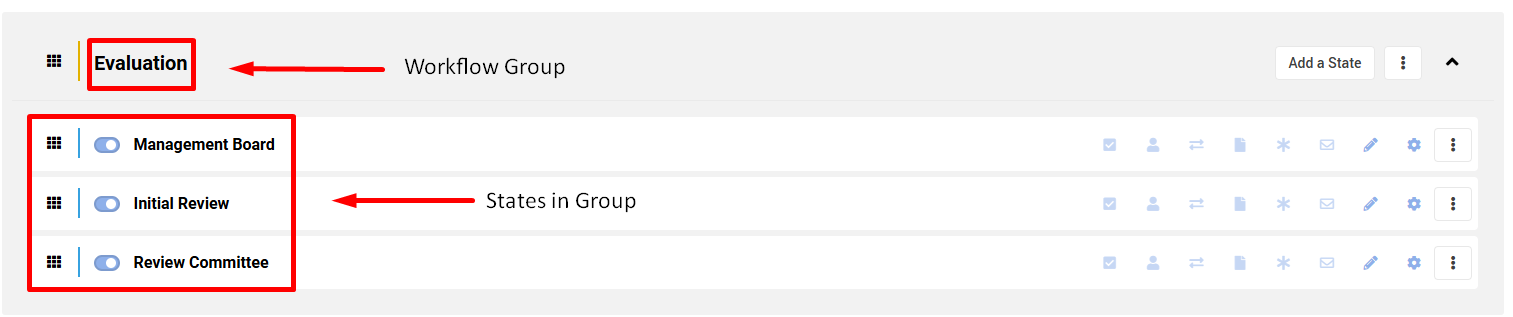
Workflow Groups act as logical container/clusters of several workflow states, when each workflow state can belong to a single workflow group.
The workflow groups are shared among all subsystems and can be configured by the sysadmins.
The allocation a workflow state to a workflow groups, can be done by the subsystem admin/sysadmin, when building the subsystem workflow.
Example:
Why use Workflow Groups?
Creating groups helps streamline the innovation experience in three ways:
- Logical Phasing: It helps users understand the lifecycle of the innovation process.
By grouping states, users can clearly know the broader "Phase" an idea is currently at (e.g. Collaboration, Planning, Review, Execution, etc.). - Visual Clarity: Instead of seeing a long, flat list of distinct states, groups organize the workflow into digestible sections. This reduces visual clutter on the Idea Page.
- Controlling: KPIs and reporting can be grouped/analyzed by state groups.
Where would you see the Workflow Groups in the system?
The state groups are displayed/reference across the system as many times (and almost always when workflow is long), users "do not care" about the specific state, but more about "where in the process" the idea is currently at.
- On the Idea Page
The top process bar display at what stat group the idea is currently at, plus in what state within this state group.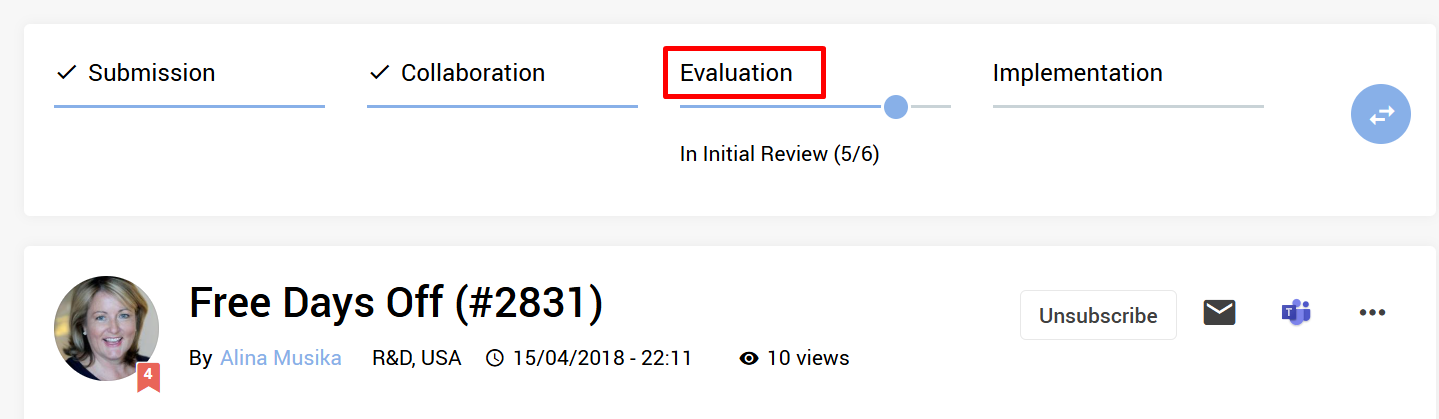
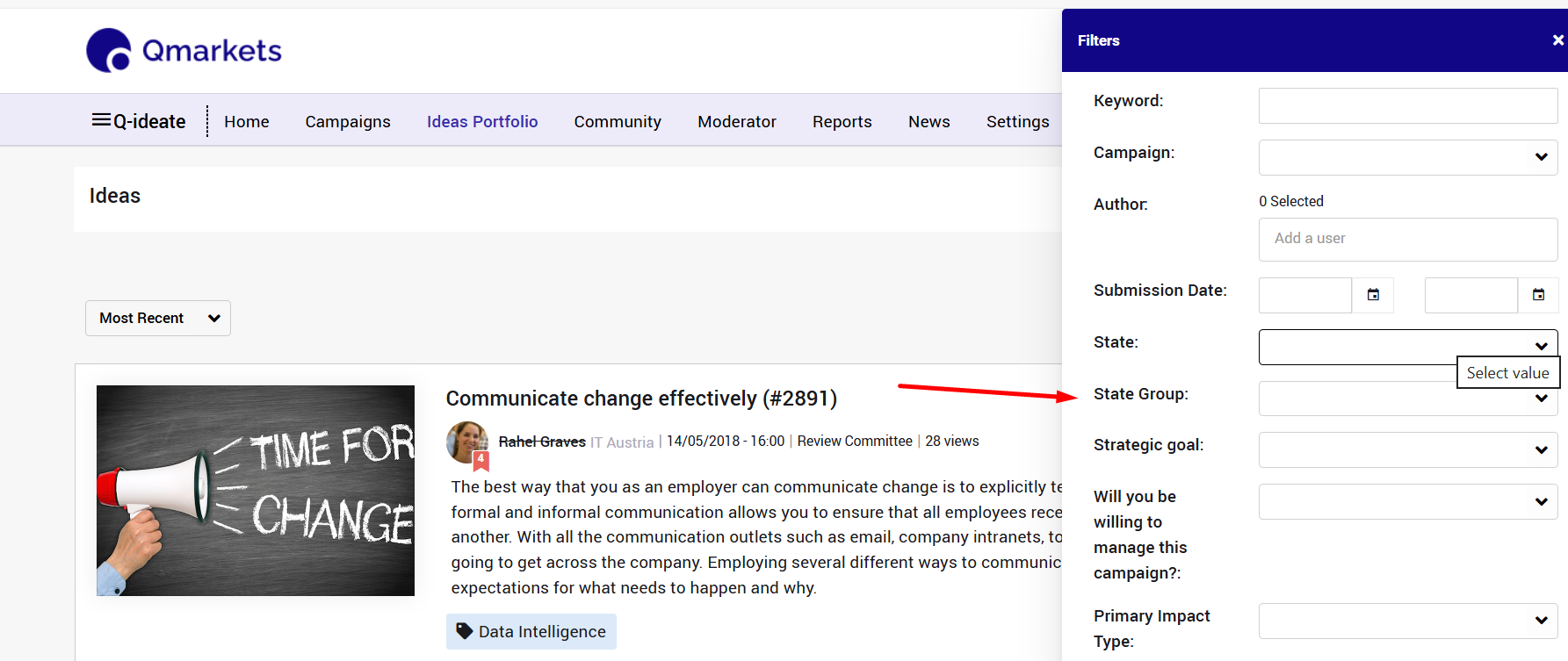
This is also explained in this short video - As an option when filtering
- Reporting
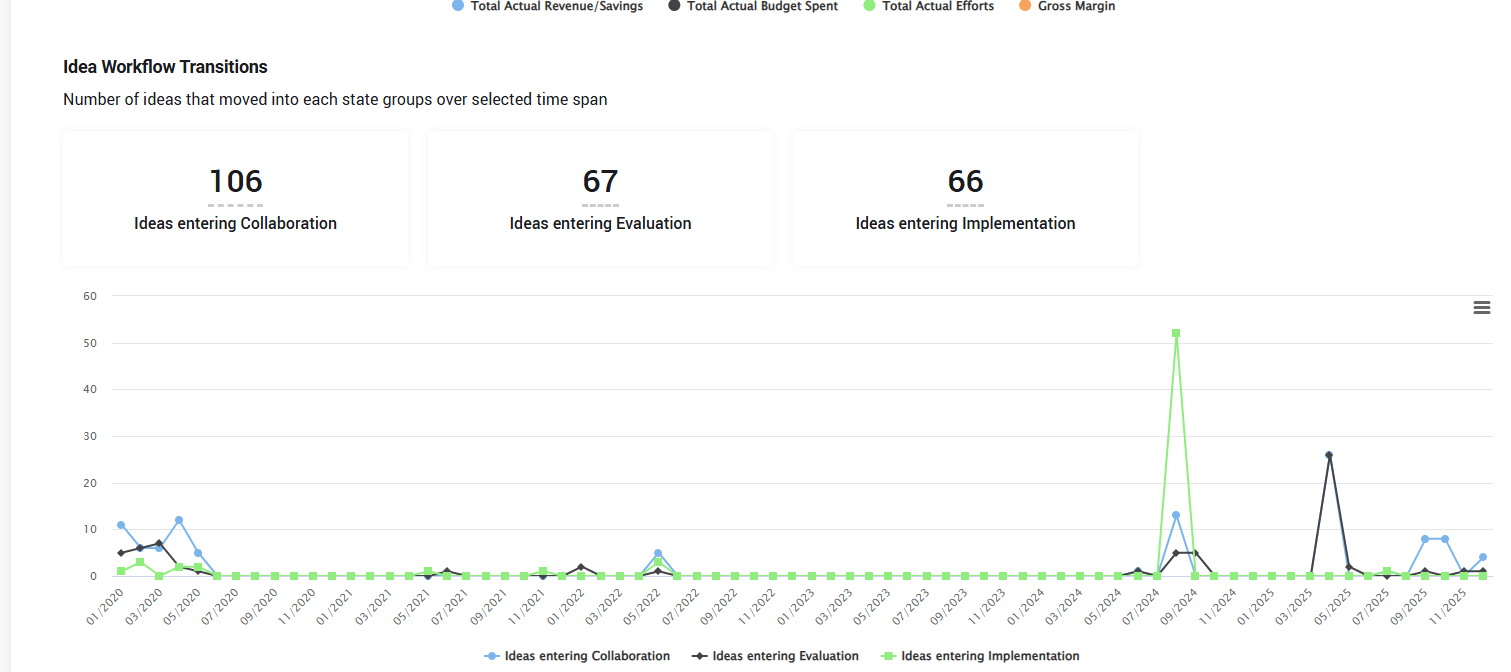
There are out the box KPIs that looks at ideas per state group.
For example:
How to use Workflow State Groups?
The system already comes with the most useful state groups, and ready to be used by subsystem admins when defining the workflow of any subsystem.
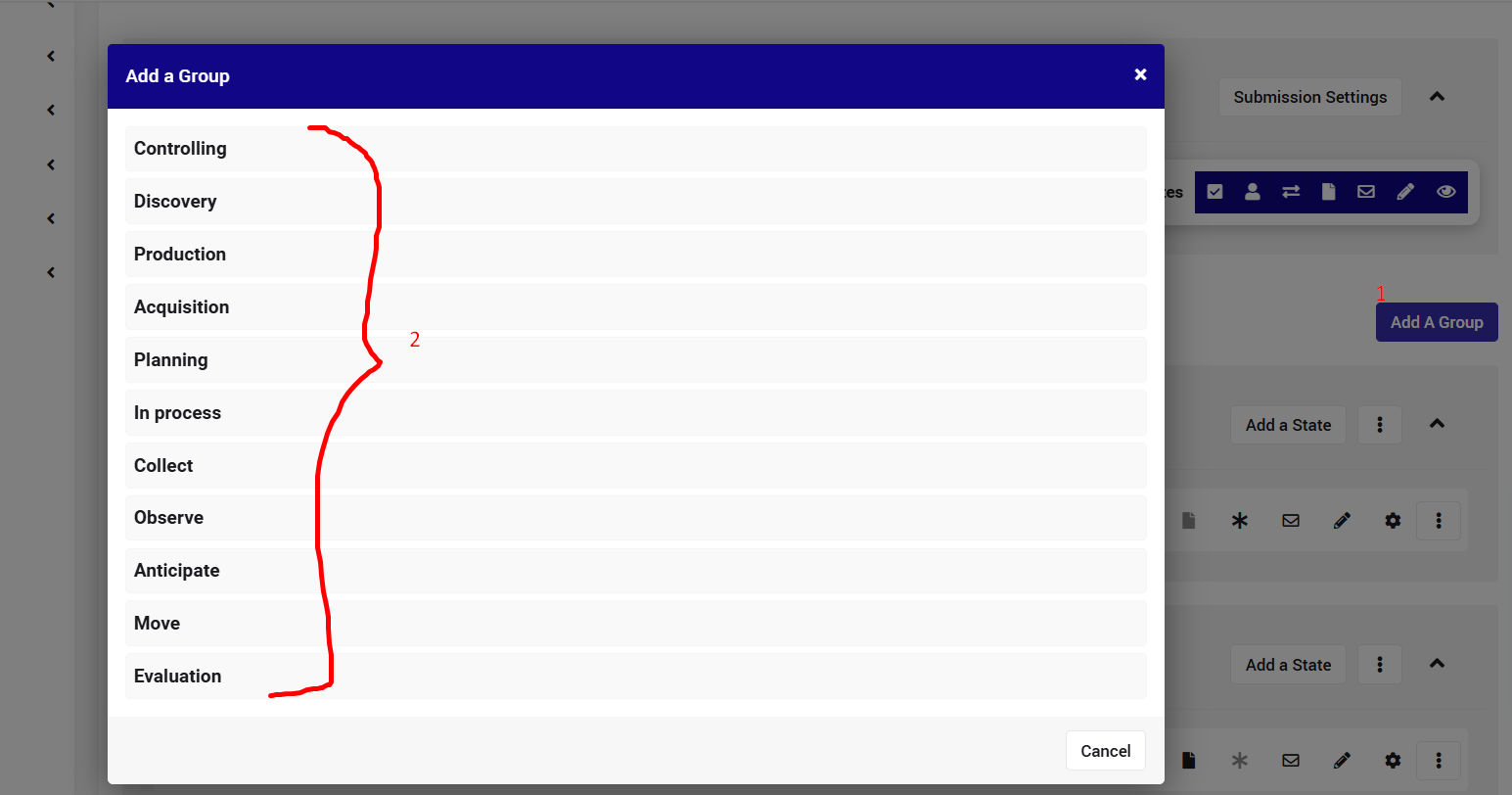
These are the out of the box state groups:
| Submission | Controlling | Planning | Anticipate |
| Collaboration | Discovery | In process | Move |
| Evaluation | Production | Collect | Evaluation |
| Implementation | Acquisition | Observe | External |
Any sysadmin can add/edit/remove state groups that are not in use except 2 that are protected: Submission and External that are used for the "locked" states of Draft, Duplicated and Closed.
Subsystem admins can use existing workflow groups as follows via the subsystem workflow settings:
- Click "Add A Group"
- Select the relevant state group
- Locate it in the right place in the workflow
- Add new state, or drag existing states into it:

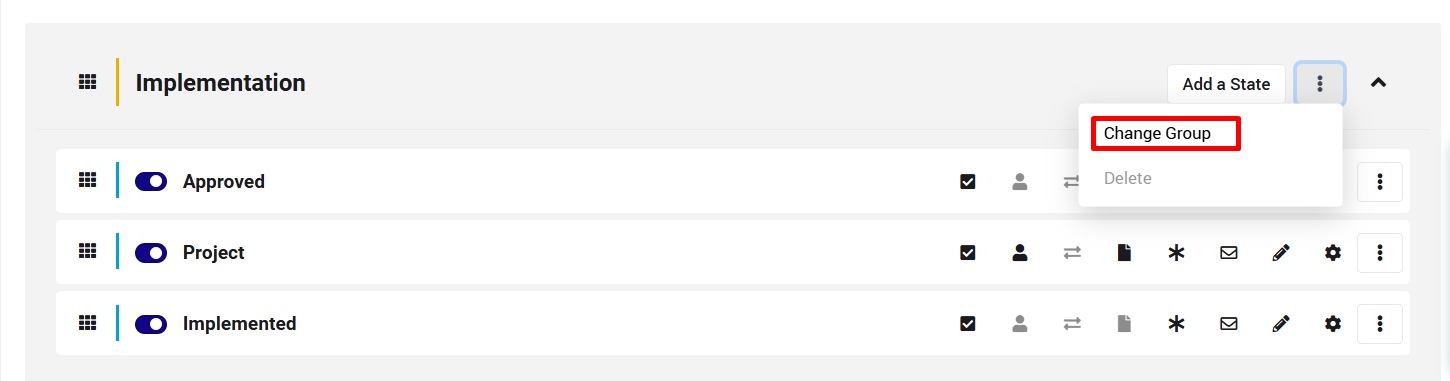
- In you want to replace one state group with another one, just do it from here:
Sysadmins can add/delete/rename existing State groups as follows via the system setting:
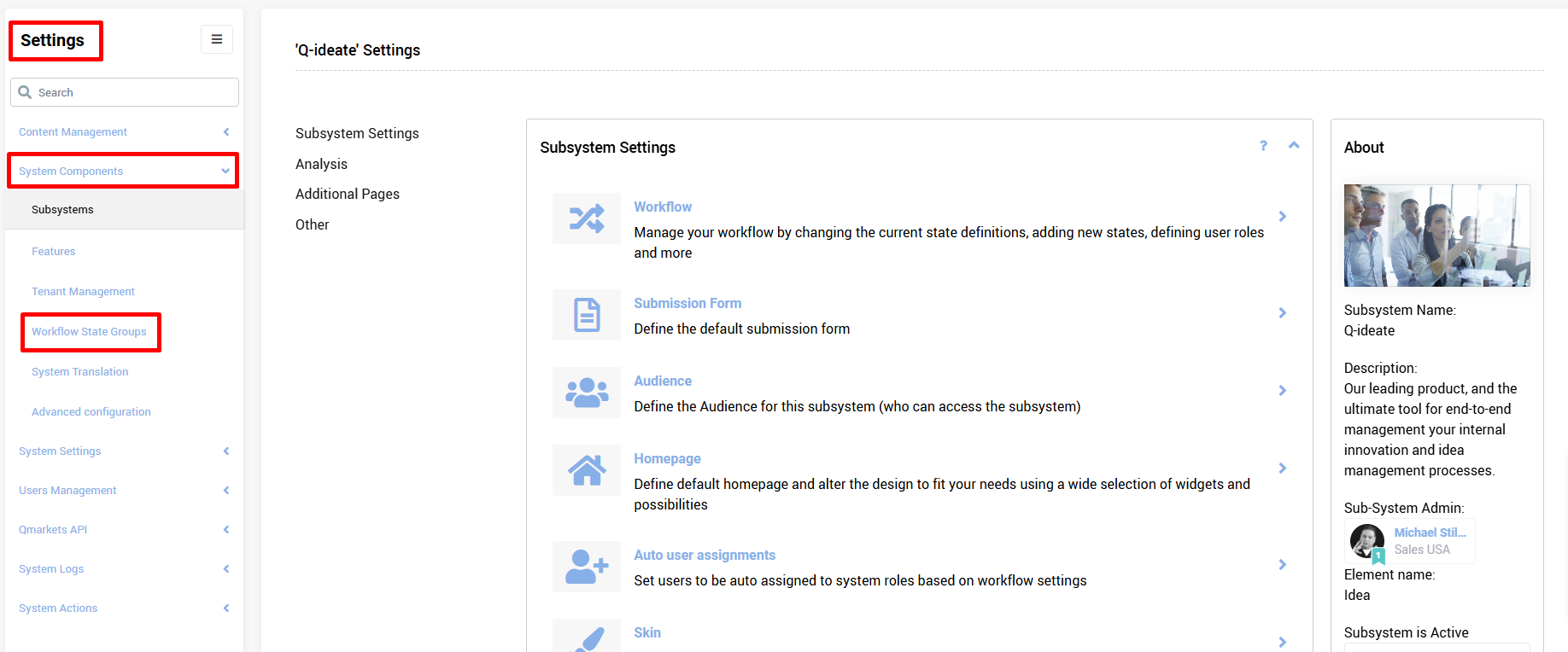
- Go to the Sysadmin Settings > System Components > Workflow State Groups
- New state groups can be added from here:
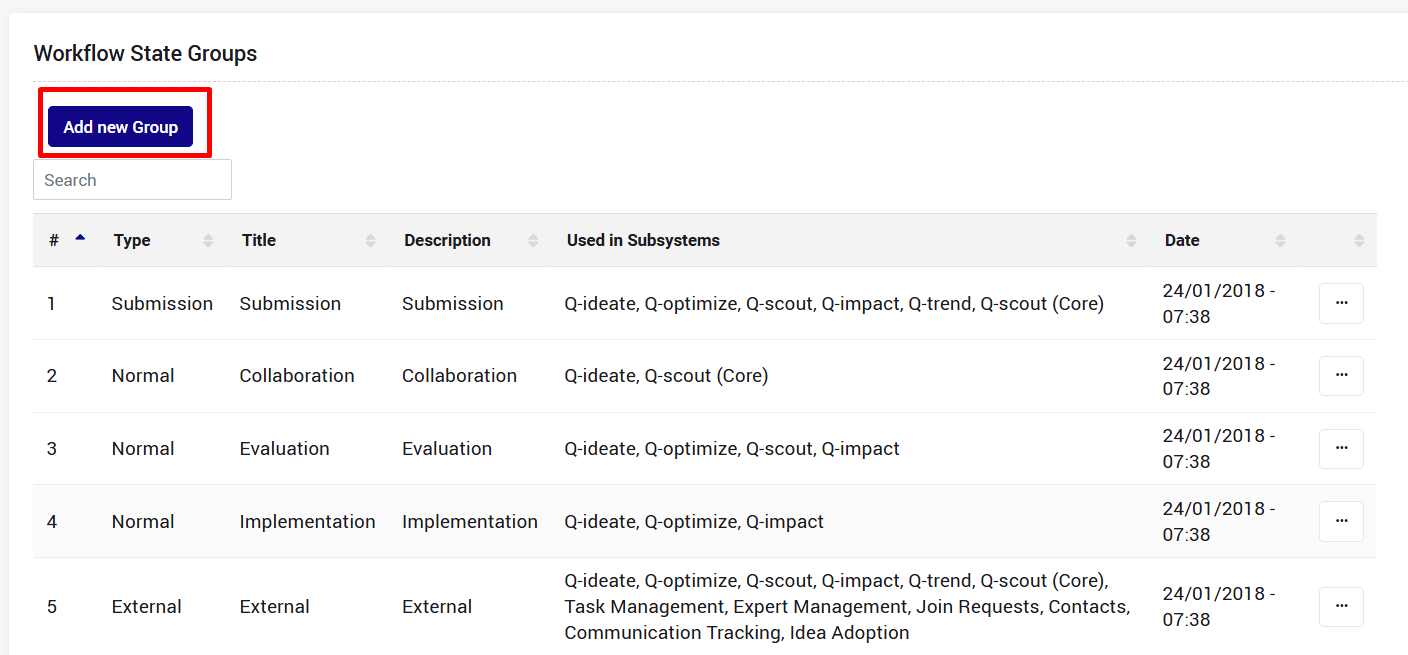
- To edit an existing state group, find the relevant workflow state group you would like to edit.
Important: When modifying an existing State Group, Sysadmins must first verify which subsystems are currently using it to avoid unintended changes and/or make sure the relevant subsystem admins are informed. 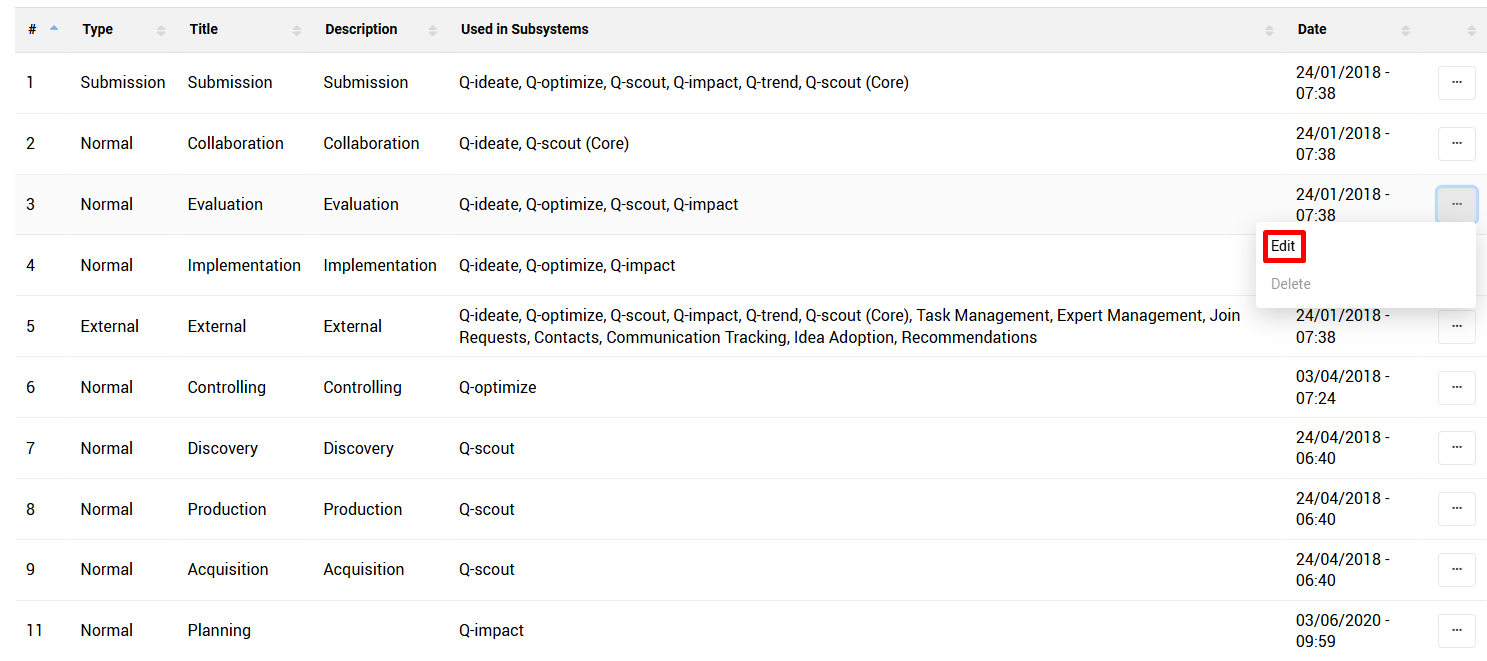
and then change title/description as needed: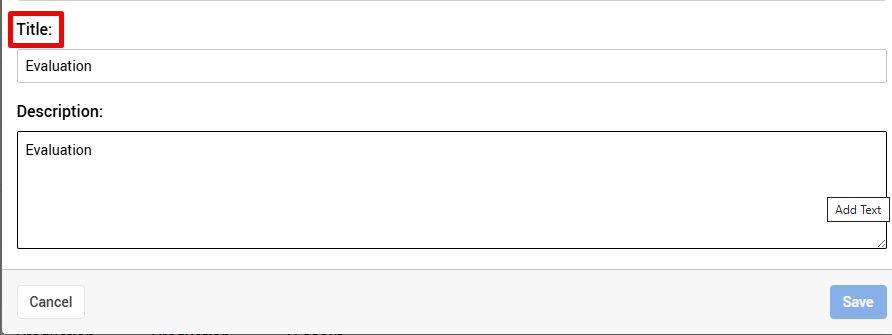
- Once a state group is not being used by any subsystem, it can be deleted.
How to Translate the State Groups?
Since the state groups are managed on the system level, the translation is also done on the system level.