In order to be able to involve additional stakeholders in the workflow you can add new roles and then define their responsibilities. Once a role is added, users can be assigned to it on various methods, as explained in this article.
There are 5 main reasons to add a role (as explained in more detailed below):
- Assigning users with this role to be state owners in order to process ideas/companies/features etc. and/or provide more information along the process/ take decisions re the idea, etc.
- Enabling users to participate in evaluation/review committee sessions
- Sending these users notifications along the workflow
- Giving extra permissions such as viewing rating results, history and revisions
- Having dedicated tracking pages/dashboards
Step 1: Add the new role
Go to the Subsystem setting --> Workflow settings page --> Role Manager tab
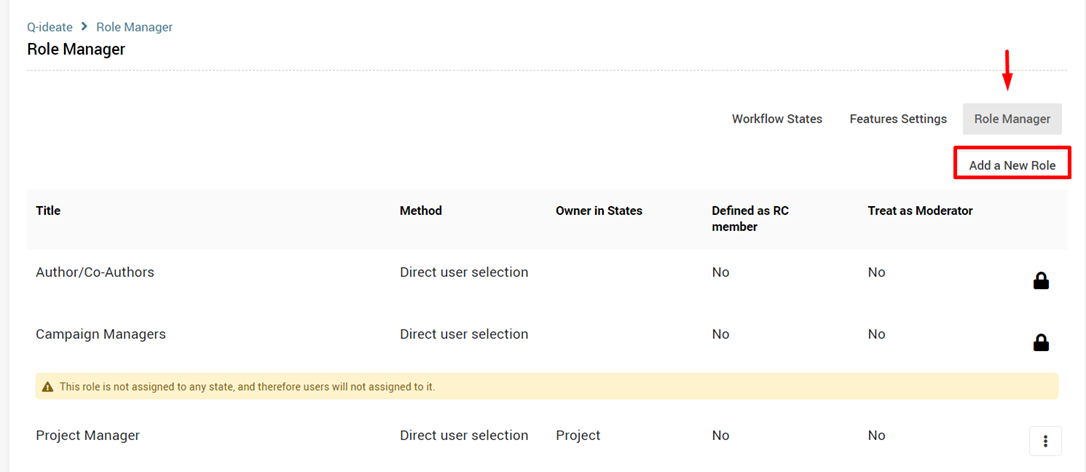
Users can be assigned to this role manually or automatically.
Watch this tutorial to understand what the different assignment methods are, and other important setting per role are.
This article explains in more details about the various assignment methods
Step 2: Assign responsibilities to this role, based on your process.
Define a specific role as a State Owner:
These stakeholders can be involved only when ideas are in specific states along the workflow. A role can be defined as a State Owner of a specific state, from the workflow settings: 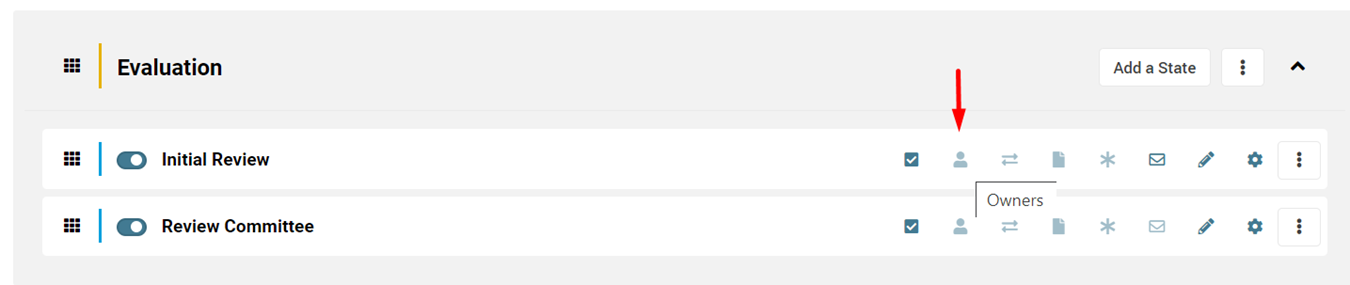
Once designated as a State Owner, the user gains extra permissions as explained here.
- If a role is defined as "Treat as Moderator", it will get permissions "as of" assigned as state owner to all states.
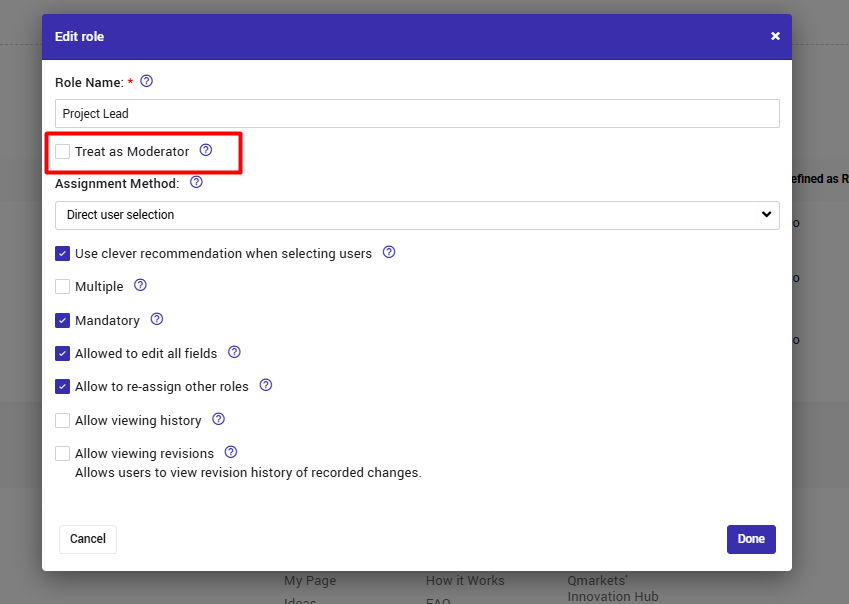
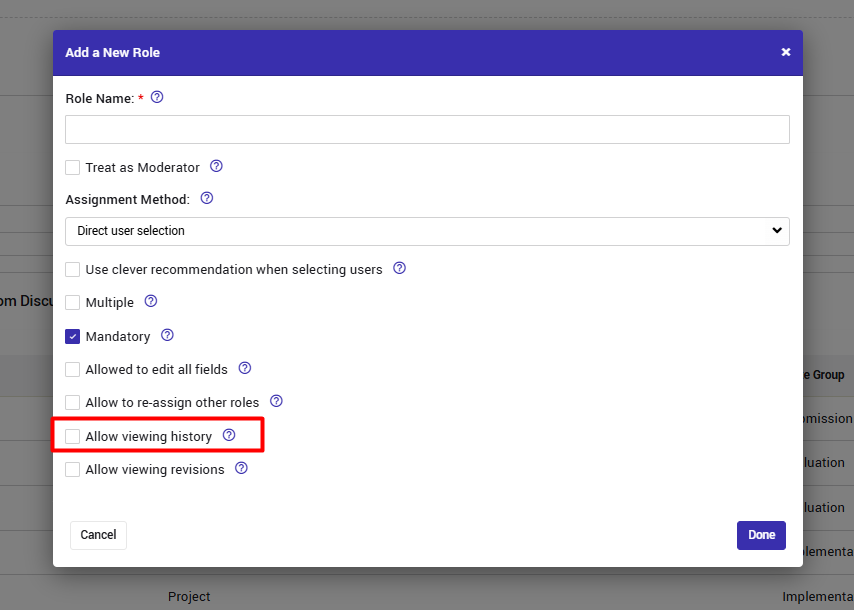
- When the "Allow viewing history" checkbox is enabled, users with this role can view the History tab in Idea and Feature pages.
i.e. see how the idea progressed along the workflow, when and by who.
In addition, the history includes transitions between campaigns and tenants.
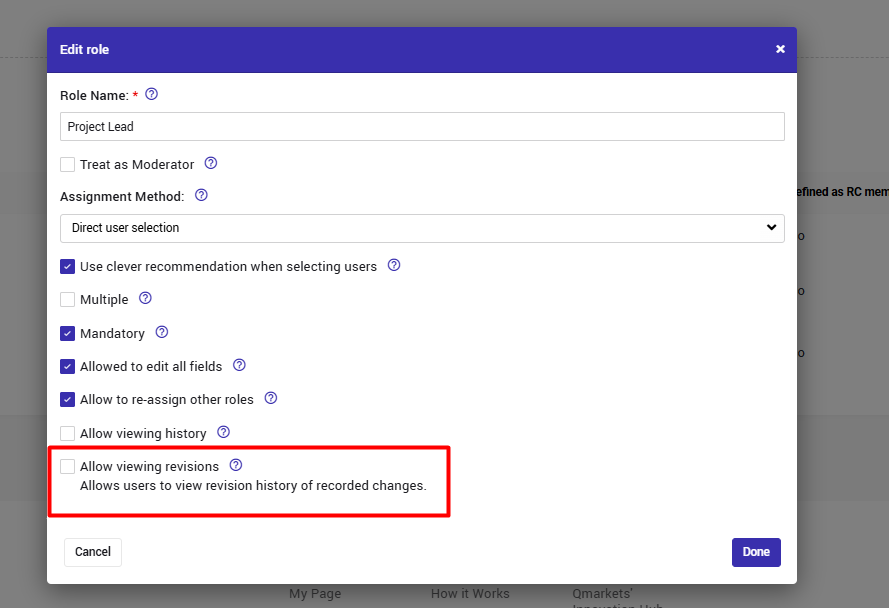
- When the "Allow viewing revisions" checkbox is enabled, users with this role can view the Revisions tab in Idea and Feature page.
i.e. see when any of the idea fields was changed, to what value and by who,
- Define a specific role as an Evaluator:
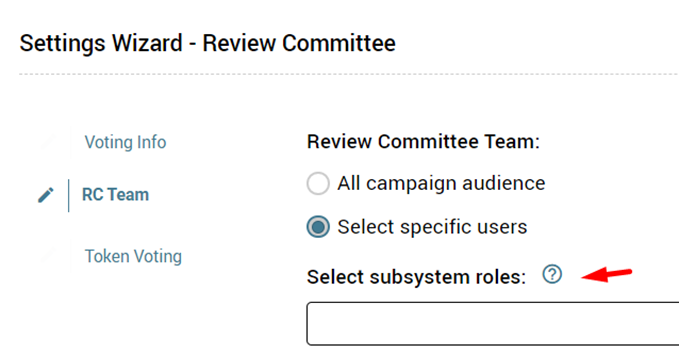
Evaluators can be assigned permissions to evaluate specific ideas, rather than all ideas in the campaign, based on your needs. A role can be defined as an Evaluator per an evaluation session from the Review committee settings: