

 Strategic Portfolio Intelligence
User Guide
How to customize and use to maximize value and results.
What's inside
- 0Welcome to IRISStrategic portfolio intelligence, screen by screen.
- 1PrioritizeThe IRIS Index, side by side.
- 2Asset FocusAsset intelligence.
- 3DiscoverStrategic lenses. Intelligent clustering.
- 4Manage ClustersShape the clusters everyone sees.
- 5ResolveAction assist for overlapping ideas.
- 6Settings overviewYour setup, your rules.
- 7Score DimensionsTeach IRIS what good looks like.
- 8RecommendationsIf this is true, suggest that.
- 9PermissionsWho can do what in IRIS.
- 10GlossaryThe words IRIS uses.
IRIS User Guide · 2026-09-23 · build 5d0846c
Chapter 0
Welcome to IRIS
Strategic portfolio intelligence, screen by screen.
This guide walks through each screen the way you meet it in the product: what you are looking at, how to do the common jobs, and a quick check so the ideas stick.
Suggested reading path
- Prioritize
- Asset Focus
- Discover
- Manage Clusters
- Resolve
- Settings overview
- Score Dimensions
- Recommendations
- Permissions
- Glossary
How do I…
How do I read this guide?
- Work through the chapters in order, or jump to one from the list on the left.
- On each screenshot, hover a numbered badge to read what it points at, or click the badge to keep the explanation open.
- Open a How do I… card for step-by-step instructions.
- Use the search box to find a term across every chapter — try duplicate or weight.
How do I think about the three tabs?
- Prioritize — every asset scored on your dimensions, ready to sort, filter and act on.
- Resolve — groups of assets IRIS believes overlap; you decide whether they are duplicates, related, or unrelated.
- Discover — the portfolio as clusters, viewed through a lens (problem, audience, technology…), so you see themes rather than a list.
- The gear icon opens Settings, where admins teach IRIS how to score.
Quick check
You want to see which ideas are near-duplicates of each other. Which tab?
Resolve. It queues the similarity groups IRIS found and lets you connect, keep one, or dismiss the match.
Where would you change how much Clarity counts toward the score?
The gear icon → Settings → the use case → Scoring Model. Admins only.
Chapter 1
Prioritize
The IRIS Index, side by side.
Prioritize is the scoreboard: every asset in scope, one row each, with its total score and every dimension side by side. Sort by the dimension you care about, filter by state or campaign, and open the rows that rise to the top. It is also where you send a campaign’s pending ideas through an automated review committee — IRIS rating them on the same criteria as your human reviewers.
The scoreboard
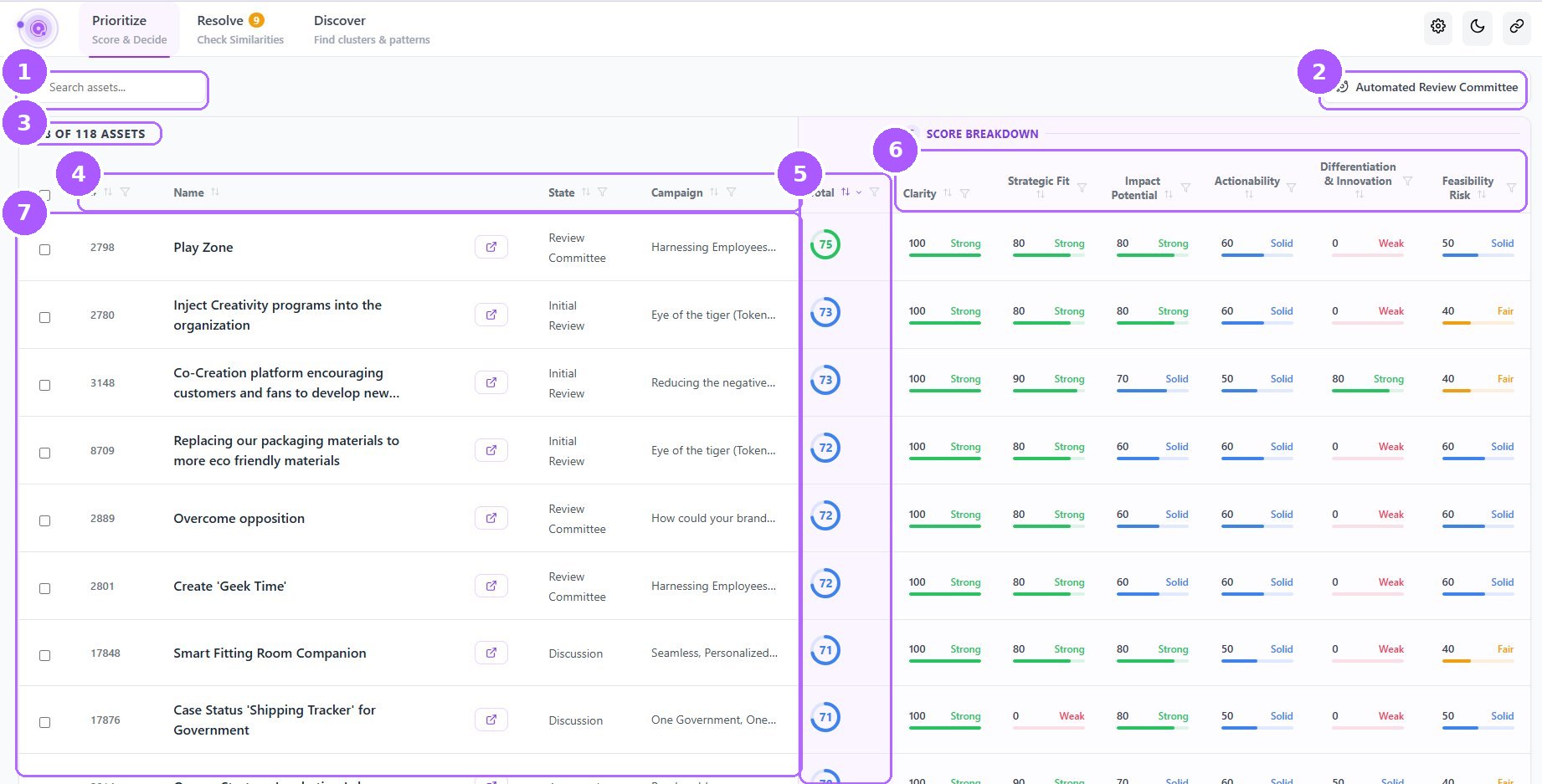
The scoreboard
What the numbers point at (7)
- 1Search assetsTitle search across the current filter.
- 2Automated Review CommitteeA review committee is the measuring tool a campaign manager sets up: a group of reviewers rate the ideas that passed initial review, against criteria and weights the manager chose. This button asks IRIS to do the same job on the same criteria — a second opinion beside the human one (next figure).
- 3Asset countHow many rows are showing out of the total in scope. Filters change the first number.
- 4Asset columns#, Name, State and Campaign. Click a header to sort; the filter icon narrows the list to chosen states or campaigns.
- 5Total scoreThe IRIS score as a ring, coloured by band. Sort by it to see the strongest ideas first.
- 6Score breakdown columnsClarity, Strategic Fit, Impact Potential, Actionability, Differentiation & Innovation, Feasibility Risk — each sortable and filterable on its own.
- 7RowsOne asset per row with its band label per dimension (Strong, Solid, Fair, Weak). The arrow opens the asset in Asset Focus; tick the box to select several.
IRIS Review Committee — running an evaluation
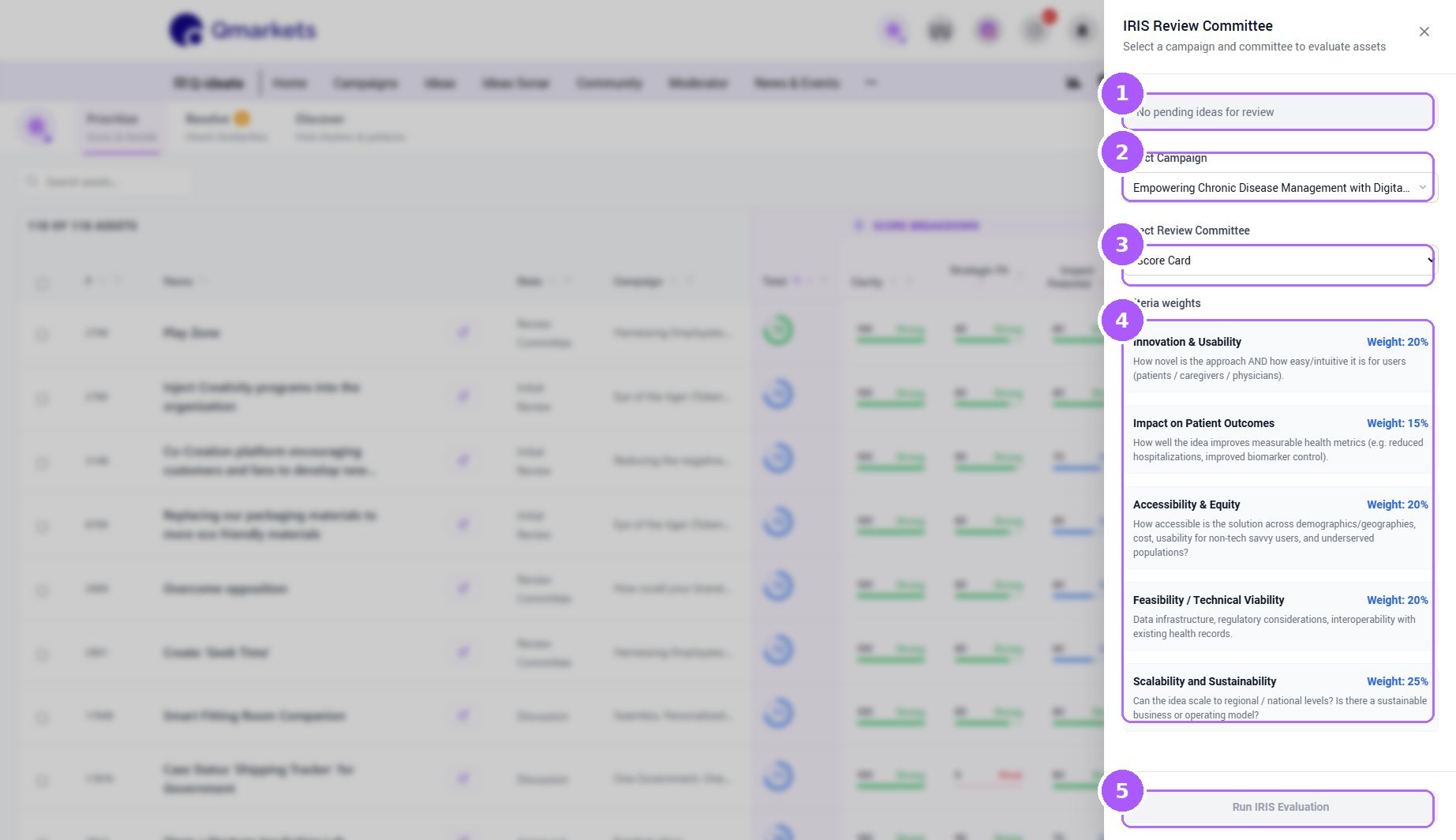
IRIS Review Committee — running an evaluation
What the numbers point at (5)
- 1Pending ideasHow many ideas in the chosen campaign are waiting for a review. Empty means there is nothing to evaluate right now.
- 2Select campaignThe campaign whose pending ideas the run will cover.
- 3Select review committeeWhich committee IRIS should stand in for. The criteria and weights are the campaign manager’s, set in Qmarkets — IRIS applies them, it does not invent them.
- 4Criteria weightsThe criteria your reviewers are rating against, with the weight each one carries. Read them before you run: these are exactly what IRIS will score on, so this is also your chance to notice a criterion that no longer matches the campaign.
- 5Run IRIS EvaluationIRIS reads every idea waiting for review and rates it on the same criteria and weights as the human reviewers. When the run finishes you get a link to the review summary, where IRIS’s scores and the reviewers’ scores sit side by side. Enabled only when there are ideas pending review.
Using this screen
The scoreboard. Every asset in scope is one row: the left half says which asset it is — number, name, workflow state, campaign — and the right half is the score, starting with the total and then one column per dimension.
- Narrow the list first. The filter icon on State and Campaign cuts it to what you are actually reviewing; the search box finds one title.
- Sort by Total to put the strongest first — or by a single dimension when that is the question this week.
- Read the words, not the numbers. Strong, Solid, Fair and Weak tell you where an asset stands without doing arithmetic.
- Look for rows that disagree with themselves: a high total carried by one dimension, or a strong idea with Weak clarity. Those are the ones worth opening.
- Open anything you intend to act on with the arrow icon — that is Asset Focus, where the reasoning behind every number lives.
- For a second opinion on a campaign under review, open Automated Review Committee: pick the campaign and the committee, check the criteria, and run it. IRIS scores the pending ideas on the same criteria your reviewers use, and links you to the review summary when it is done.
- Check the count at the top left before you draw conclusions — it tells you how many of the assets your filters left in view.
How do I…
How do I find the strongest ideas in a campaign?
- Click the filter icon on Campaign and tick the campaign.
- Click the Total header so the highest scores come first.
- Open the top rows with the arrow icon.
How do I find ideas that need more information?
- Click the Clarity header until the lowest scores are first.
- Open each Weak or Fair row — the Source analysis will say what is missing.
How do I run an automated review committee?
- Click Automated Review Committee at the top right.
- Pick the campaign. The panel tells you how many of its ideas are pending review — those are the ones that will be scored.
- Pick the review committee whose criteria and weights IRIS should use. They are the campaign manager’s, defined in Qmarkets.
- Read the criteria and weights listed underneath, then click Run IRIS Evaluation.
- When the run finishes, open the review summary from the link it gives you: every review and score for the campaign in one place, IRIS’s beside your reviewers’.
- Compare rather than replace. Where IRIS is harsher or more generous than the panel, the gap is the interesting part — read its reasoning before you act on it.
Quick check
You want only Fair-tier Feasibility Risk rows from one campaign. What do you click?
The filter icon on Campaign, then the filter icon on Feasibility Risk and choose Fair.
Where do the criteria in the Review Committee panel come from?
From the review committee the campaign manager set up in Qmarkets. IRIS rates the pending ideas on exactly those criteria and weights — it does not define them.
The run has finished. Where do you see the result?
Follow the link to the review summary: every review and score for that campaign in one place, IRIS’s scores next to the reviewers’.
Chapter 2
Asset Focus
Asset intelligence.
Asset Focus is a single asset with everything IRIS knows about it: the score and why, IRIS's summary of the submission, evidence from inside your organisation (Portfolio Signals), evidence from the market (Market Signals), and the clusters it belongs to. You get here by opening an asset from Prioritize, Discover or Resolve.
Score Breakdown tab
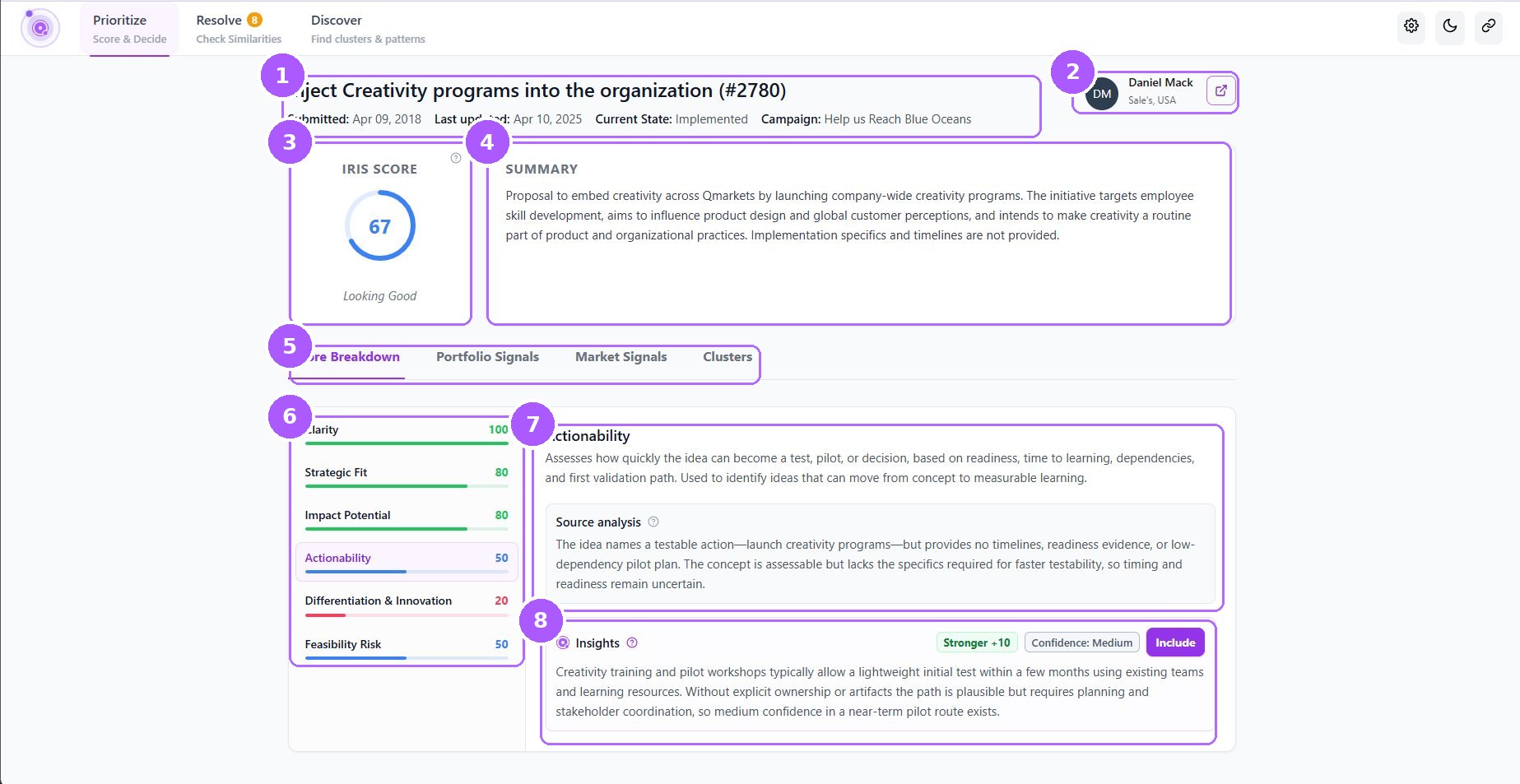
Score Breakdown tab
What the numbers point at (8)
- 1Asset headerTitle and Qmarkets id, submission and last-updated dates, current workflow state, and the campaign it belongs to.
- 2Author and source linkWho submitted it and where they sit. The arrow opens the original idea page in Qmarkets.
- 3IRIS scoreThe weighted total out of 100 with its band label — here 67, Looking Good. The ? explains how the number is built.
- 4SummaryIRIS's neutral restatement of the submission. If the summary says specifics are missing, the Clarity score will say so too.
- 5Detail tabsScore Breakdown, Portfolio Signals, Market Signals, Clusters.
- 6Dimension scoresOne bar per dimension — Clarity, Strategic Fit, Impact Potential, Actionability, Differentiation & Innovation, Feasibility Risk. Green is Strong, blue Solid, orange Fair, red Weak. Click one to read its reasoning.
- 7What the dimension measures, and the source analysisThe dimension's purpose, then IRIS's evidence-only reading of the submission for it — this is the Source score.
- 8InsightsIn Insights scoring mode IRIS may adjust the source score with domain knowledge. It shows the direction and size (Stronger +10), its confidence, and lets you Include the adjustment.
Portfolio Signals tab
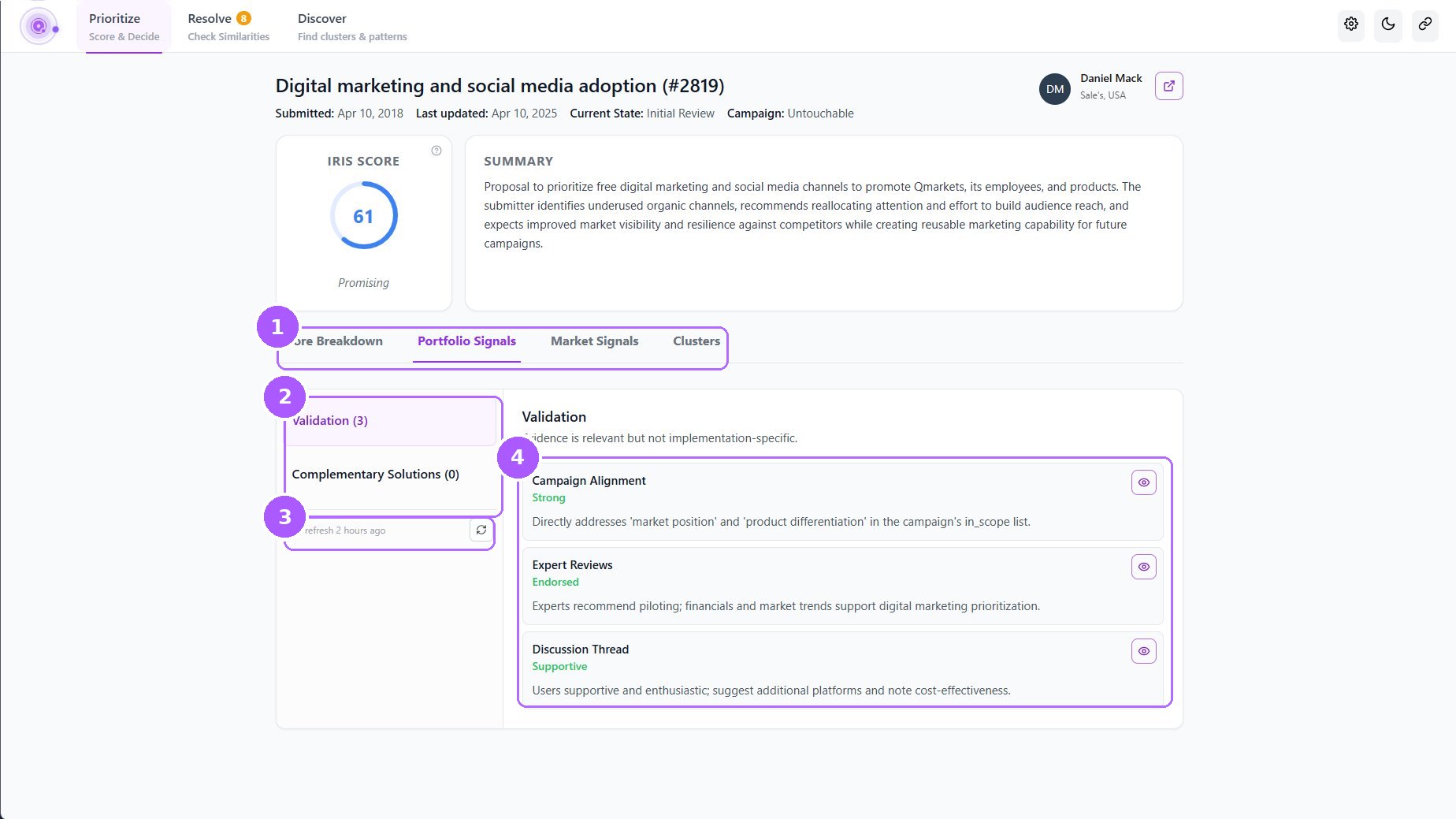
Portfolio Signals tab
What the numbers point at (4)
- 1Portfolio SignalsEvidence from inside your organisation about this asset.
- 2Signal groupsValidation — does the organisation back this idea? Complementary Solutions — other assets that would strengthen it. Counts show how many signals each holds.
- 3Last refreshWhen IRIS last re-read the signals. Click the refresh icon to re-run now.
- 4Signal cardsCampaign Alignment, Expert Reviews, Discussion Thread — each with a strength label (Strong, Endorsed, Supportive…) and a one-line reason. The eye icon opens the underlying evidence.
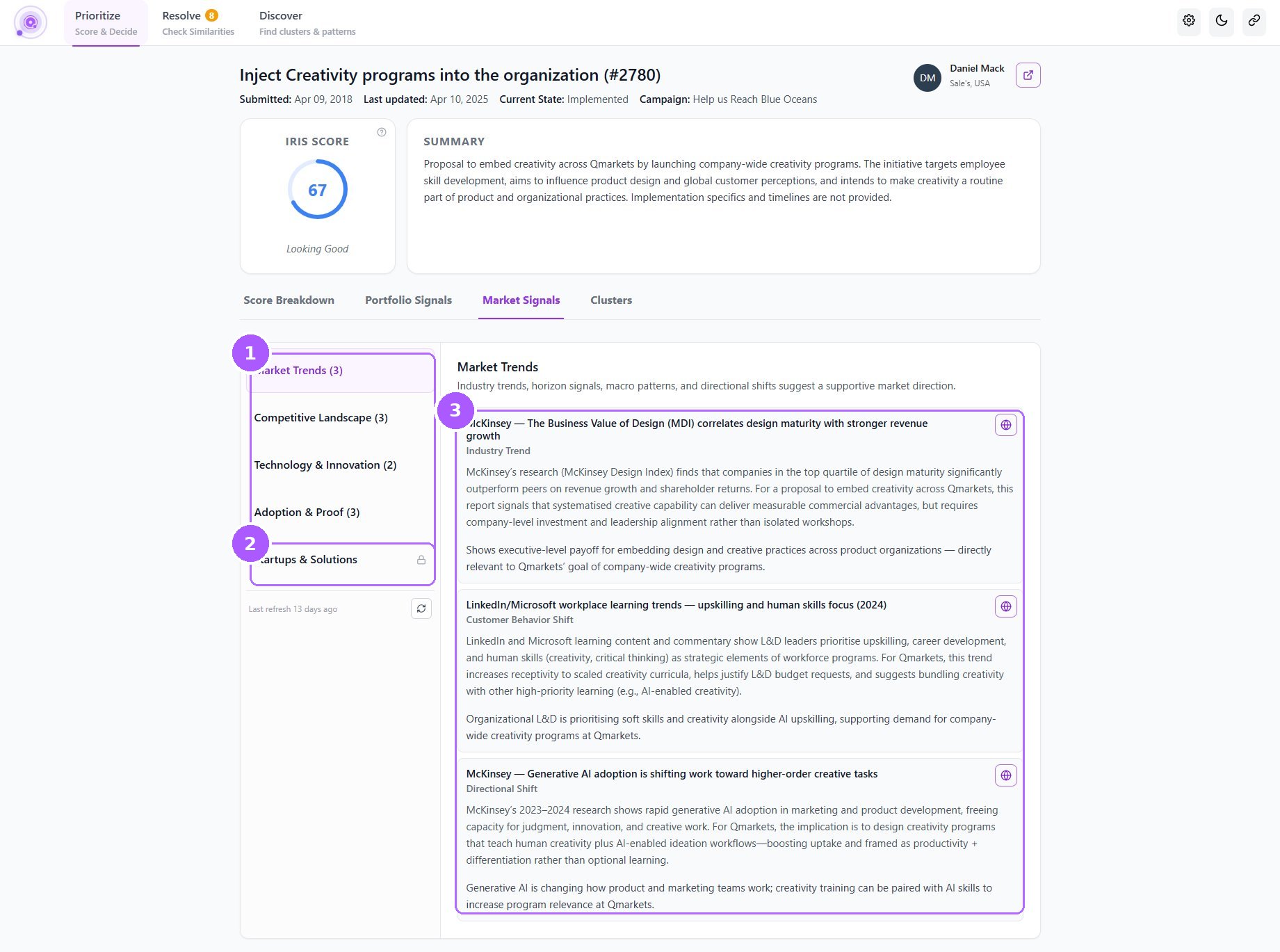
Market Signals tab
Market Signals tab
What the numbers point at (3)
- 1Market signal groupsMarket Trends, Competitive Landscape, Technology & Innovation, Adoption & Proof — outside evidence IRIS gathered for this specific idea.
- 2Startups & Solutions (locked)A group that needs an additional subsystem. Ask your admin if you want it enabled.
- 3Evidence cardsEach card names the source, classifies it (Industry Trend, Customer Behavior Shift, Directional Shift…), summarises it, and ends with why it matters for this idea. The globe icon opens the source.
Using this screen
One asset, everything IRIS knows about it. The header identifies it, the ring on the left is the IRIS score, the card beside it is IRIS’s summary of the submission, and the tabs underneath hold the detail: Score Breakdown, Portfolio Signals, Market Signals, Clusters.
- Read the summary first. If it is missing the specifics you expected to see, that is usually the reason a score is low — the submission never said them.
- Open Score Breakdown and click the weakest dimension. Source analysis tells you exactly what the submission did and did not provide for it.
- If an Insights box is offered, read the direction and the confidence before you act on it, and click Include only if the reasoning holds up.
- Open Portfolio Signals to see whether your own organisation backs this: campaign alignment, expert reviews, discussion sentiment.
- Open Market Signals for outside evidence, and glance at the last-refresh line before you lean on it.
- Decide what kind of gap you are looking at. Missing information goes back to the author; a real weakness is a decision you make.
- Validate the reasoning, not the score. A number that is right for the wrong reason will not stay right.
How do I…
How do I understand why an asset scored the way it did?
- Open the Score Breakdown tab.
- Click the lowest dimension in the list on the left.
- Read Source analysis — it names exactly what the submission did and did not say.
- Low Clarity or Actionability usually means the description is thin; the fix is more information from the author, not a different score.
How do I accept an AI-assisted adjustment?
- In Score Breakdown, select the dimension that shows an Insights box.
- Read the direction (Stronger +10) and the confidence.
- Click Include to apply it to the score.
How do I check whether the organisation and the market back this idea?
- Open Portfolio Signals and read the Validation cards — expert reviews and discussion sentiment.
- Open Market Signals and skim Market Trends and Competitive Landscape.
- If either tab is stale, click the refresh icon under the group list.
How do I open the original submission in Qmarkets?
- Click the arrow icon next to the author, top right.
Quick check
Where do you read IRIS's reasoning for one dimension?
Score Breakdown — click the dimension; Source analysis is the reasoning.
What is the difference between Portfolio Signals and Market Signals?
Portfolio Signals are evidence from inside your organisation (reviews, discussions, campaign fit); Market Signals are evidence from outside (trends, competitors, technology, adoption).
What does "Stronger +10 · Confidence: Medium" mean?
In Insights mode IRIS thinks the evidence-only score is 10 points too low, with medium confidence. Clicking Include applies it.
Chapter 3
Discover
Strategic lenses. Intelligent clustering.
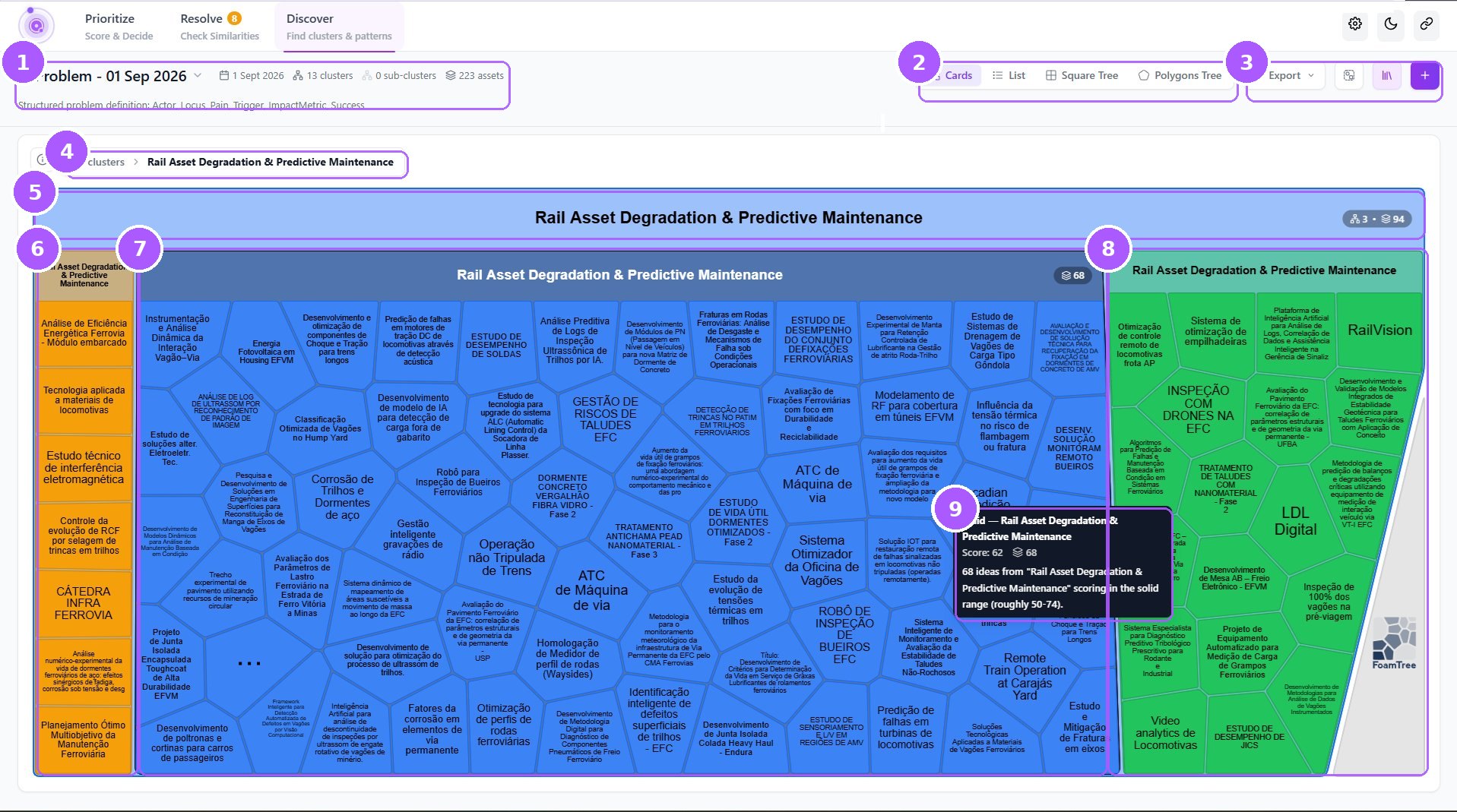
IRIS automatically clusters your portfolio into themes and sub-clusters, surfacing patterns you wouldn't be able to see otherwise. Switch between strategic lenses to map your portfolio against different perspectives in seconds.
The "Problem" lens, drilled into one cluster (Polygons Tree)
The "Problem" lens, drilled into one cluster (Polygons Tree)
What the numbers point at (9)
- 1Active lensThe lens name and its run date, with the cluster, sub-cluster and asset counts for this run. Open the dropdown to switch to another saved lens.
- 2View switchCards, List, Square Tree or Polygons Tree. The tree views size each cluster by asset count; Cards and List are easier to scan when you already know the name.
- 3Export, manage and addExport the current view, open Manage Clusters, open the lens library, or create a new lens with the + button.
- 4BreadcrumbAll clusters is the top level; drilling in adds the cluster name. Click All clusters to go back up.
- 5The cluster you openedIts name and, on the right, how many sub-clusters and assets it contains.
- 6Fair / Weak sub-clusterOrange or red blocks are the assets in this cluster scoring below 50 — Fair or Weak. Each cell is one asset; the label is its title.
- 7Solid sub-clusterBlue blocks score roughly 50–74. This is usually the bulk of a healthy cluster.
- 8Strong sub-clusterGreen blocks score 75 and above — the ideas worth opening first.
- 9Hover summaryHovering any block shows its band, average score and asset count, with a one-line explanation of the band.
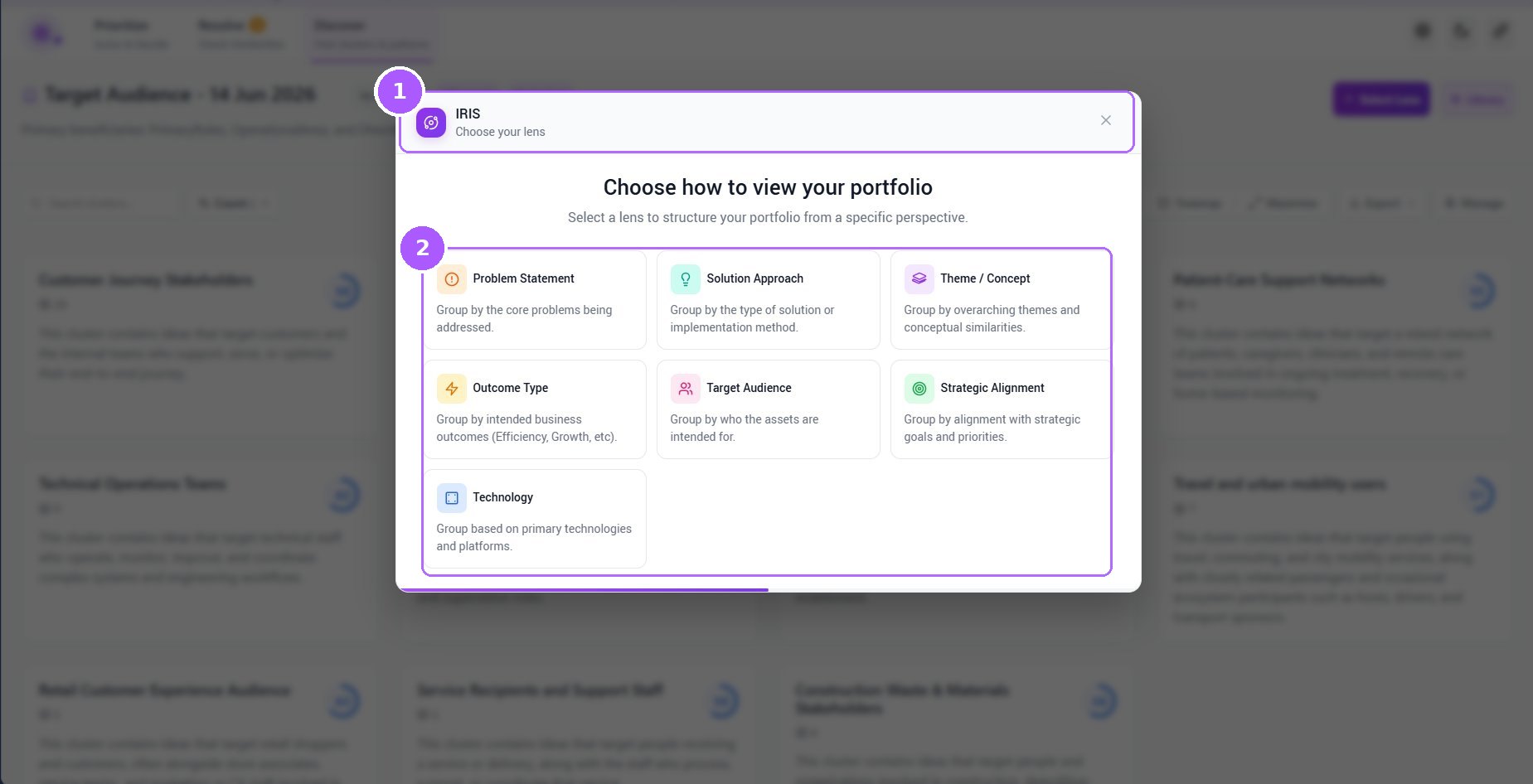
Choose your lens
Choose your lens
What the numbers point at (2)
- 1New lens dialogOpens from the + button. A lens is a question you ask the portfolio; IRIS re-clusters everything to answer it.
- 2The seven lensesProblem Statement, Solution Approach, Theme / Concept, Outcome Type, Target Audience, Strategic Alignment, Technology. Pick one; the run takes a moment and is saved so you can come back to it.
Using this screen
The portfolio as clusters. The bar at the top names the lens you are looking through and when it was run; the map below is your portfolio grouped by that lens — one block per cluster, sized by how many assets it holds and coloured by score band.
- Check which lens is active. The same portfolio looks completely different through Problem, Target Audience or Technology.
- Read the map by size and colour: big is where the volume is, green is where the quality is. Big and orange is volume without quality yet — usually the most interesting block on the screen.
- Hover any block to see its band, average score and asset count.
- Click a cluster to open it. The map redraws to show the sub-clusters and the individual assets inside, still coloured by band.
- Click a cell to open that asset in Asset Focus.
- If the grouping does not answer your question, create a new lens with + and pick a different perspective. Runs are saved, so switching back costs nothing.
- Validate the names: IRIS writes them. If a cluster is named wrongly, fix it in Manage Clusters — everyone sees the same names.
How do I…
How do I find the biggest, best-scoring theme?
- Switch to Square Tree.
- Look for the largest green block — big means many assets, green means a Strong average.
- Click it to drill in, then click a green sub-cluster cell to open that asset.
How do I see the portfolio by target audience instead of by problem?
- Click the + button at the top right.
- Choose Target Audience in the dialog.
- Wait for the run to finish; the lens dropdown now lists it, and you can switch back to the Problem lens any time.
How do I share a cluster map with someone who does not use IRIS?
- Set the view and lens you want them to see.
- Open Export and choose the format.
Quick check
In the tree views, what do size and colour mean?
Size is the number of assets in the cluster; colour is the score band — green Strong, blue Solid, orange Fair or Weak.
You want clusters grouped by the technology they use. What do you do?
Create a new lens with + and choose Technology.
Chapter 4
Manage Clusters
Shape the clusters everyone sees.
Manage Clusters is the working view behind Discover. Stage two or more clusters side by side, search inside them, select assets and move them between clusters, rename or delete a cluster, or create one by hand when IRIS did not. Changes here are what everyone sees in Discover.
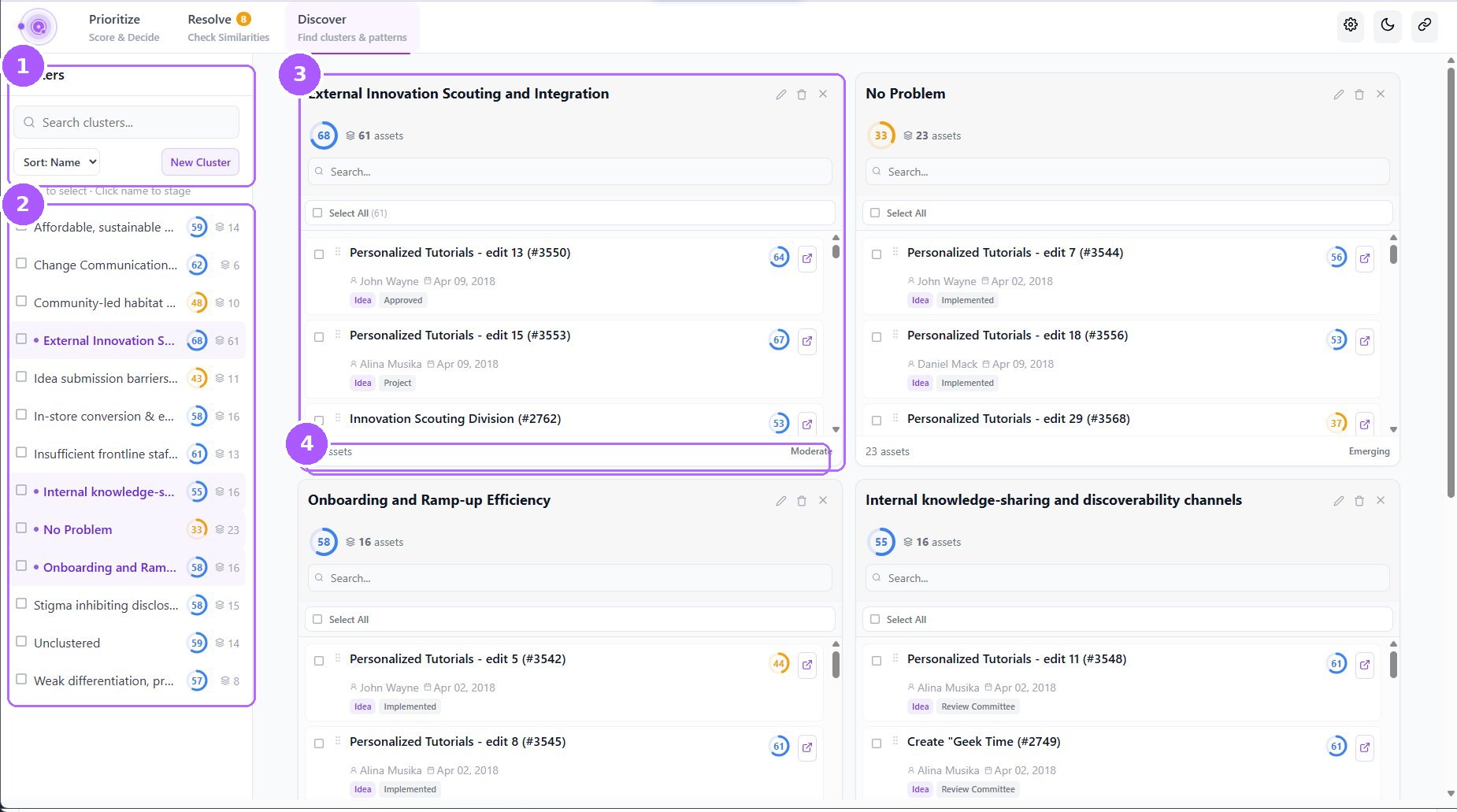
Four clusters staged side by side
Four clusters staged side by side
What the numbers point at (4)
- 1Cluster toolsSearch the cluster list, sort it, or click New Cluster to create an empty one.
- 2Cluster listEvery cluster in the current lens with its average score and asset count. Tick to select; click the name to stage it on the right.
- 3Staged clusterThe cluster's assets with author, date, type and state. Search inside it, Select All or tick individual assets, then drag or move them to another staged cluster. The pencil renames, the bin deletes, × unstages.
- 4Cluster statusAsset count and IRIS's maturity label for the cluster — Emerging, Moderate…
Using this screen
The working view behind Discover. The column on the left lists every cluster in the current lens with its score and asset count; the space on the right is a staging area where the clusters you open sit side by side.
- Click a cluster’s name to stage it on the right. Click a second name to work on two at once — the tick box only selects, it does not open.
- Use the search inside a staged cluster to find one asset among hundreds.
- Move assets by ticking them in one staged cluster and dragging them onto another.
- Rename a cluster, or rewrite its description, with the pencil in its header. Discover shows the new name immediately, to everyone.
- Create a cluster by hand with New Cluster when you can see a theme IRIS did not name, then move its assets across.
- Check the footer of each card as you go: the asset count and the maturity label tell you whether a cluster is still worth keeping separate.
How do I…
How do I move assets from one cluster to another?
- Click the names of both clusters in the list so both are staged.
- Tick the assets in the source cluster.
- Drag them onto the destination cluster card (or use the move action that appears).
How do I rename a cluster?
- Stage it, click the pencil in its card header, edit the name and description, save.
- Discover shows the new name immediately.
How do I create a cluster by hand?
- Click New Cluster, give it a name and a description.
- Stage it next to the cluster holding the assets you want, and move them across.
Quick check
How do you see two clusters' assets side by side?
Click each cluster's name in the list — clicking stages it; ticking only selects it.
Will a rename here show up for everyday users?
Yes — Discover reads the same clusters; the new name appears immediately.
Chapter 5
Resolve
Action assist for overlapping ideas.
Resolve is the similarity queue. IRIS finds assets that overlap — the same idea submitted twice, two proposals chasing the same problem — and groups them with a similarity percentage. You walk the queue, look at how each pair relates, and decide: connect them as related, keep one and mark the rest duplicates, or dismiss the match. Nothing merges without you.
A pending similarity group
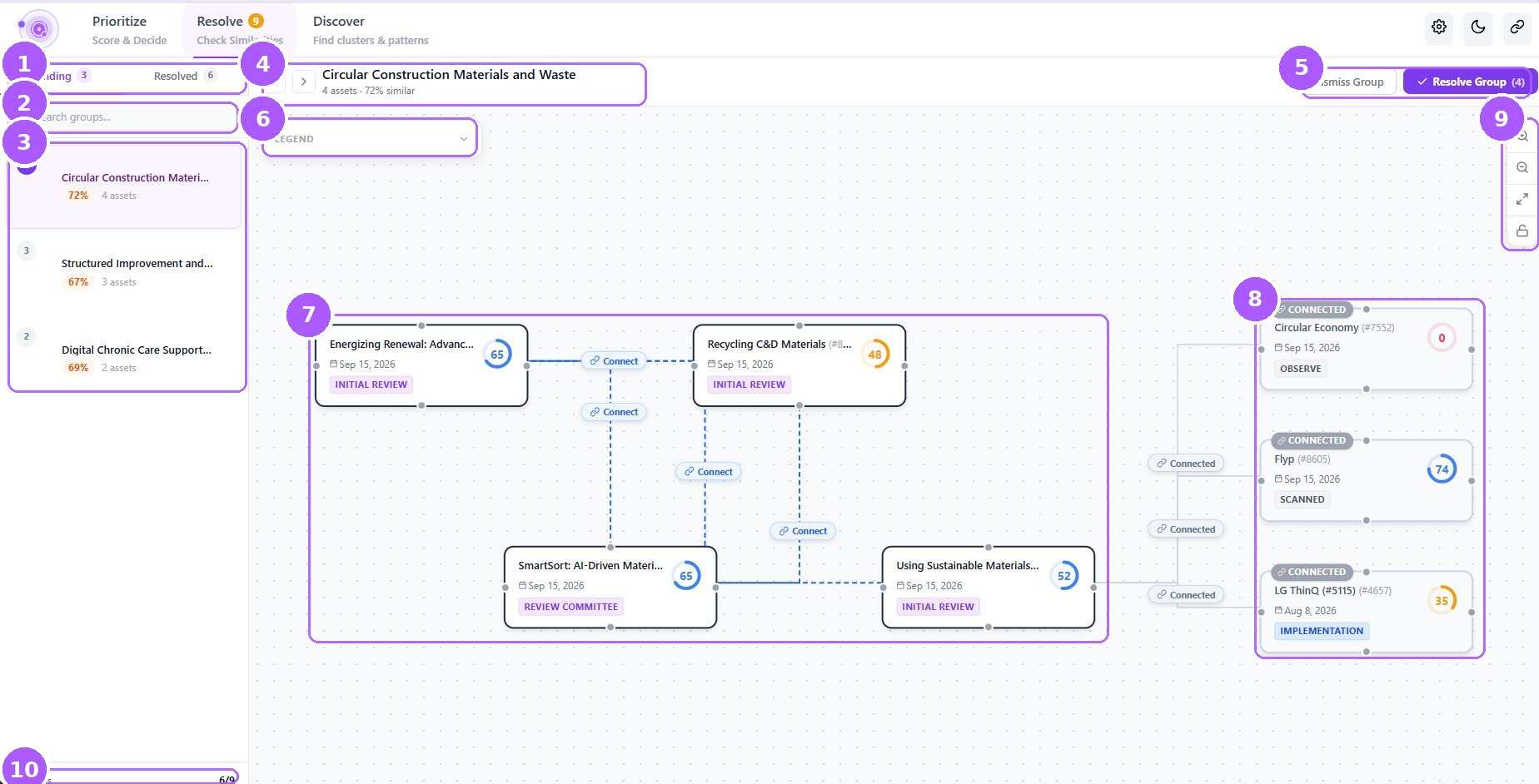
A pending similarity group
What the numbers point at (10)
- 1Pending / ResolvedPending is your to-do list; Resolved is the history. The badge counts groups.
- 2Search groupsFilters the group list by name.
- 3Similarity groupsOne card per group with how many assets it holds and how similar they are. Click a card to load it on the canvas.
- 4Group headerPrevious / next arrows step through the queue; the title is IRIS's name for the theme, with the asset count and overall similarity.
- 5Dismiss Group · Resolve GroupDismiss Group tells IRIS none of these overlap. Resolve Group applies the decision you made on every pair and moves the group to Resolved.
- 6LegendWhat the node colours and line styles mean. Open it the first time you use the canvas.
- 7Assets and their relationshipsEach card is an asset with its state and score. A dashed line with a Connect pill is IRIS's recommended action for that pair — click the pill to review it.
- 8Already-connected assetsAssets outside the group that are already linked to a member, shown for context.
- 9Canvas controlsZoom in and out, fit to view, lock the layout.
- 10ProgressHow many groups in the queue you have resolved so far.
Relationship Analysis for one pair
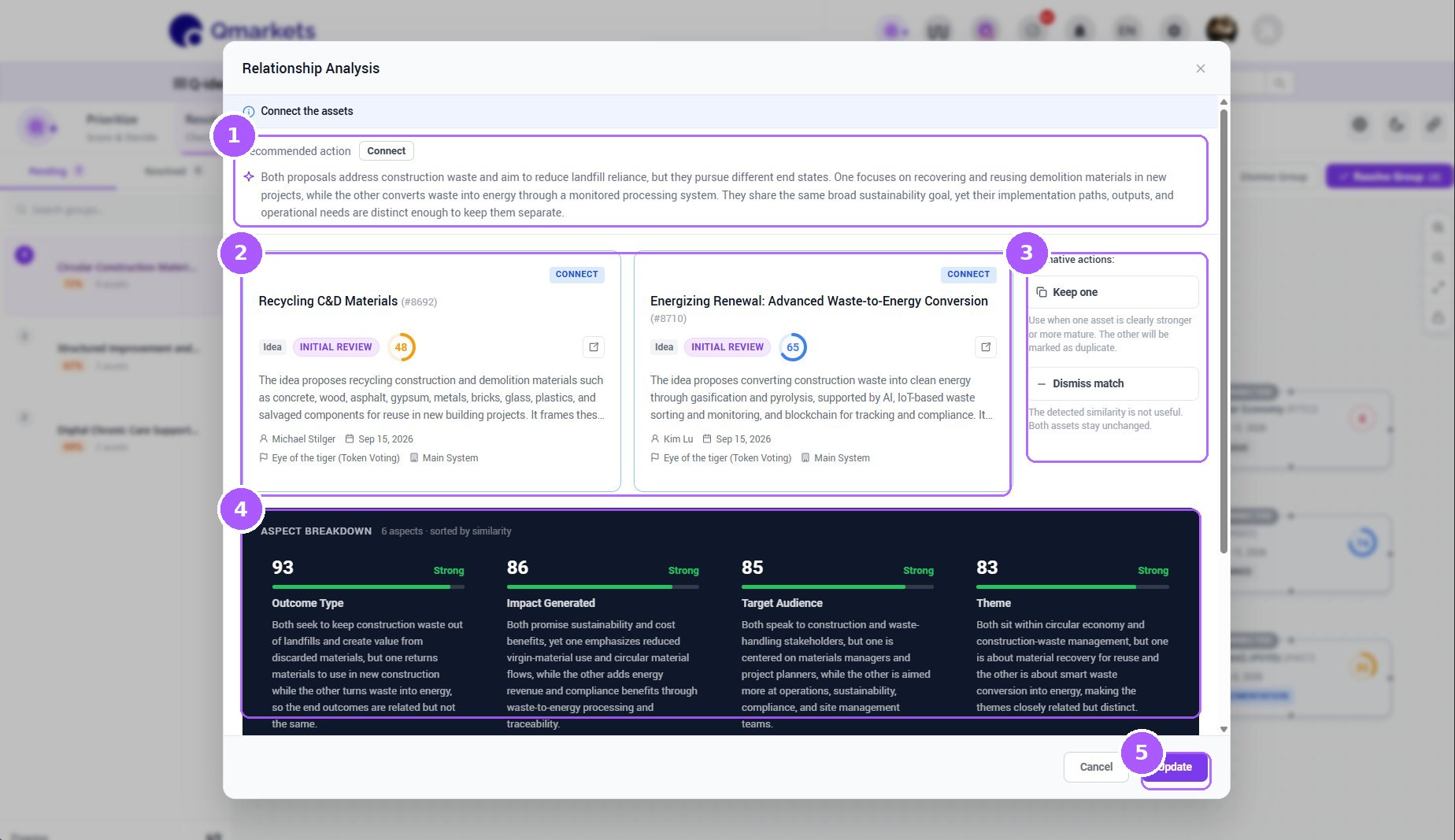
Relationship Analysis for one pair
What the numbers point at (5)
- 1Recommended action and whyIRIS's call for this pair — here Connect — with a plain-language explanation of what the two share and where they differ.
- 2The two assetsSide by side: state, score, summary, author, date, campaign and system. The arrow opens either one in full.
- 3Alternative actionsKeep one when one asset is clearly stronger — the other is marked duplicate. Dismiss match when the similarity is not useful — both stay unchanged.
- 4Aspect breakdownHow similar the pair is on each aspect — Outcome Type, Impact Generated, Target Audience, Theme… — with a score, a band and a sentence each. This is the evidence behind the recommendation.
- 5UpdateSaves your choice for this pair. The group is only finalised when you click Resolve Group.
Using this screen
The similarity queue. On the left, the groups IRIS found — each group is a set of assets about the same topic, named after that topic, with the percentage saying how alike they are. On the right, one group at a time: every asset is a card, and a line joins each pair IRIS matched.
- Pick a group from the Pending list. The header tells you how many assets it holds and how similar they are overall.
- Click the Connect pill on a line between two cards. That opens the Relationship Analysis for that pair.
- Read IRIS’s recommended action and the reason it gives, then the aspect breakdown underneath — those scores are the evidence behind the recommendation.
- Accept the recommendation or overrule it: Connect keeps both assets and records that they are related, Keep one marks the others as duplicates of the one you choose, Dismiss match says they do not overlap at all. Click Update.
- Work through every connection in the group the same way. Nothing has happened yet — you are recording decisions.
- When every pair has a decision, click Resolve Group. IRIS carries them out: related assets are connected to each other, duplicates are archived, and the group moves to the Resolved tab.
- If the whole group is wrong, Dismiss Group clears it in one go. Watch the progress counter at the bottom left to see how much of the queue is left.
How do I…
How do I work through the pending queue?
- Open Resolve; the first pending group loads.
- Click each Connect pill on the canvas to open the Relationship Analysis for that pair.
- Accept the recommendation or pick an alternative, then Update.
- When every pair has a decision, click Resolve Group. Use the arrows to move to the next group.
How do I handle a true duplicate?
- In the pair's Relationship Analysis, click Keep one.
- Choose the asset that should survive — usually the more complete one.
- Click Update. The other is marked as a duplicate; nothing is deleted.
How do I tell IRIS a match is wrong?
- For one pair: open its analysis and click Dismiss match, then Update.
- For a whole group: click Dismiss Group in the header.
Quick check
Two ideas share a goal but propose different solutions. Connect, Keep one, or Dismiss?
Connect — they are related, not duplicates, and both stay active.
You clicked Update on every pair. Is the group resolved?
Not yet — Resolve Group in the header applies the decisions and moves the group to the Resolved tab.
Where do you see why IRIS thinks two assets overlap?
In the pair's Relationship Analysis: the explanation under the recommended action and the Aspect breakdown below.
Chapter 6
Settings overview
Your setup, your rules.
Settings is where IRIS learns how your organisation scores. General — this chapter — sets the one rule that applies everywhere: how far IRIS may go beyond what a submission actually says. Subsystems lists the connected capabilities, and each use case — Ideation, Continuous Improvement, Project Management, Tech Scouting, Need Management — has its own Scoring Model, Recommendations and Aspects, covered in the two chapters after this one.
General Settings
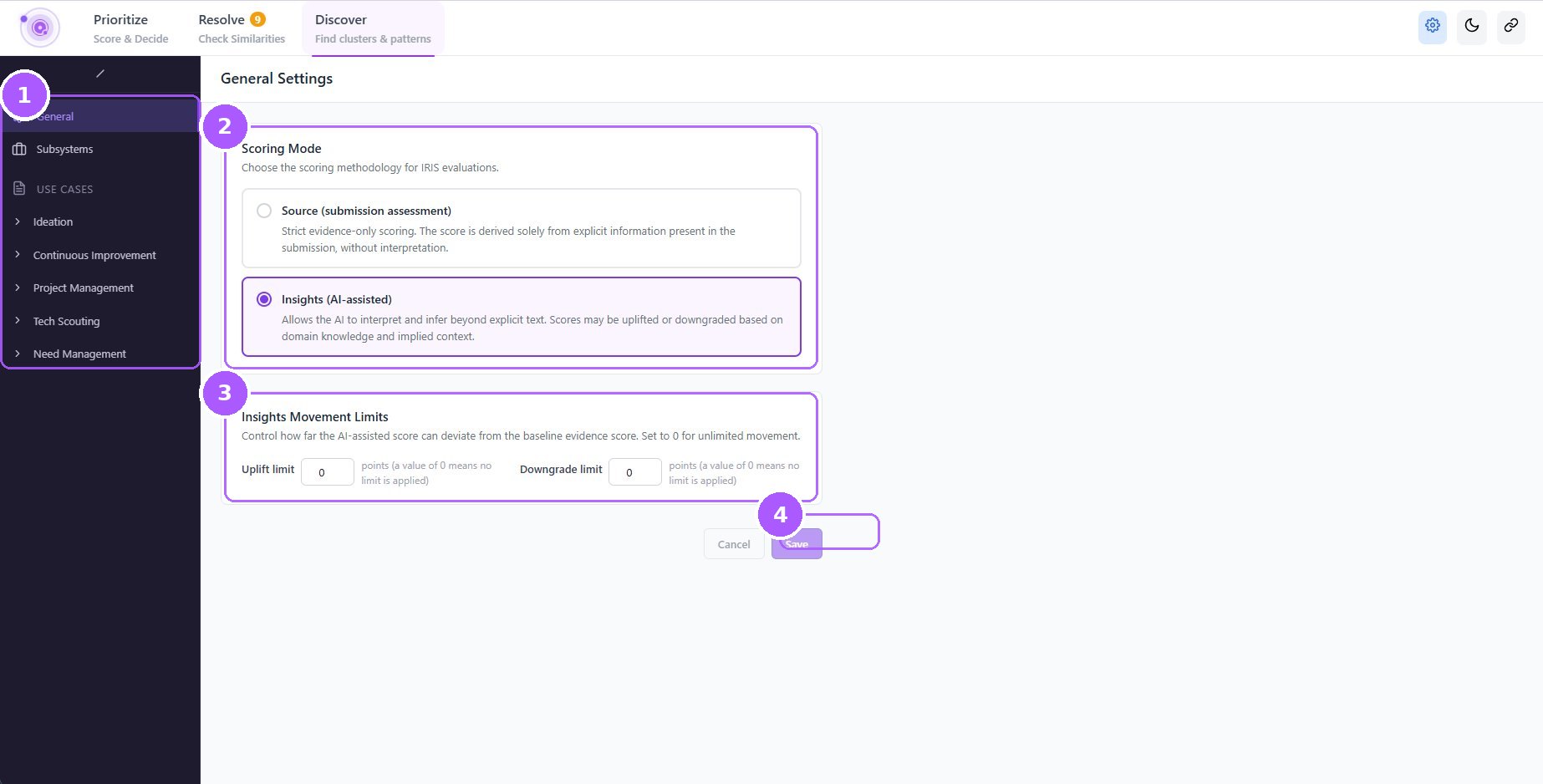
General Settings
What the numbers point at (4)
- 1Settings navigationGeneral, Subsystems, then the use cases.
- 2Scoring modeSource — strict, evidence-only: the score comes from what the submission explicitly says. Insights — IRIS may interpret and infer, uplifting or downgrading scores with domain knowledge.
- 3Insights movement limitsComing soon The fields are on the screen, but they do not cap anything yet — they arrive in a future release. When they do, they will set how far an Insights score may move from the evidence-only score, up (uplift) and down (downgrade), in points, with 0 meaning no limit.
- 4SaveApplies to every use case. No publish step here.
Using this screen
One decision, applied everywhere: how IRIS is allowed to reach a score. The navigation on the left holds General, Subsystems and the use cases; the panel on the right is the scoring mode and its limits.
- Choose the scoring mode. Source scores only what a submission explicitly says. Insights lets IRIS interpret and infer with domain knowledge — more useful, and more of a judgement call.
- Leave the movement limits alone for now. Coming soon — the fields are visible but not active yet. In a future release they will cap how many points an Insights score may rise (uplift) or fall (downgrade) against the evidence-only score.
- Save. It applies to every use case immediately — there is no publish step on this page.
- Validate it on real assets: open two or three in Asset Focus and read the Insights box on a dimension. It names the adjustment and its confidence, so you can see what the setting is doing before you leave it in place.
How do I…
How do I see what Insights is doing to your scores?
- Open two or three assets you know well in Asset Focus.
- On Score Breakdown, click a dimension and look for the Insights box: it names the adjustment, its size and its confidence.
- If the adjustments are larger than you are comfortable with, tighten the dimension’s instructions, or switch the mode back to Source while you work on them — the limits that will cap this directly are still to come.
How do I switch between evidence-only and AI-assisted scoring?
- Open General.
- Choose Source or Insights. The movement limits under them are not active yet.
- Click Save.
Quick check
What will an uplift limit of 10 do?
Once movement limits are released, it will stop IRIS raising a score more than 10 points above the evidence-only score in Insights mode. The fields are visible today but do not cap anything yet.
Chapter 7
Score Dimensions
Teach IRIS what good looks like.
A dimension is one question you want answered about every asset — how clear it is, how feasible, how different. IRIS answers it with a number from 0 to 100, and a higher number is always the better outcome; if you catch yourself wanting a low number to be the good news, invert the wording of the dimension instead. This form is where you tell IRIS how to reach that number: what the scale means, what to do when the evidence simply is not there, and what it must spell out when it explains itself. Nothing on this page reaches live scoring until you Publish. What differs is what happens after that: a new name or weight only re-does the arithmetic, so scores move as soon as it is published, while a change to any instruction applies to assets scored from then on.
Ideation — Scoring Model
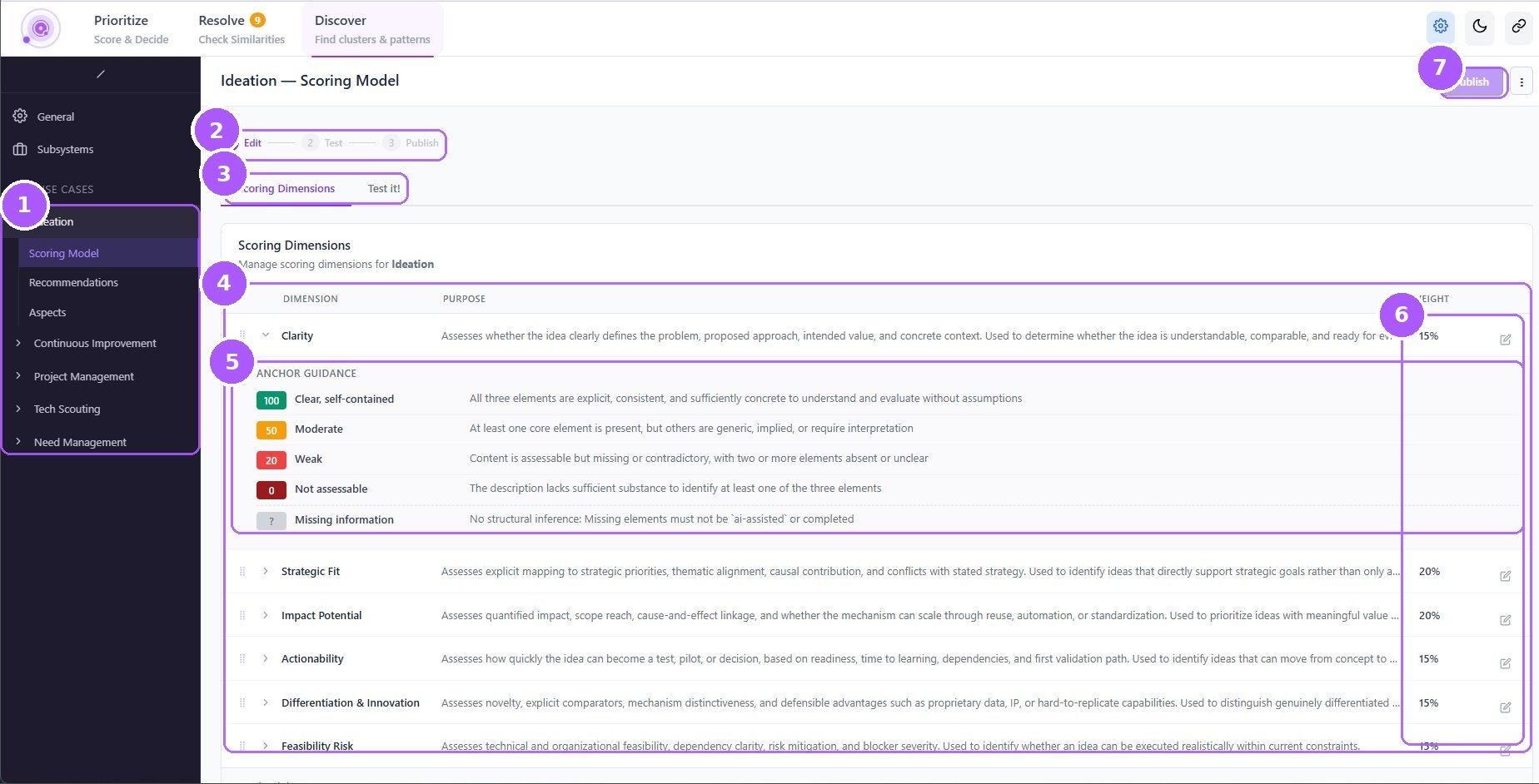
Ideation — Scoring Model
What the numbers point at (7)
- 1Use casesExpand a use case to reach its Scoring Model, Recommendations and Aspects. General and Subsystems sit above.
- 2Edit → Test → PublishThe path every scoring change follows. Nothing reaches live scoring until you publish; after that, a name, weight or order change takes effect straight away, while changed instructions apply to assets scored from then on.
- 3Scoring Dimensions / Test it!Dimensions is the model itself; Test it! scores a real asset with your unpublished changes.
- 4DimensionsOne row per dimension with its purpose and weight. Drag the handle to reorder; expand a row to see its anchor guidance; the pencil edits it.
- 5Anchor guidanceWhat 100, 50, 20 and 0 look like for this dimension, plus the rule for missing information. This is the scale IRIS scores against — the most important text on the page.
- 6WeightsThe share of the total each dimension carries. They add up to 100%.
- 7PublishCreates a revision point and puts the configuration into effect. Assets scored from then on use the new instructions; assets already in the portfolio need a full re-analysis first. Stays disabled while a Test requiredbadge shows next to it.Plan for the re-analysis run. Publishing new instructions changes how assets are scored from that moment on — assets already in the portfolio keep the scores they have. Bringing them onto the new instructions means reading every asset again, a full re-analysis of your content. Once you have tested the new setup and you are happy with the results, ask your Qmarkets CSM and we will run the full re-analysis for you.
Ideation — editing a scoring dimension
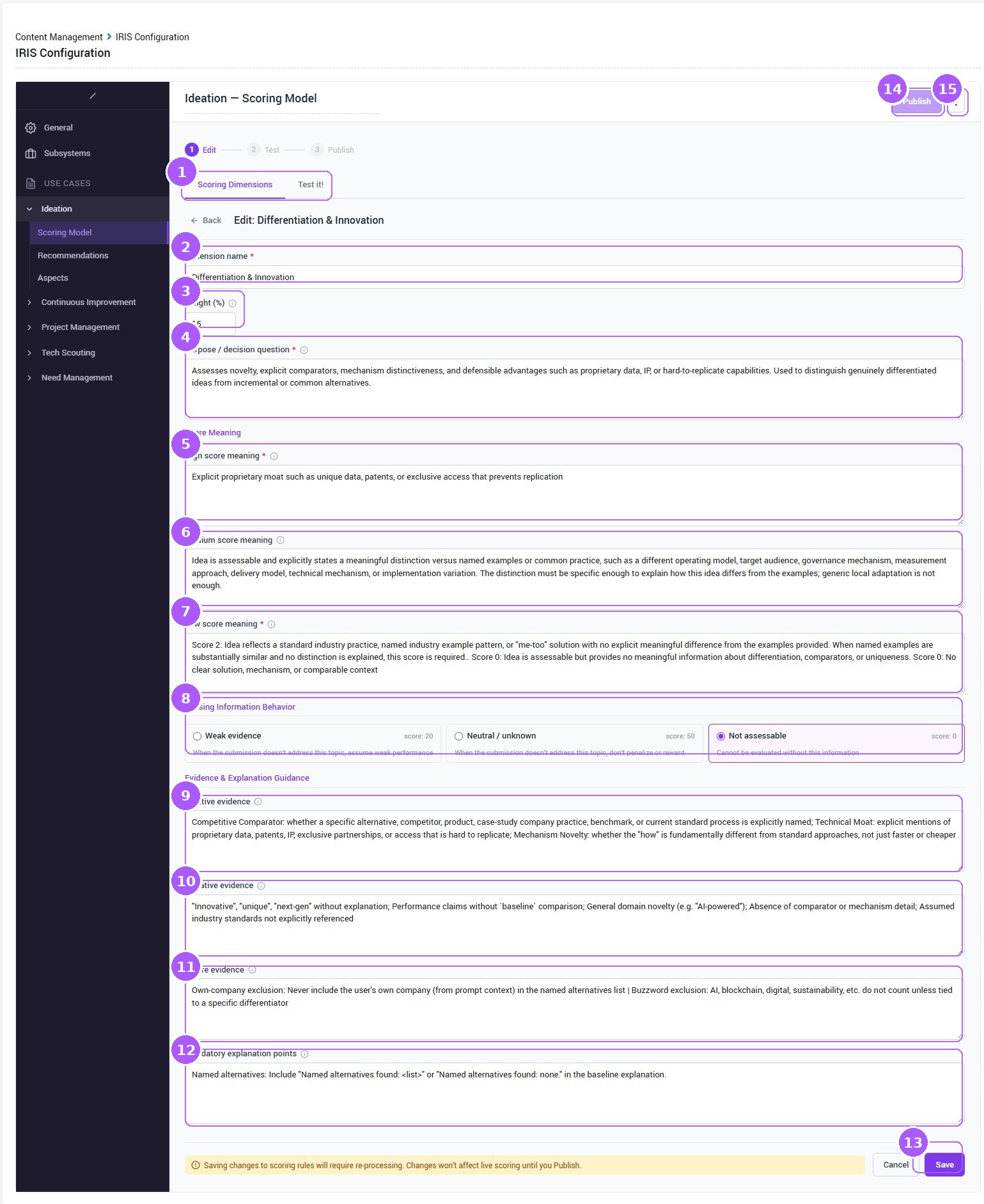
Ideation — editing a scoring dimension
What the numbers point at (15)
- 1Scoring Dimensions / Test it!Switch between the score configuration and the testing page.
- 2Dimension nameRequired. What reviewers see on every asset, so keep it short and phrase it so that a high number is unambiguously good — Differentiation & Innovation, not Innovation risk.
- 3Weight (%)Required. The share of the overall score this dimension carries; the active weights must total exactly 100%. A weight only re-does the arithmetic, so scores recalculate as soon as you publish — no re-analysis of the assets themselves.
- 4Purpose / decision questionRequired. The decision this number helps a moderator make, written as something a person could actually answer. The example reads "Assesses novelty, explicit comparators, mechanism distinctiveness and defensible advantages… used to distinguish genuinely differentiated ideas from incremental or common alternatives" — a job, not a label.
- 5High score meaningRequired. What strong evidence looks like, concrete enough that two people would agree. The example insists on "an explicit proprietary moat such as unique data, patents, or exclusive access that prevents replication" — a specific thing that must be present, not a mood.
- 6Medium score meaningOptional, and the cheapest way to stop every asset landing in an unhelpful middle. Say what partial looks like. For example: a distinction versus named examples that is specific enough to explain how this idea differs.
- 7Low score meaningRequired. What weak, missing or me-too evidence looks like. Write exact values here when you want them. For example, "no clear solution, mechanism, or comparable context".
- 8Missing Information BehaviorWhat IRIS does when the asset says nothing about this dimension.
- Weak evidence scores 20 — the gap counts against the author.
- Neutral / unknown scores 50 — a gap is genuinely neither good nor bad.
- Not assessable scores 0 — there is nothing to judge without it.
- 9Positive evidenceOptional. The signals to hunt for, named the way your best submissions actually phrase them. For example: a competitive comparator, a technical moat, mechanism novelty.
- 10Negative evidenceOptional. The gaps, contradictions and unsupported claims that should pull the score down. For example, words like "innovative" or "next-gen" with no explanation, and performance claims with nothing to compare against.
- 11Ignore evidenceOptional, and the fix for a score that is being inflated by the wrong thing. For example, buzzwords such as AI or blockchain unless they are tied to a real differentiator.
- 12Mandatory explanation pointsOptional. What must appear in the written explanation so a reviewer can audit the number. For example, explicitly ask for named alternatives in the format "Named alternatives found: <list>".
- 13SaveSave keeps your work and lets you test it, without touching live content. Nothing reviewers see changes yet.
- 14PublishPublish creates a revision point and puts the configuration into effect. Dimension names and weights take effect straight away; changed instructions apply to assets scored from then on.Plan for the re-analysis run. Publishing new instructions changes how assets are scored from that moment on — assets already in the portfolio keep the scores they have. Bringing them onto the new instructions means reading every asset again, a full re-analysis of your content. Once you have tested the new setup and you are happy with the results, ask your Qmarkets CSM and we will run the full re-analysis for you.
- 15Version historyThe three dots list every version you have published, so you can roll back to an earlier one — or all the way to the Qmarkets factory defaults.
Using this screen
Two screens, one job. The Scoring Model list is every dimension for this use case with its purpose and weight; the form behind the pencil is where one dimension is defined — what the scale means, what to do when evidence is missing, and what IRIS must spell out when it explains itself.
- Open the use case → Scoring Model and read the list. Expand a row to see the anchor guidance: that is the scale IRIS is scoring against today.
- Check the weights add up to 100% before you change anything.
- Open a dimension with the pencil. Keep in mind which kind of change you are making: name and weight are arithmetic, everything else is an instruction.
- Write the scale so two people would agree: what must be present for a high score, what partial looks like, what absent or me-too looks like.
- Save. Your work is kept and nothing live has changed yet.
- Switch to Test it! and run the model on assets you already have an opinion about. Read the reasoning, not just the number — a right score reached through the wrong evidence will not hold.
- When you are happy, Publish. The ⋮ menu keeps every published version, so you can roll back — or return to the Qmarkets defaults.
- Then ask your CSM for a full re-analysis, so the assets already in the portfolio are read again with the new instructions.
How do I…
How do I write a dimension from scratch?
- Open the use case → Scoring Model → add a dimension.
- Name it so that high is good, and give it a weight — then fix the other weights so the active ones still total 100%.
- Write the purpose as the decision a moderator makes with this number.
- Fill high and low meanings (both required), then medium — skipping medium is what pushes everything into the middle of the range.
- Choose a Missing Information Behavior, add whatever evidence guidance you already know, and save.
- Run Test it! on assets you know well, then Publish. A new dimension has never been applied to your content, so existing assets need a full re-analysis before they carry it.
How do I decide what goes in high, medium and low?
- Take your three best assets and your three worst, and write down the one thing that separates them.
- Put the thing that must be present in high — evidence, not enthusiasm.
- Put the thing that is partly there in medium, and say how specific it has to be to count.
- Put the absent, generic or me-too case in low, naming exact scores if you want particular values rather than a band.
- Re-read all three as a set: if an asset could honestly match two of them, they are not yet distinct.
How do I handle assets that say nothing about this dimension?
- Ask what a silent asset deserves in your organisation, not what is technically true.
- Choose Weak evidence (20) when the author was expected to cover it and did not.
- Choose Neutral / unknown (50) when a gap should neither reward nor punish.
- Choose Not assessable (0) when the dimension is meaningless without the information.
- Remember it only applies after IRIS has read everything and found nothing relevant — it never stops the analysis.
How do I test a wording change before anyone sees it?
- Make your edits and save. Saved is not live — scoring still runs on the last published version.
- Open Test it! and run the model against assets whose scores you already have an opinion about.
- Read the reasoning, not just the number: a right score reached through the wrong evidence will not stay right.
- If the reasoning cites something irrelevant, add it to Ignore evidence rather than rewriting the score meanings.
- Test again, then Publish once — batch your instruction edits so the portfolio is re-analysed once, not five times.
How do I rebalance priorities without re-analysing the portfolio?
- Change only the Weight values — strategy up this quarter, feasibility down.
- Keep the active weights at exactly 100%.
- Save, then Publish. Index scores recalculate from the scores you already have: no asset is read again, and an earlier version is one rollback away.
Quick check
You changed a dimension's anchor guidance. Save or Publish?
Publish — save only keeps your work so you can test it. Publishing puts it into effect, and a full re-analysis brings the assets you already have onto the new instructions. Recommendations and General settings have no publish step: they apply on save.
Which fields in this form are required?
Dimension name, weight, purpose, and the high and low score meanings. Medium, the three evidence fields and the explanation points are optional — and are where most of the quality actually comes from.
An asset never mentions cost at all. Which setting decides what it scores on a cost dimension?
Missing Information Behavior — 20 for Weak evidence, 50 for Neutral / unknown, 0 for Not assessable.
You moved Feasibility from 20% to 10%. Does the portfolio need a full re-analysis?
No. Weight is arithmetic — publish it and the index scores recalculate from the dimension scores you already have. Only changed instructions need a full re-analysis.
IRIS keeps rewarding an idea for sounding confident. Which field fixes it?
Ignore evidence. Name the thing that must not count — boilerplate, buzzwords, the author's own company — instead of rewriting the score meanings around it.
Chapter 8
Recommendations
If this is true, suggest that.
A recommendation is a rule: when an asset matches your conditions, a card appears on it telling the reviewer what is going on and offering the buttons to act. You write four things — who it is about (conditions), what it says (title and description), what it offers (actions), and the numbers you want to tune later (variables). The example below is a hidden gems rule: assets that are scoring low overall or have dropped out of the workflow, but are clear enough to judge and strong on impact or strategic fit. Nothing here has a publish step, so Save makes it live for everyone immediately — which is exactly why the Test section exists.
Ideation — the recommendation form, end to end
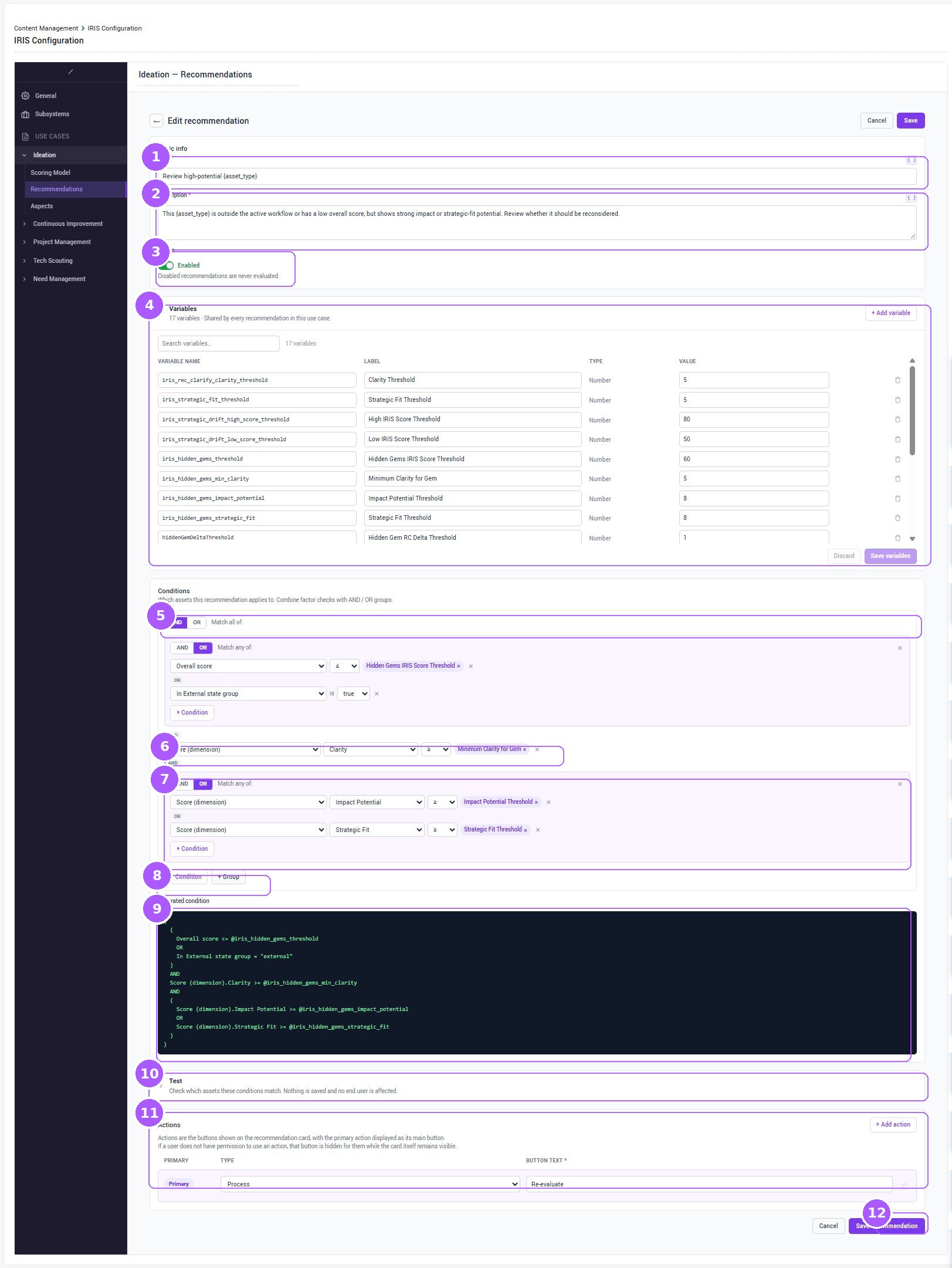
Ideation — the recommendation form, end to end
What the numbers point at (12)
- 1TitleRequired. The title reviewers see on the card. It accepts placeholders — the { } button lists the ones you can use. For example Review high-potential {asset_type}, where {asset_type} becomes the word this use case uses: idea, project, need.
- 2DescriptionRequired. One or two sentences telling the reviewer why this card appeared and what to weigh, written for them rather than for you. Type a variable name in braces — {iris_hidden_gems_threshold} — and the card prints its current value, so the text stays honest when you retune the number.
- 3StatusA disabled recommendation is never evaluated — no matching, no cards, no cost. Draft with it off, switch it on when the Test section says what you expected.
- 4VariablesNamed numbers shared by everyrecommendation in this use case, which is what makes a rule set tunable instead of re-editable.
- Variable name — what conditions and {braces} refer to.
- Label — what shows on the purple chip.
- Value — the number you will come back and change.
- 5AND / OREvery condition lives in a group, and the group decides the logic. AND — Match all of — narrows; OR — Match any of — widens.
- 6One conditionOne condition is one check, read left to right: what to look at (the overall score, one dimension's score, a voting or review-committee figure, the workflow state), how to compare it, and what to compare against — a number you type, or a variable you pick. Pick a different thing to look at and the comparison clears, because the old one may no longer fit.
- 7Nested groupA group inside a group lets you mix and with or. The example says: clear enough to judge, and strong on either impact or strategic fit — the inner OR group is what makes "either" possible. Keep everything in one AND group instead and the rule only fires for assets that meet every single condition, which is usually none of them.
- 8Condition and Group+ Condition adds a row to this group; + Group starts a nested one you can flip to OR. Build the shape first, then worry about the numbers.
- 9Generated conditionYour rule written back to you in plain text, variables and all. Read it as a sentence before you test — if the brackets do not say what you meant out loud, no amount of threshold tuning will save it.
- 10TestExpand it to see exactly which assets these conditions match, right now, against the draft on your screen. Nothing is saved and no end user is affected — so test before you save, as often as you like, and let the count tell you whether the rule is too strict or about to become background noise.
- 11ActionsThe buttons on the card.
- Primary — the one shown as the card's main button.
- Type — the behaviour, picked from a fixed list: Process, Send to clarification, Close / Reject, Notify author, Review Committee summary, campaign overview, Redirect.
- Button text — your wording, so Re-evaluate can front the Process action.
- 12Save recommendationSaving makes the rule live for everyone in the subsystem straight away.
Using this screen
One form, top to bottom: what the card says (title and description), the numbers it uses (variables), who it applies to (conditions), who it would match right now (test), and the buttons it offers (actions).
- Say the rule out loud before you build it: "when an idea is clear but scoring low, ask a reviewer to look at it again." If you cannot say it in a sentence, the conditions will not work either.
- Write the title and description the reviewer will see, with placeholders where the wording changes per use case.
- Build the conditions. Each row is one check; groups decide whether the checks are all (AND) or any (OR); a group inside a group is how you say "this, and either of those".
- Bind thresholds to variables rather than typing numbers, so you can retune every rule from one place later.
- Read the generated condition back as a sentence. If it does not say what you meant, no amount of threshold tuning will fix it.
- Expand Test and see exactly which assets match right now. Nothing is saved and no one is affected — a match count of zero, or of everything, is telling you something.
- Set the actions: the buttons on the card, which one is primary, and the words on them.
- Switch Status to Enabled and save. The rule is live for everyone in the subsystem from that moment.
How do I…
How do I turn a sentence into a rule?
- Say the rule out loud first: "ideas scoring low overall, or parked outside the workflow, that are still clear enough to judge and strong on impact or strategic fit."
- Create the variables you will want to tune — a score threshold, a minimum clarity, an impact bar — before you build the conditions, so they are there to bind to.
- Build the shape: an outer AND, an OR group for the two ways in, a plain condition for the clarity floor, and a second OR group for the two ways to be strong.
- Bind each value to its variable rather than typing the number.
- Read the Generated condition back as a sentence, then open Test and check who matches.
- Write the title and description for the reviewer, add the action, and save.
How do I fix a rule that matches nothing?
- Check the shape before the numbers — a flat AND group asks for every condition at once, which is usually nobody.
- Read the Generated condition: the brackets show you which checks are really joined.
- Turn the "either of these is fine" part into a nested OR group.
- Re-run Test, and only then start moving thresholds — one variable at a time.
How do I check a rule before anyone sees it?
- Expand Test at any point, saved or not — it evaluates the conditions and variable values exactly as they stand on your screen.
- It is read-only: nothing is written, no asset moves, and no end user sees anything.
- Read the matches, not only the count. Zero means too strict; almost everything means the card will become noise people learn to ignore.
- Open one or two of the matches and ask whether you would genuinely want this button on them.
- Adjust, test again, and save only when the answer is yes.
How do I retune a threshold everywhere at once?
- Open Variables and change the Value — for example Hidden Gems IRIS Score Threshold from 60 to 55.
- Click Save variables. Every condition bound to it moves, and every description that prints it in braces updates with it.
- Remember the scope: variables are shared by all recommendations in this use case, so check which rules use it before you change it.
- If you need one rule to move independently, give it its own variable rather than typing a literal.
How do I choose the action and word the button?
- Pick the Type for what should actually happen — Process to move it on, Send to clarification to go back to the author, Notify author to say something without changing state, Redirect to send the reviewer to a URL.
- Rewrite Button text in your organisation's language: Re-evaluate, Ask for more detail.
- Mark the one you most want clicked as Primary — it becomes the card's main button.
- Do not try to restrict who sees it here: permissions already do that, and a user who cannot perform the action never sees its button.
Quick check
You want a threshold of 60 to become 55 in four rules. Where do you change it?
Once, in the variable's Value — then Save variables. Every bound condition and every description that prints it follows.
Your rule matches nothing. What do you check before lowering a threshold?
The shape. Read the generated condition: a flat AND group demands every condition at once. The fix is usually a nested OR, not a smaller number.
Does running Test affect anything?
No — it evaluates the draft on your screen, writes nothing, and is invisible to end users. Saving is the step that goes live, and it goes live immediately.
Two reviewers see the same card but different buttons. Is that a fault?
No. Each action is checked against the viewer's own permissions; someone who cannot perform it does not see that button, while the card stays visible to both.
Chapter 9
Permissions
Who can open IRIS, and what they can do there.
By default, IRIS is usually opened up to system administrators. Access can also be controlled with a dedicated role: give the role the IRIS permissions it needs from the list below, and assign it to the users who should have them.
IRIS permissions
| Permission | Meaning |
|---|---|
iris access zone scope | Show the IRIS logo on top header and allow users to access iris from top header |
iris access campaign scope | Show the IRIS button on the campaign overview and allow users to access iris on campaign level |
iris access entity scope | Allow users to access asset page |
iris run clustering system | Allow users to run clusters on portfolio level (all subsystems) |
iris run clustering subsystem | Allow users to run clusters on subsystem level |
iris run clustering campaign | Allow users to run clusters on campaign level |
iris rerun node evidence signals | Allow users to refresh portfolio signals |
iris rerun node external signals | Allow users to refresh market signals |
iris run review-committee | Allow users to run automatic review committee |
iris rerun review-committee | Allow users to re-run automatic review committee |
iris change default score mode | Allow users to set the default scoring mode across IRIS (Source or Insights) |
iris change node score mode | Allow users to include or exclude AI-assisted Insights for a specific score dimension (sets the scoring mode per dimension) |
Chapter 10
Glossary
The words IRIS uses.
The words IRIS uses, in one place.
Asset
IRIS score (the IRIS Index)
Dimension
Weight
Full re-analysis
Anchor guidance
Tier / band
Scoring mode
Movement limits
Use case
Aspect
Score meaning
Missing information behavior
Evidence guidance
Recommendation
Condition group
Variable
Lens
Cluster
Similarity group
Review committee
Automated review committee
Portfolio signals
Market signals