
AI File Summaries creates concise summaries of supported attachments, helping you review their contents without opening each file. When enabled, summaries are generated automatically when eligible files are uploaded or replaced.
TABLE OF CONTENTS
- Enable and configure summaries
- Which files can be summarized?
- File-size limits, explained
- Read and manage file summaries
- When a summary is missing
- Vendor references
Enable and configure summaries
Administrators can manage the feature under Subsystem → AI Settings.
- Enable AI File Summaries.
- Select Support large files (upload to server) if larger attachments need to be analyzed.
- Review the summary instructions for text, image, audio and video files, as applicable to your vendor.
- Use Exclude Files from AI Summary to choose file fields that should not be analyzed.
For campaign attachments, Include campaign info? must also be enabled.
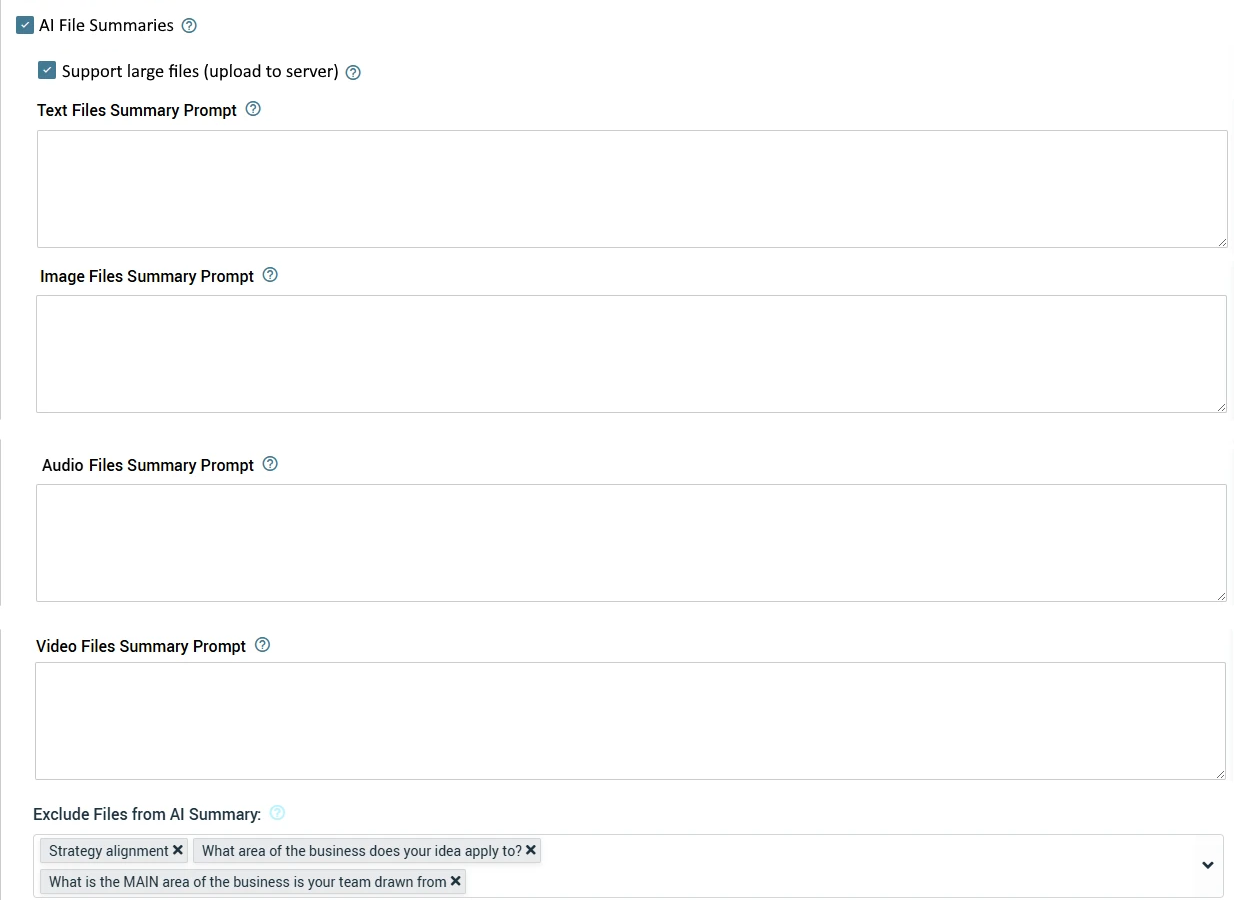 Enable summaries, choose large-file support, and customize what the AI should focus on.
Help the AI focus on what matters
Customize the summary instructions to suit your team. For example, ask for a short overview, key findings, or the main recommendations in a document. Here are some example prompts:
| File type | Suggested prompt |
|---|---|
| Text | You are given a text-based file. Produce a structured summary suitable for general analysis. Cover: 1. What the document is about - its purpose and context 2. Key points - the most important information or arguments 3. Key insights - conclusions, implications, or notable patterns 4. Relevance - why the content may be important in a business or analytical context Focus on extracting meaningful insights rather than restating the content. Keep the response concise and structured. Avoid repetition and unnecessary detail. |
| Image | You are given an image. Analyze it and produce a structured summary focused on insights. Cover: 1. What the image represents - the type and purpose of the visual 2. Key elements - the most important components or data points 3. Key insights - patterns, trends, or conclusions that can be derived 4. Implications - what can be learned or inferred from this image Do not simply describe what is visible. Focus on interpreting meaning and extracting value. Keep the response concise and structured. Avoid repetition and unnecessary detail. |
| Audio | You are given an audio file. Produce a structured summary focused on key insights. Cover: 1. What the audio is about - topic and purpose 2. Key points - the most important ideas or discussions 3. Key insights - conclusions, decisions, or implications 4. Notable signals - themes, sentiment, or emphasis if relevant Do not provide a full transcript. Focus on extracting meaningful and actionable content. Keep the response concise and structured. Avoid repetition and unnecessary detail. |
| Video | You are given a video. Produce a structured summary for someone who has not watched it. Cover: 1. What the video is about - topic and purpose 2. Key takeaways - the most important points or insights 3. Core idea - the main concept, message, or argument and why it matters 4. Implications - what can be learned or applied from this content Do not describe scenes or provide a transcript. Focus on understanding and summarizing the meaning. Keep the response concise and structured. Avoid repetition and unnecessary detail. |
Which files can be summarized?
The AI vendor configured for your system determines which attachments are eligible. The table below reflects the formats documented for AI File Summaries.
| File category | ChatGPT (OpenAI) / Azure OpenAI | Gemini |
|---|---|---|
| PDF documents | ||
| Text & documents | TXT, DOC, DOCX, DOT, ODT, RTF | |
| Spreadsheets | XLS, XLSX and other supported Excel formats; CSV, TSV, IIF | Not supported |
| Presentations | PPT, PPTX and other supported PowerPoint formats | Not supported |
| Images | Supported; accepted extensions depend on the configured service and model | BMP, JPEG, PNG, WEBP |
| Audio | Not supported | WAV, MP3, AIFF, AAC, OGG Vorbis, FLAC |
| Video | Not supported | MP4, MPEG, MOV, AVI, FLV, MPG, WEBM, WMV, 3GPP |
The documented OpenAI/Azure format list also includes Pages, Keynote, Google Docs, Google Sheets and Google Slides. Sharing-link support must be confirmed separately. Gemini also supports YouTube URLs in campaign additional information.
Archives and executable files, such as ZIP, EXE and ISO, cannot be summarized.
File-size limits, explained
There are two ways files can be sent for analysis. Your administrator controls the method through Support large files (upload to server).
Option off: Files are sent within the analysis message. The feature’s standard limit is approximately 10 MB.
Option on: Larger files can be uploaded to the selected vendor’s server. Your system’s upload limit and the vendor’s analysis limits still apply.
Message size vs. Files API upload
Uploading a file and analyzing it are separate steps. A vendor may accept a large upload but apply a smaller limit when generating a summary.
Vendor documentation checked on 9 September 2026. These are vendor ceilings, not guaranteed maximums for your Qmarkets system.
| Vendor | Within a message | Files API upload | Analysis after upload |
|---|---|---|---|
| OpenAI | Direct file inputs: under 50 MB per file, with 50 MB total across files in one request. | Up to 512 MB per file. | Direct file analysis still has the under-50 MB per-file / 50 MB total limit. Sources 1–2 |
| Azure OpenAI | PDF inputs: under 50 MB per file, with 50 MB total across files in one request. | Up to 512 MB per file for documented assistants/fine-tuning upload purposes. | Direct PDF analysis still has the under-50 MB per-file / 50 MB total limit. Sources 3–4 |
| Gemini | Google directs use of Files API above 100 MB total request size, including instructions. PDFs remain limited to 50 MB. | Up to 2 GB per file. | PDFs: 50 MB and 1,000 pages maximum. Audio and video remain subject to the selected model’s limits. Sources 5–6 |
For example, a 100 MB PDF may fit a vendor’s general upload allowance, but it exceeds the direct PDF-analysis limits above. Enabling large-file support does not remove this restriction.
Which limit applies to your file? The file must meet every applicable requirement: your system’s maximum size, the vendor’s upload limit, and the selected model’s processing limits. Ask your administrator if you are unsure.
Files are sent to your configured AI vendor with either method. With large-file support enabled, they are uploaded to the vendor’s server and deletion is requested after summarization.
Read and manage file summaries
Scan the table
The AI Summary column shows a preview beside each attachment. Select Show more, when available, to open the full summary.
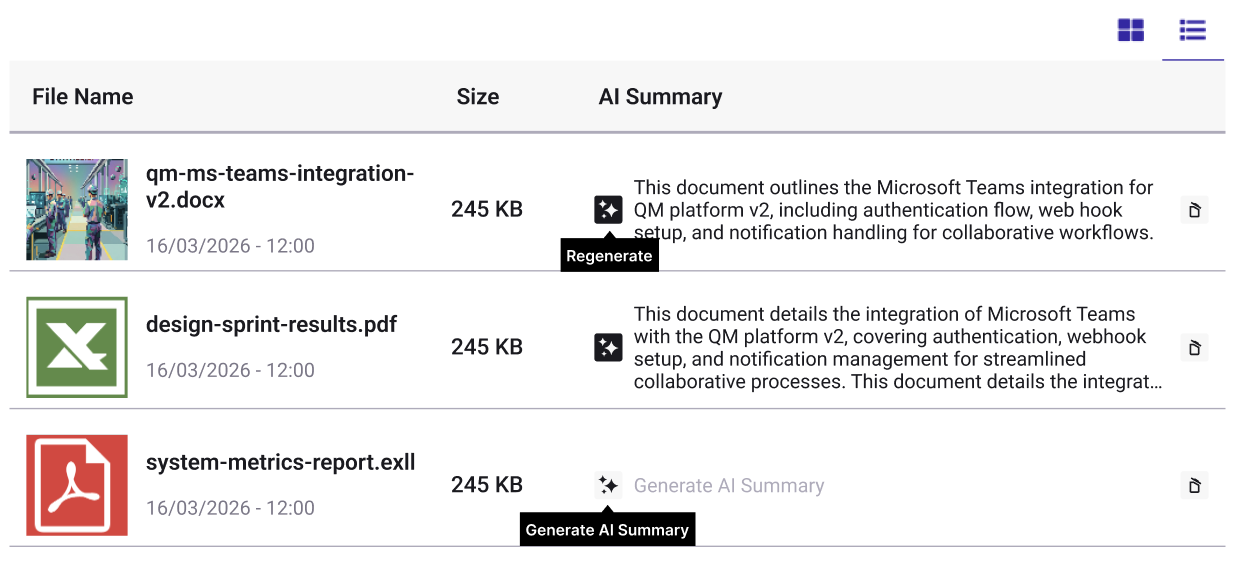
Table view: scan summary previews alongside your attachments.
Use the file card
In card view, use the attachment’s AI summary icon. In edit mode, files without a summary offer an action to generate one after the upload has completed.
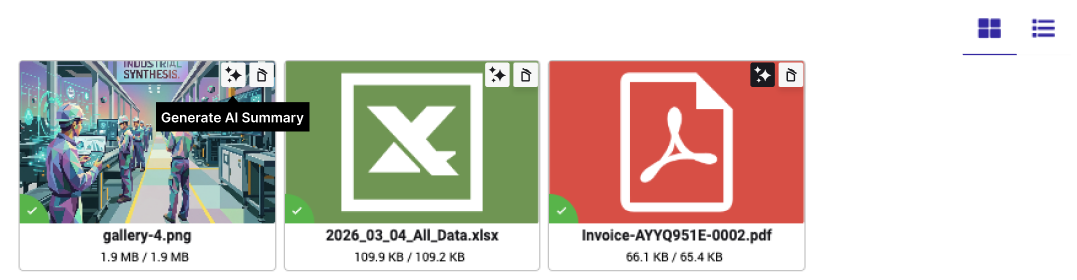
Card view: access the summary action on the relevant file.
Open the full summary
Read the complete text in the summary popup. In edit mode, select Regenerate to create an updated version. This replaces the existing summary.
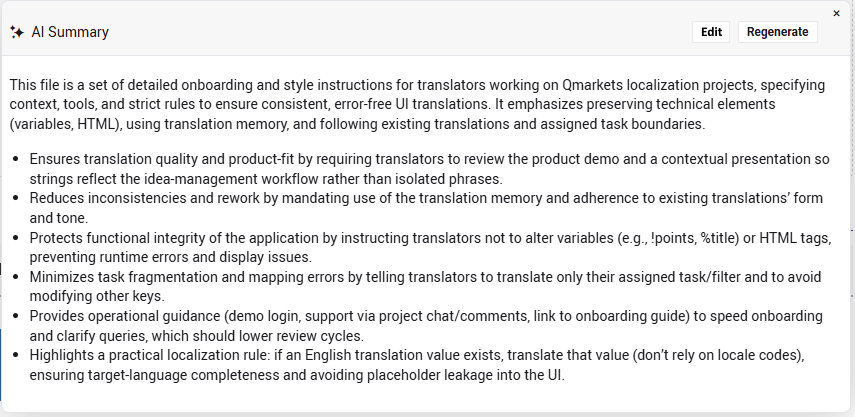
Open the full summary and use Regenerate when you need an updated version.
Images show the feature’s design examples. Some labels are in German; wording and appearance may vary by language and product version.
Refresh existing summaries
After changing summary instructions, regenerate individual summaries if only a few files need updating. For broader changes, administrators can use Re-run File Summary to process eligible files across the subsystem.
This action may take some time. Use individual regeneration when your changes affect only a small number of files.
When a summary is missing
| What you see | What to check |
|---|---|
| No summary available | The file may predate activation of the feature, or generation may not have completed successfully. Try generating a summary in edit mode. |
| File type is not supported! | Check the supported-format table and upload a supported version. |
| A large file has no summary | Check your system’s maximum size, the large-file setting, and the vendor’s analysis limits - not just its upload limit. |
| One file field has no summaries | Ask your administrator whether the field is excluded from AI summaries. |
| A campaign file has no summary | Check that Include campaign info? is enabled and the attachment is eligible. |
| The summary needs a different focus | Adjust the summary instructions and regenerate the affected summaries. |
Use summaries to review faster. Refer to the original attachment whenever you need to confirm an important detail.
Vendor references
Published limits can change. These links provide the vendor details behind the comparison.