
Self-Service Setting Management for Role Assignments
Overview
The new Import/Update/Delete Tool empowers authorized users to manage large volumes of role assignment setting via excel worksheets instead of doing manually with the tool as explained in this article.
It can be useful in case of maintaining multiple roles based on a large number of categories, or when assignments are changed frequently.
The supported assignments are on the system level and on the campaign/challenge level. Using this tool should be restercted only to be used by authorized roles.
✨ How It Works
1. Prepare the excel file you would like to import
The excel must be according to template that the system knows how to read.
You can start from exporting the assignment of the relevant role(s) you want to execute the changes to.
In case you follow the preferred method:
1.1 Export the current assignment setting
Go to the relevant page (whether on the system level OR on the campaign level and export current assignments.
You can export the full list, or first filter it.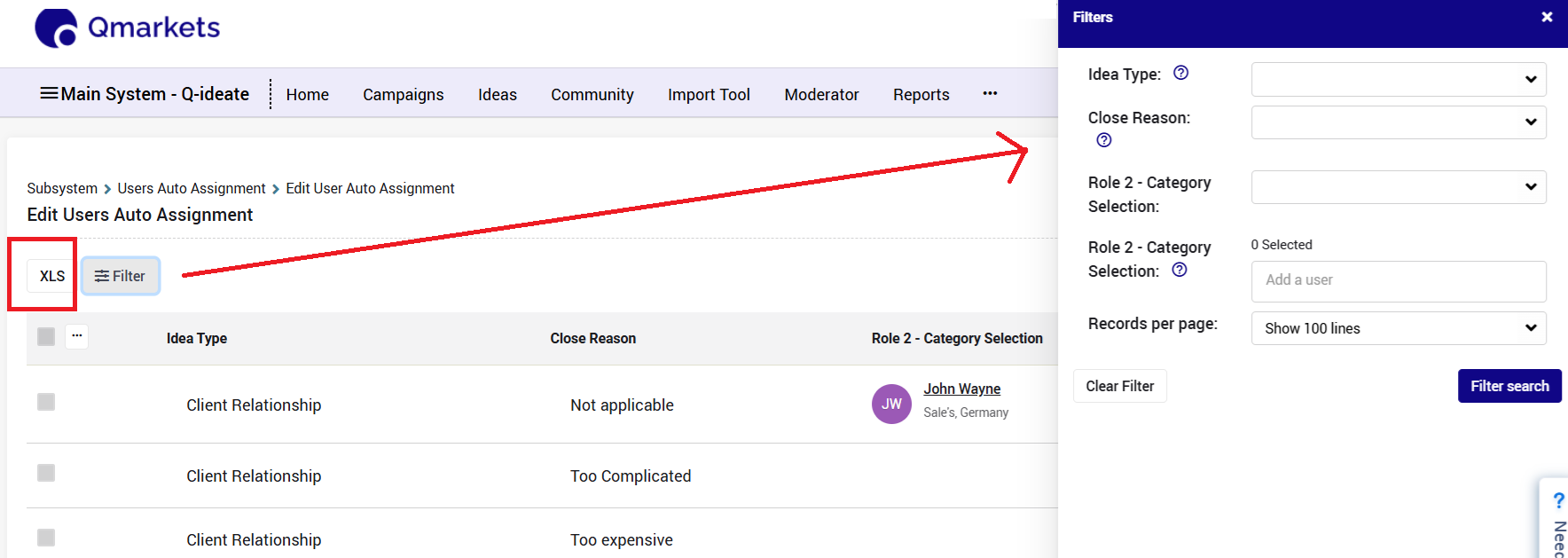
1.2 Modify the Excel
The first lines are just for reference, so you can know which assignment you are now handling
You can delete unnecessary lines for assignment that should not change
The structure of the excel file.
The first column (row_key) is for reference only and should NOT be modified. You can imagine it's not there :-)
Then there will be 1 OR 2 columns that displayed the single category OR 2 categories the assignment is made by
The next column will list the users' full names -- > it uses only as reference.
The last one is the only one you should modify - it contains the users' email which is the unique identifier.
If more than one user, then each email should be in a new line.
If there is currently no assignments, the cell will be empty.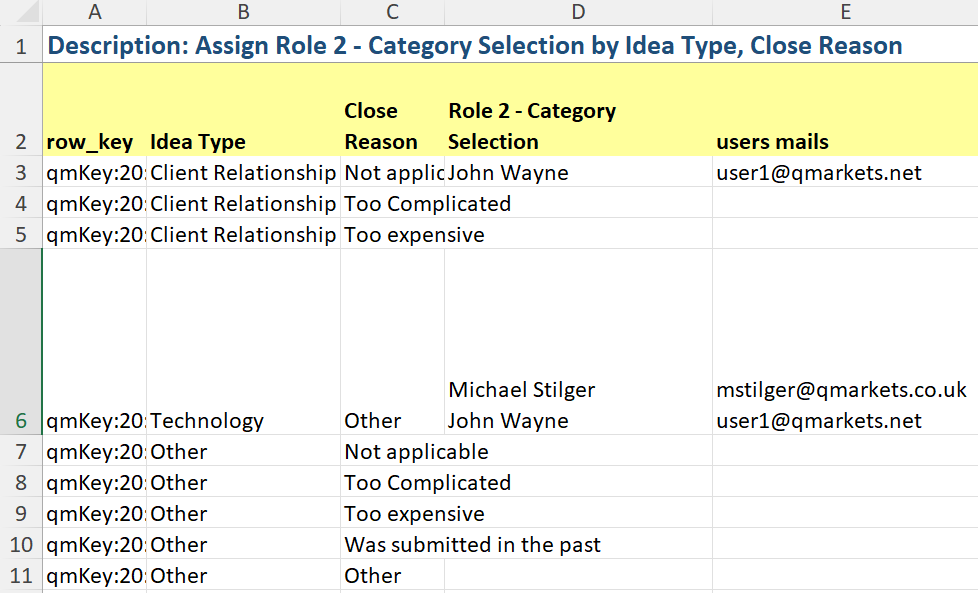
Important notes:
The assignment is identified by the key in the first column.
It means that you can unify multiple excel import into one andand doing one import to update assignments for multiple roles.
2. Use the tool:
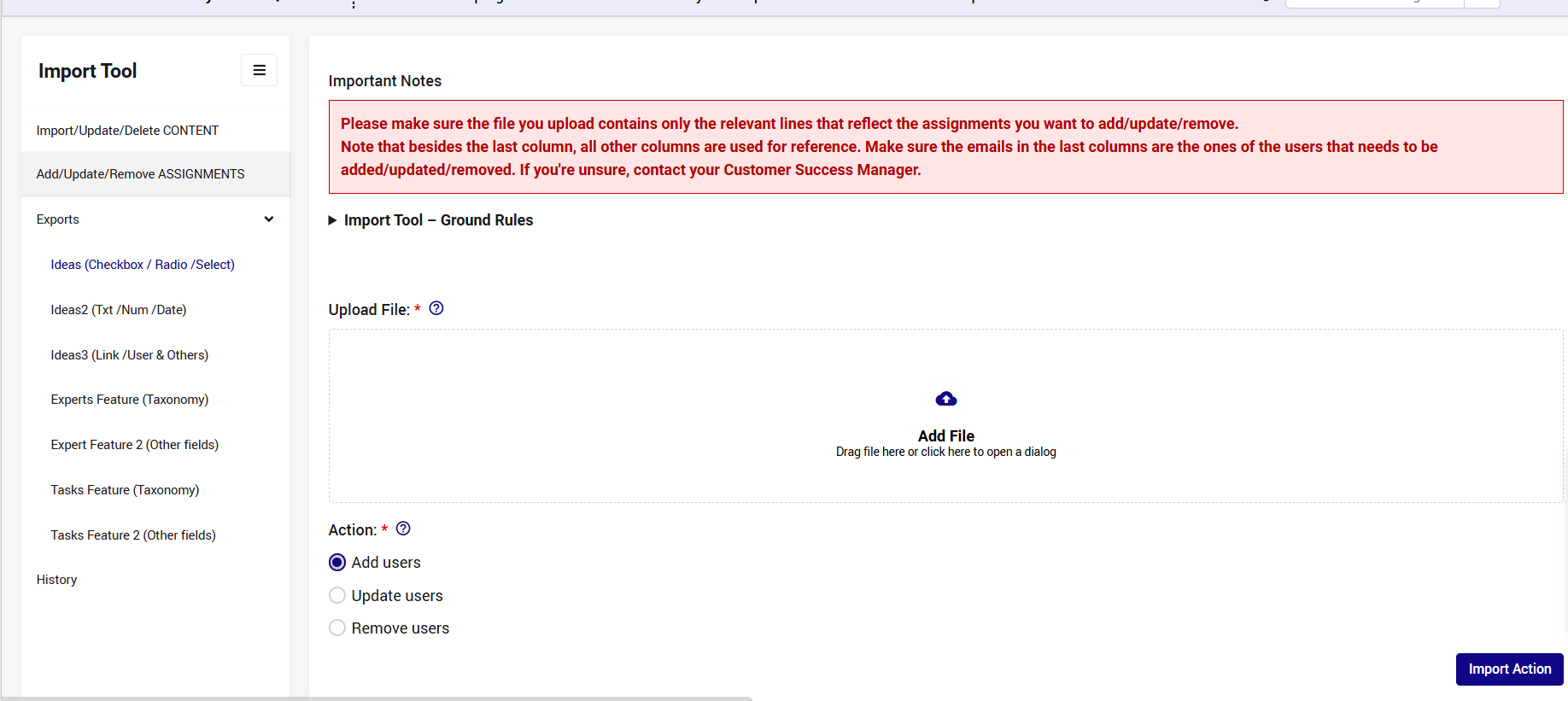
2.1. Upload the relevant file
Upload the Excel file.
2.2. Choose Your Import Action
Select one of the three supported modes:
Add users→ Add additional users the the assignments that are included in the excel file.
Note: existing assignment will remain.Update users→ Update the assigned users the the assignments that are included in the excel file.
Note: existing assignment will be replaced.
If the cell is empty, after executing the import, there will be no assignments to the relevant lines.Remove users→ Remove the users from the the assignments that are included in the excel file.
Note: other existing assignment will remain.
2.3. Execute the Import
3. Review Logs in History
The Self Admin Actions History page provides transparency and troubleshooting through downloadable raw-data logs.
The "template" for this action is called "Assignment".
✨ General Guidelines
- File upload is limited to 8K rows
- Pls let your CSM know which roles are permitted to perform each one of the actions.
✨ Ideal Use Cases
Removing specific users from all assignments
Replacing user X by user Y in all assignments