
To learn more about roles and assignments, please read this article.
Whenever a new role is created in the "Role Manager" section inside the workflow settings, it is needed to define how users will be assigned to this role - manually (i.e. by the stakeholders that process the ideas) OR automatically by one of the available assignment methods that supposed to logically reflect the decision taking procedures in the organization.
Using automatic assignment is one of the most common ways to increase efficiency and consistency in the innovation process.
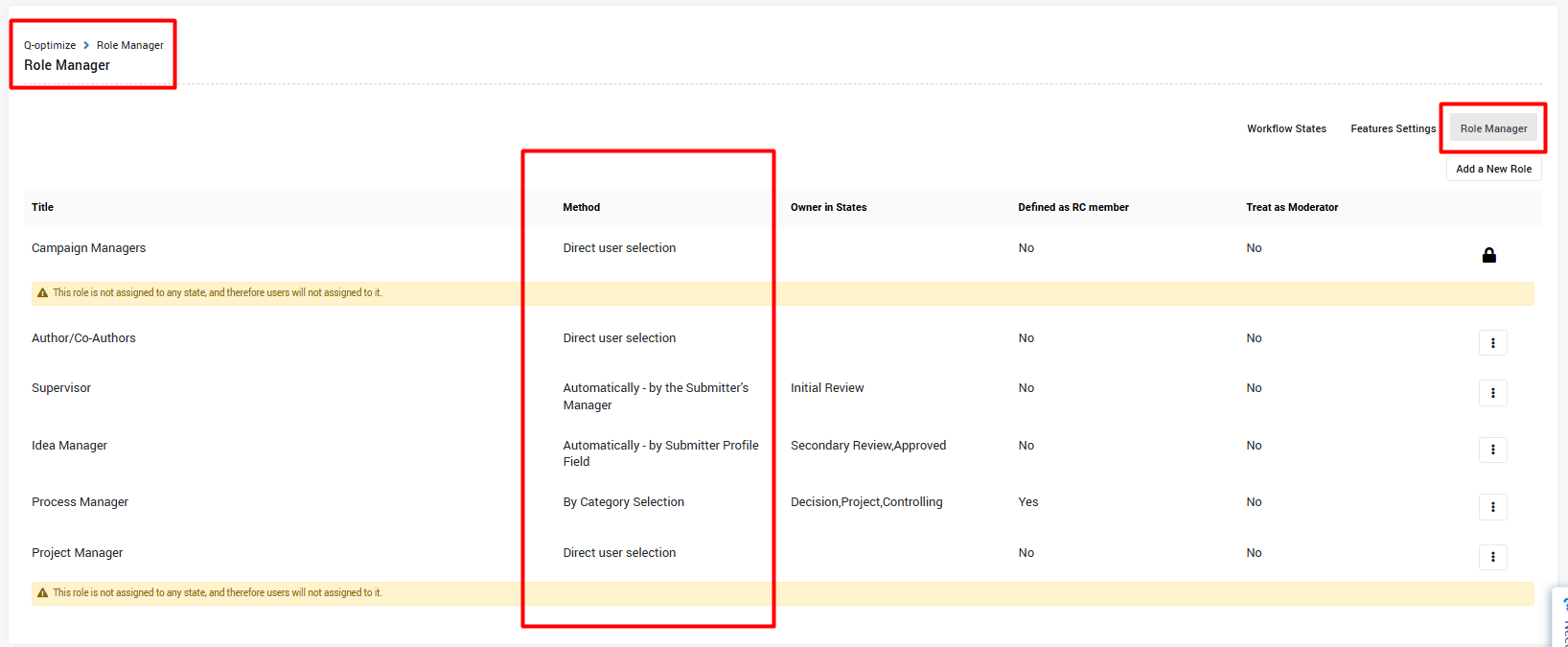
What each method means?
- Direct user selection
This method allows for the manual selection of users. The selection will be triggered when the idea will be moved to a state in which this role will be defined as a state owner as explained here.
When this methos is selected there is an option to define whether:- The selection will be single/multiple, and if multiple if the number of users will be limited.
- Whether the stakeholder should get AI recommendations on which users to select
- By Category Selection
The users can also be assigned based on any of the subsystem categories/tags.
The setting includes which select field(s) dictate the assignment during the role configuration.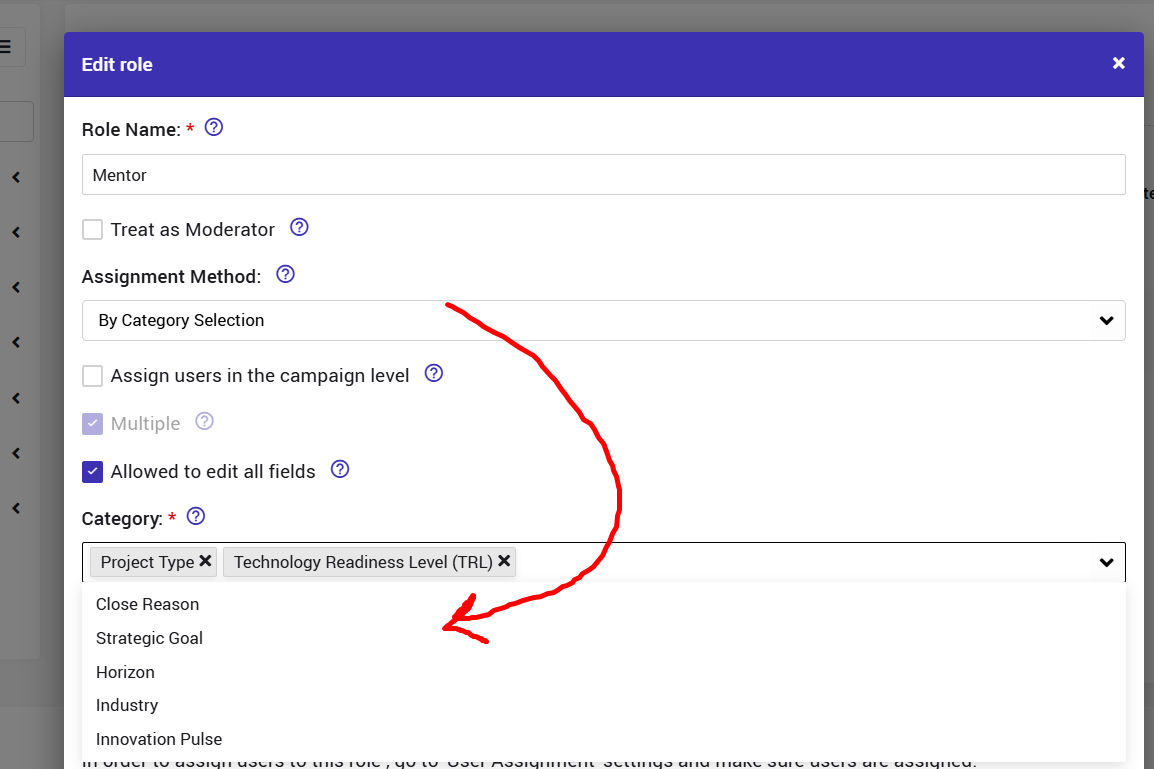 The assignment will happen as soon as a value for this category is inserted.
There is also an option to assign different user for each Campaign, if you click this checkbox: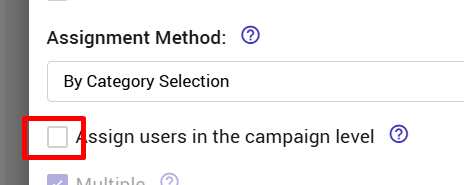
- Automatically - by the Submitter's Manager
The system automatically identifies and assigns to the role the direct manager of the use who submitted the idea, based on the attributes we get from the organization' Active Directory.
This assignment is more common in traditional work environments. - Automatically - by Submitter Profile Field
Users will be assigned to this role based on submitter's user profile (e.g., Department or Country). The setting includes which profile field(s) dictate the assignment during the role configuration.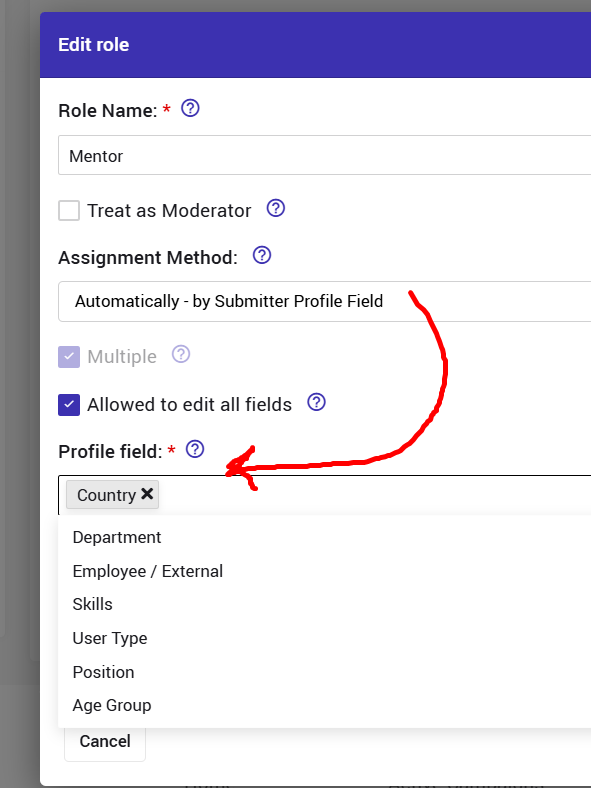
The assignment will happen upon submission.
Note: In case the submitter profile's information will change (for example: the user moves to another department), the idea itself will stay assigned based on the original profile information and will not be re-assigned. - By Campaign Category
The users can also be assigned based on specific campaign categories of the campaign the idea belong to.
The assignment will be done within each campaign, like explained here. - By tenant Category
The users can also be assigned based on specific tenant categories of the tenant the idea belong to.
The assignment will be done within each tenant, like explained here
Which users will be assigned?
The "Auto User Assignments" setting is located in the self admin settings.
You can also watch this tutorial to learn more.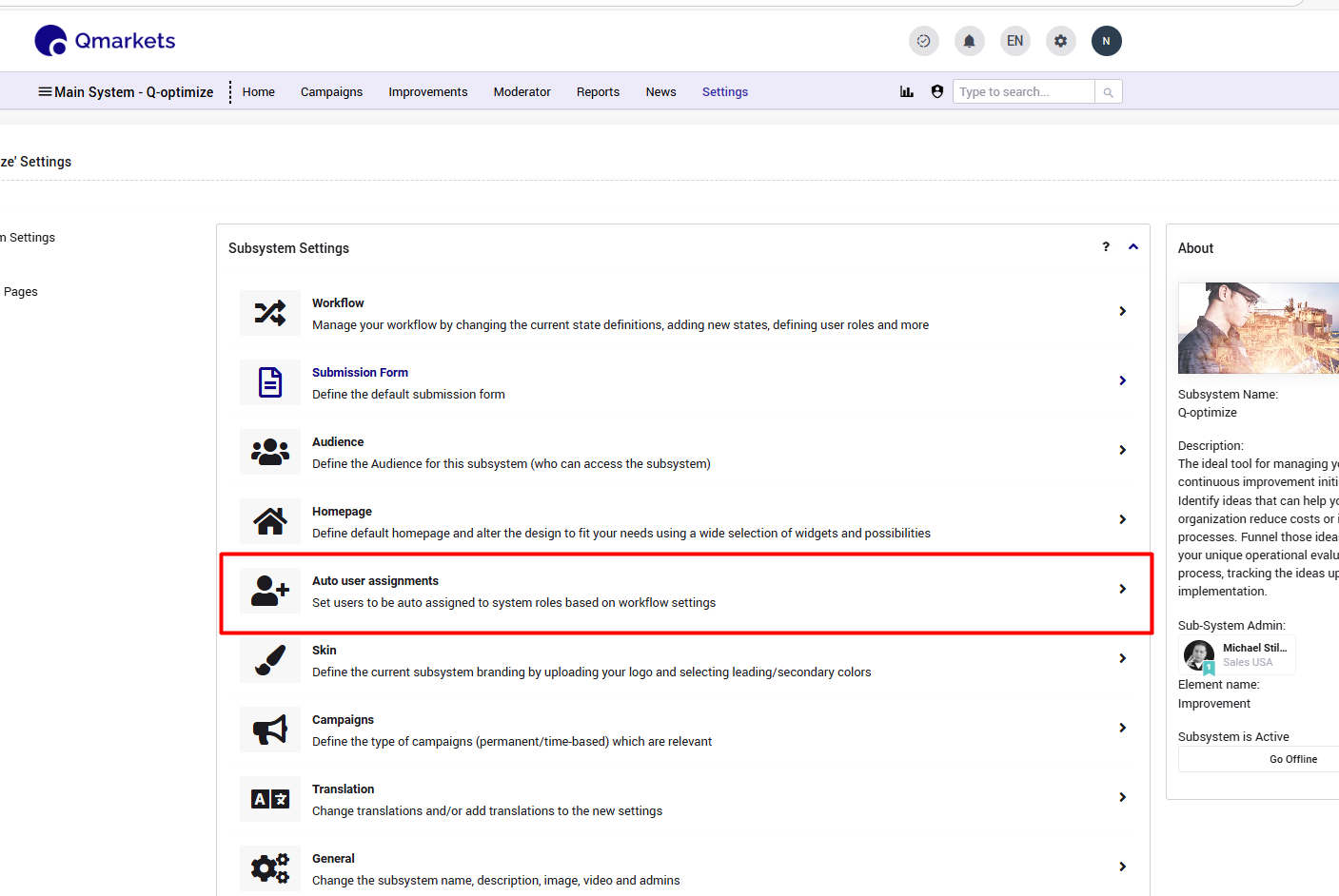
There will be one line per role.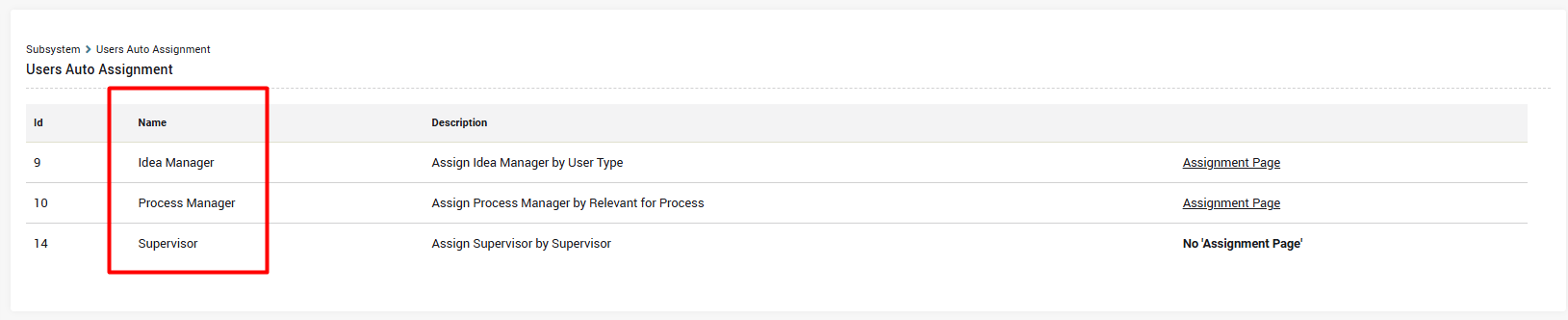
The Assignment Page is where you can see all existing assignments based on your selected method. This page can be filtered is needed.
Assignment can be changed per individual line (as displayed below), or on multiple lines by selecting the relevant lines then selecting the users after clicking the icon on the top left corner.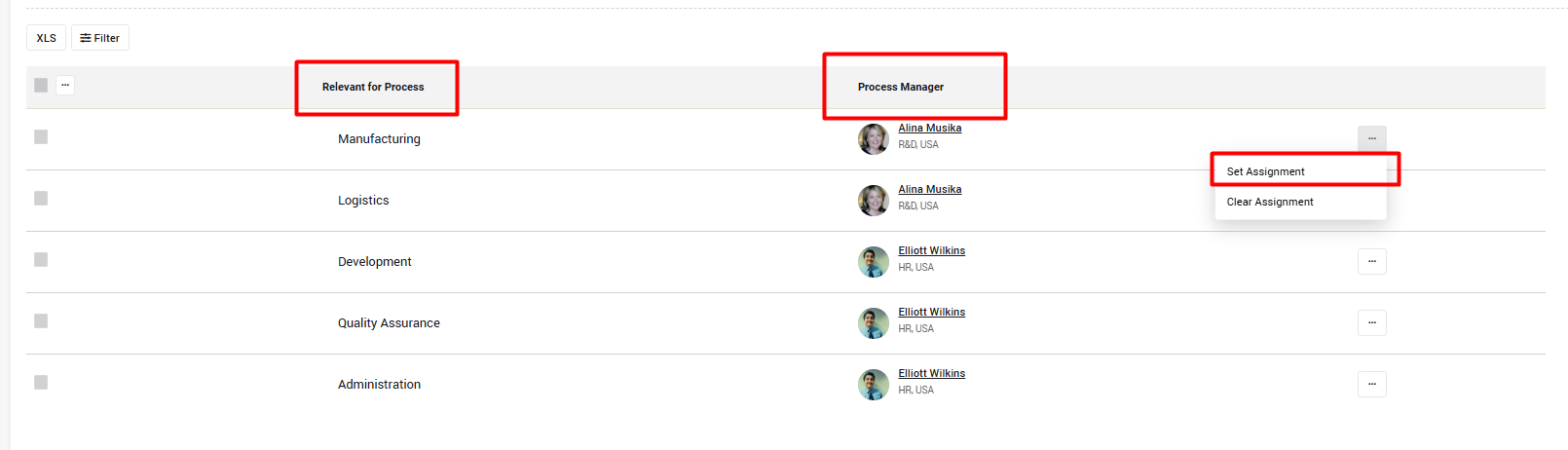
You can then select one or more users.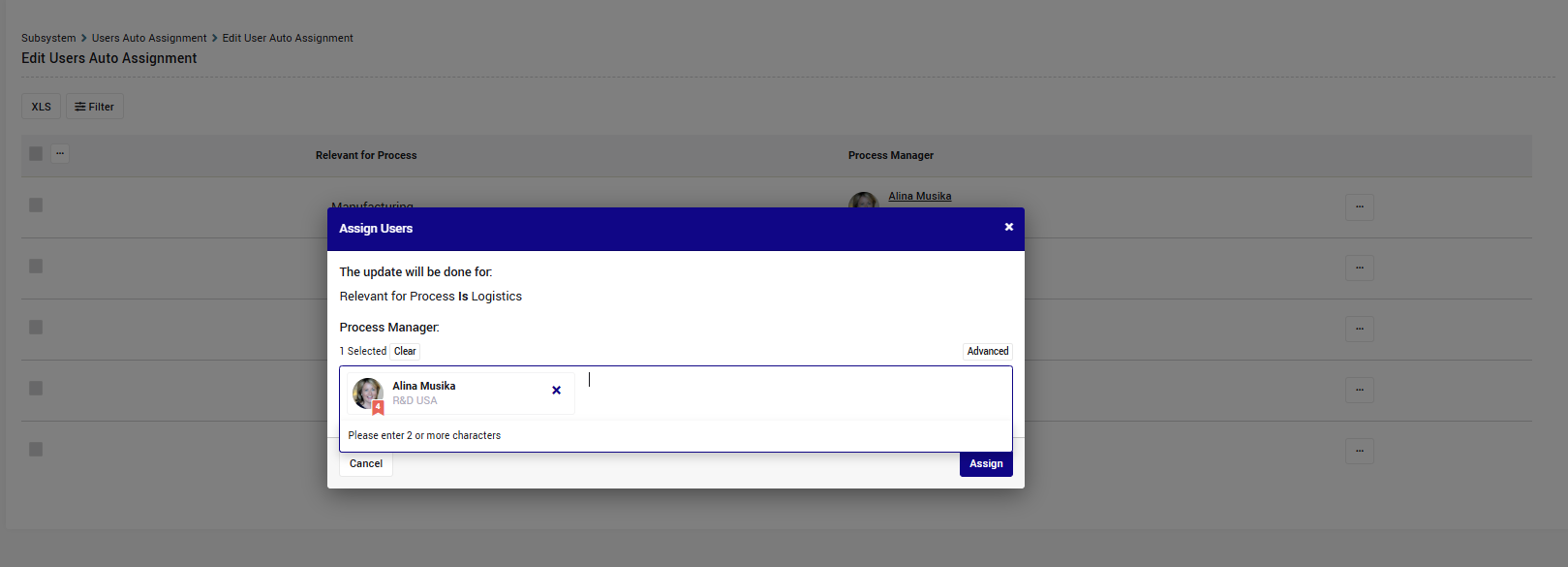
Notes:
- Ideas can be reassigned when needed in the idea page, or via the bulk actions tool, but, once an idea is assigned manually it will not be re-assigned automatically again.
- To learn more about the differences between By Campaign Category and By Category Selection, please refer to the following article