
Unlike the standard task feature , this advanced feature saves time, reduces human error, and ensures consistent process execution. With tasks triggered based on fixed schedules or workflow changes, teams can maintain efficient operations and stay on track.
To set up this feature, contact your CSM with the following details: the task name and trigger details.
Available triggers:
- When moving to specific states - A new task will be created whenever an idea moves to a state in which the feature is enabled.
- Every Week/Month/Quarter - For monthly tasks, you can determine the day of the month on which the task will be created.
Please note that, like any other feature, Automatic Task Management can be used across multiple subsystems. The configuration options below indicate whether each setting is managed at the feature or subsystem level.
Table of Contents
Below is a detailed guide on how to configure the Automatic Tasks feature.
Since the same feature can be used by several subsystems, some of the setting is done on the feature level, and some on the subsystem level.
Configuration on the Feature Level
- Configuring Automatic Task Behavior
- Adding States to the Task Workflow
- Configuring Notifications and Reminders
- Defining Automatic Idea Transitions
Configuration on the Subsystem Level
Additional Configuration Options
Configuration on the Feature Level
The following settings are configured at the feature level and control the behavior, workflow, and notifications of automatically created tasks.
1. Configuring Automatic Task Behavior
Under Self-Admin > Features > General, you can define key behaviors that control how automated tasks are created and managed.
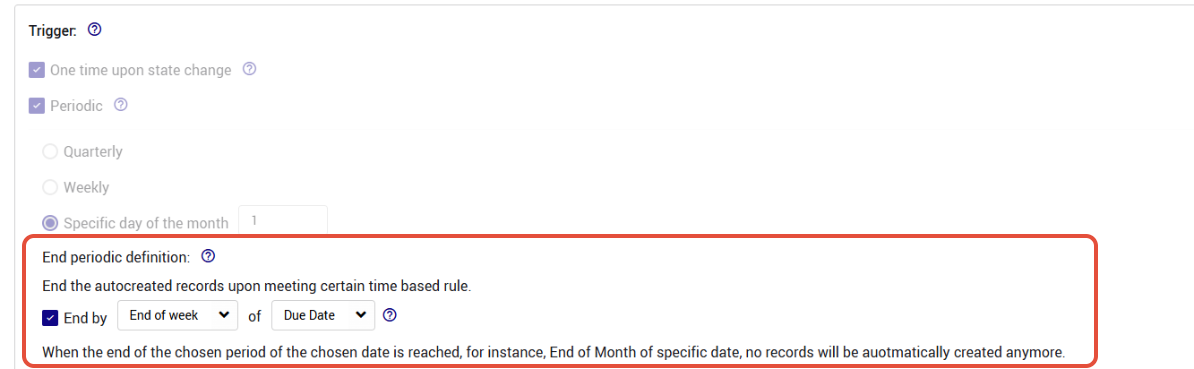
The End periodic definition setting allows you to stop the creation of new tasks once a specific time condition is met. For example, at the end of the week of the task's due date, ensuring that tasks are only generated within a relevant timeframe.
You can also configure the Behavior of current feature when a new one is created, which determines what happens to existing entities when a new one is created. You can choose to move them to a specific state, such as Archived, New, or Updated, or keep them in their current state.

The Auto fill of fields setting allows you to automatically copy specific field values from the latest entity to any newly created one. This ensures consistency and reduces manual work by carrying over relevant data.

2. Adding States to the Task Workflow
You can add more states to the workflow as needed, enabling you to capture additional steps, such as supervisor approval before a task is marked as completed.
Navigate to the Feature Settings page, select Workflow, and click Add a State.
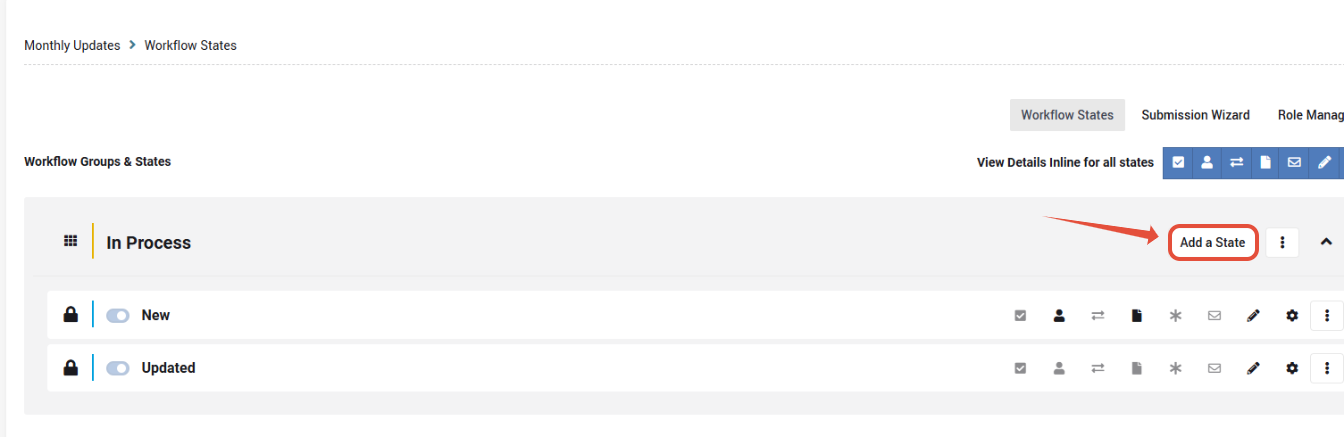
Position the state in the relevant place in the workflow and complete the required settings, including the state owner and allowed transitions.
To learn more about the configuration options for each state, please watch this tutorial .
3. Configuring Notifications and Reminders
In processes involving multiple stakeholders, notifications help ensure that tasks progress as expected and that the workflow remains efficient.
Notifications can alert task owners to take action, keep relevant stakeholders informed when tasks are completed, and notify others of delays or issues.
Notifications and reminders can also be sent to stakeholders involved in the idea process, campaign roles, or moderators.
Notifications can be triggered whenever a task changes state or when the task owner changes, for example, when a new owner replaces the existing one.
Reminders can be sent to task owners based on the following triggers:
- After X days without a response.
- Before or after X days from the task's due date.
Consider configuring a series of reminders and, if needed, adding other stakeholders as CC/BCC recipients for escalation.
To configure notifications, navigate to the feature's Workflow and click the mail icon in the relevant state, such as the In Progress state.
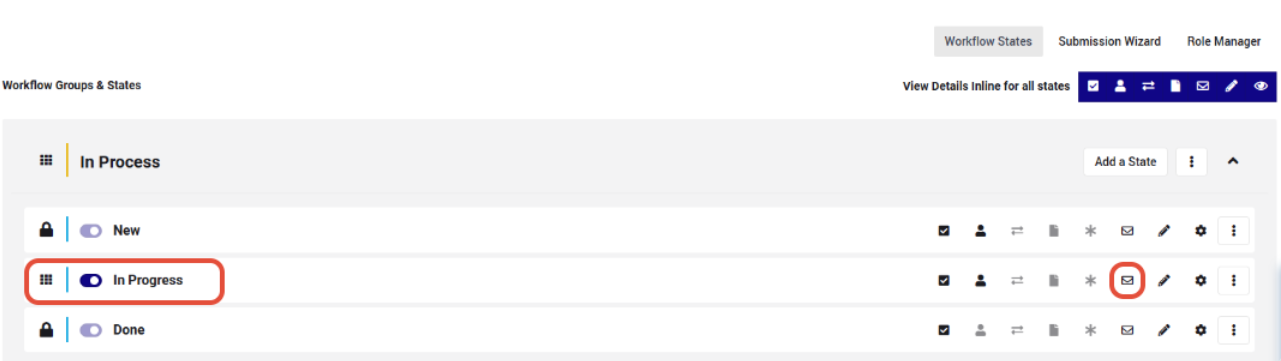
Next, click Add a new E-mail/Notification. Select the email type and configure the remaining parameters.

To learn more about configuring workflow email notifications and reminders, watch this tutorial .
4. Defining Automatic Idea Transitions
If needed, you can define automatic transitions at the idea level. For example, an idea can automatically move to a specific state once all associated tasks have been completed.
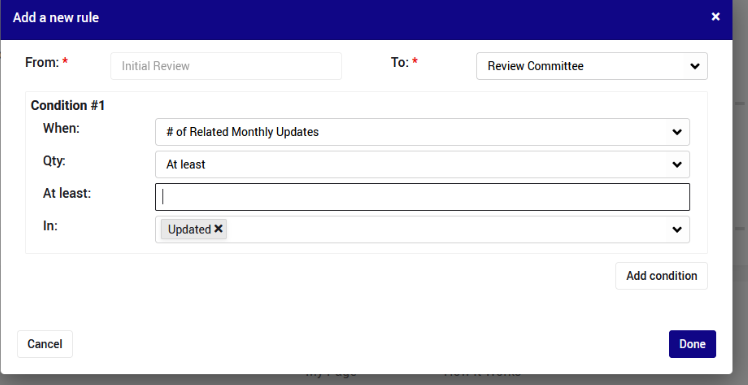
To configure this behavior, click the Auto Transition button.

Configuration on the Subsystem Level
The following settings are configured at the subsystem level, allowing you to define how automatic tasks are created and managed within each subsystem.
5. Configuring Task Settings and Field Mapping
Once the feature has been set up, you can access and configure it by navigating to: Subsystem Settings > Workflow > Features > The Relevant Feature.
On this page, you can define the key settings for task creation:
- Task Owner: Select the roles responsible for the new task.
- Due Date: Define the task's due date.
- Task Title: Specify the title of the automatically created task.
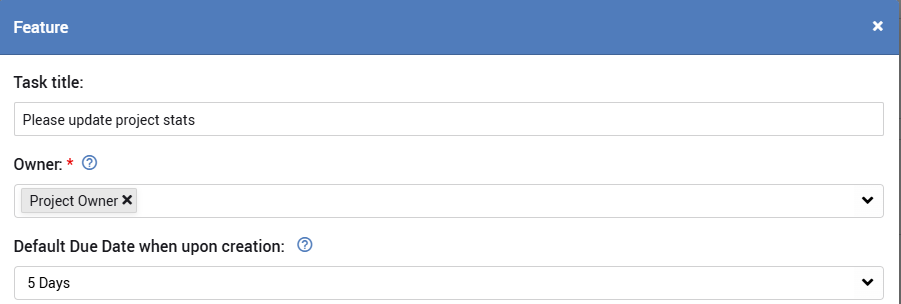
Task owners can be selected from any of the subsystem roles, including the author or the author and co-authors. Multiple roles can be selected.
Each user assigned to one of the selected roles will receive a personal task when the automatic task is created.
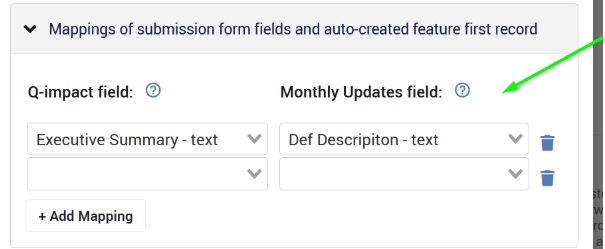
Additionally, you can map fields that will be inherited from the parent idea or project to the automatically created task.
This means the new task will be created with predefined values taken from its parent entity.
For example, you may want to copy an initial expected budget or risk assessment from the parent idea and revisit these values on a weekly or monthly basis.
6. Assigning Gamification Points to Task Owners
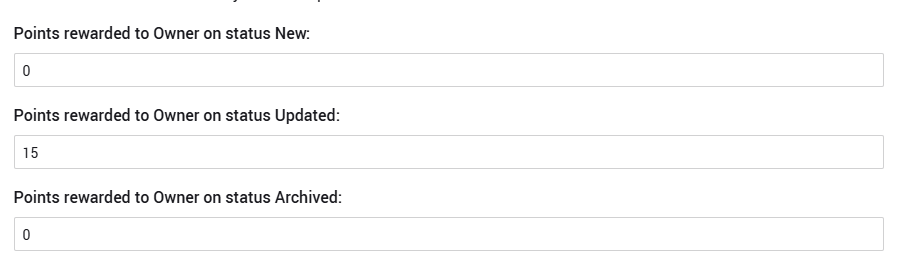
You can define how many gamification points are awarded to task owners based on the feature's workflow state.
For example, points can be awarded when a task reaches the Completed state.
This allows you to recognize task completion and encourage engagement with the task management process.
Additional Configuration Options
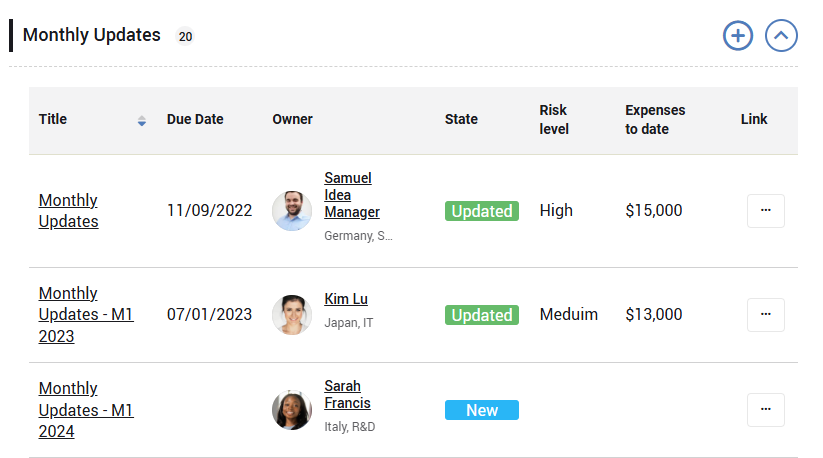
7. Customizing the Task Display
If you would like to customize how tasks are displayed within the idea page, such as adding additional columns or making other display adjustments, please contact your CSM for assistance.
8. KPIs & Reports
As with any other activity in the system, reporting is essential for measuring feature usage, stakeholder performance, and the value generated by automatic task management.
You can use KPIs and reports to track task-related activities and evaluate the effectiveness of the process.
To learn more about reporting on task management activities, watch this tutorial .