
The Task Management feature streamlines the assignment, allocation and tracking of tasks, allowing campaign managers and decision-makers to ensure the innovation process is efficient and effective, involving all relevant stakeholders in the organization.
The process allows defining clear responsibilities, deadlines and notifications, ultimately driving successful outcomes and timely decision-making.
The Task Management feature is part of our template, and you can learn more about how it works in this video.
However, since we recognized that different teams have unique needs, we offer extensive configuration options to maximize the success of your operation as detailed in this article.
Please note we also offer an automatic task creation feature. See more details here and contact your CSM if relevant.
Below is a detailed guide on how to configure the Task Management feature:
Since the same feature can be used by several subsystems, some of the setting is done on the feature level, and some on the subsystem level.
Configuration on the Feature Level
1. What Should Be Included in the Task Description?
2. What Information Should Task Owners Provide?
3. Adding More States to the Workflow
4. Defining Notifications and Reminders
5. Allowing State Owners to Clone Existing Tasks
Configuration on the Subsystem Level
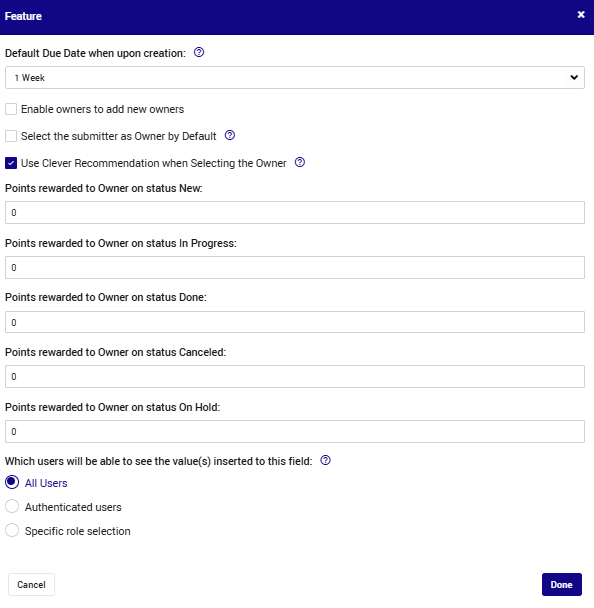
6. How to Change the Default Due Date
8. Assigning Points to Task Owners Upon Task Completion
Additional Feature Capabilities
9. Smart Recommendations When Selecting a Task Owner
Feature KPIs & Reports
Please note that, like any feature, Task Management can be used across multiple subsystems. The relevant configuration level is indicated below.
Configuration on the Feature Level
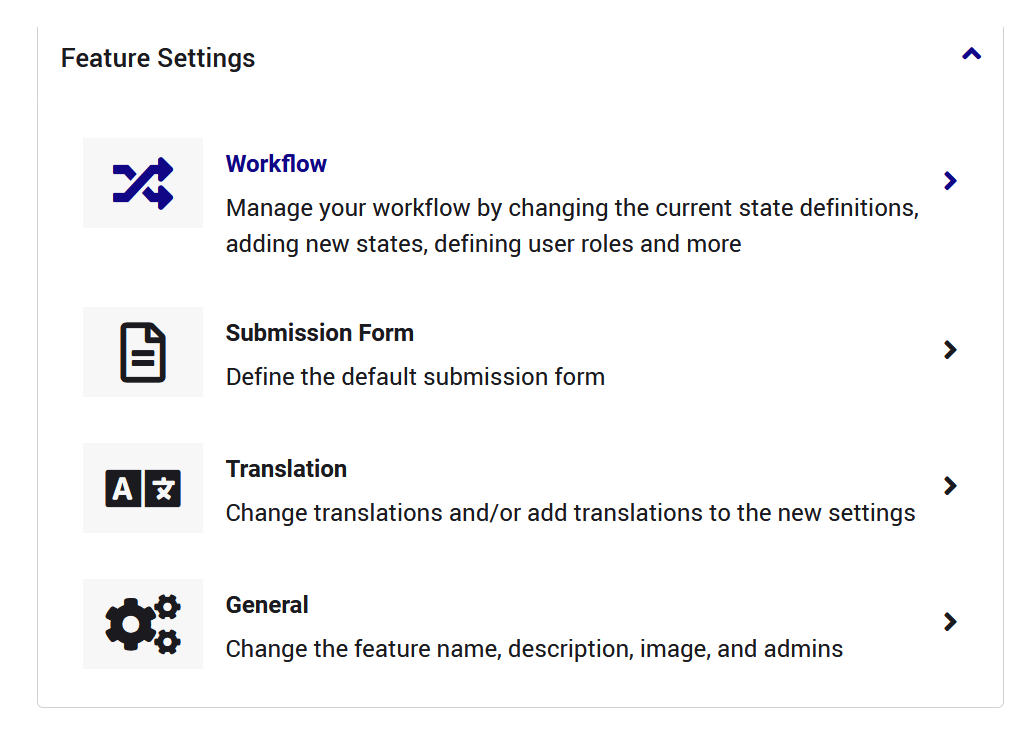
To start, go to Settings > Features (<site url>/self-admin/sys-components/features/) and select Task Management. You will get to this page:
1. What Should Be Included in the Task Description?
i.e. Configure the form that defines the task itself and how to assign the task owners.
Configuring the form that state owners fill when submitting a new task is crucial for providing internal context and clarity. The fields included in the form help define the task's scope, set clear expectations, and ensure everyone involved understands the requirements.
To customize the form, follow these steps:
- Select the Submission Form option.
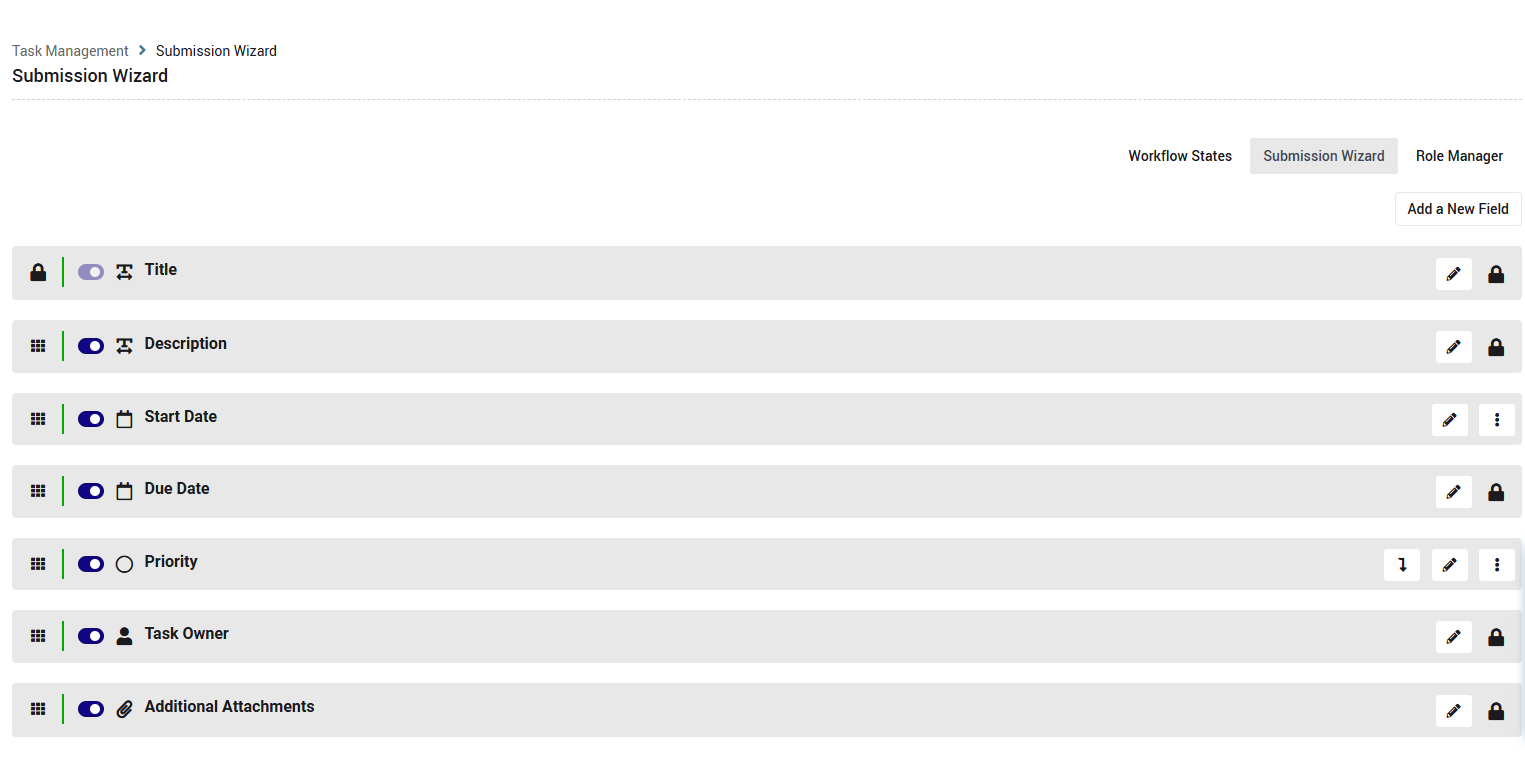
- In the Submission Form, you can add or remove fields according to your needs.
- Default fields include options like Description, Task Owner, and Due Date.
- To add new fields, click Add a New Field.

Multiple field types are supported:
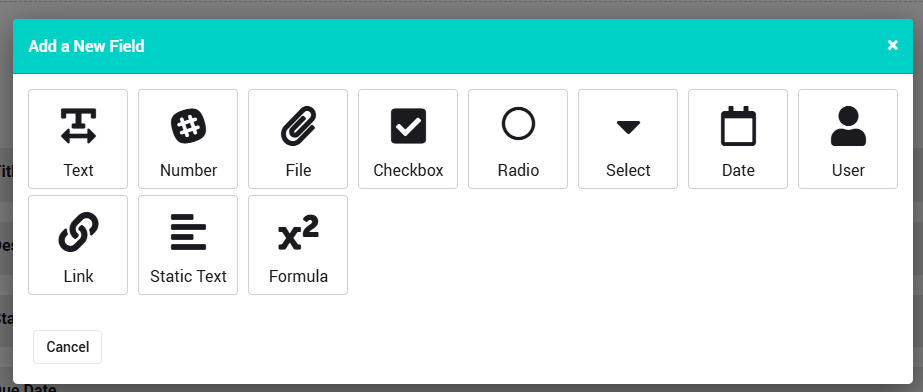
To learn more about the uniqueness of each field, please watch this tutorial.
Note: There is an option for some fields to be copied from the parent idea/project. Learn here how to configure it.
2. What Information Should Task Owners Provide?
i.e. Configuring the form that the task owner should fill.
Configuring the form that task owners complete is important because it helps clearly define the task, ensuring all necessary details are provided for efficient execution and successful completion.
To add more fields for the task owners to fill out:
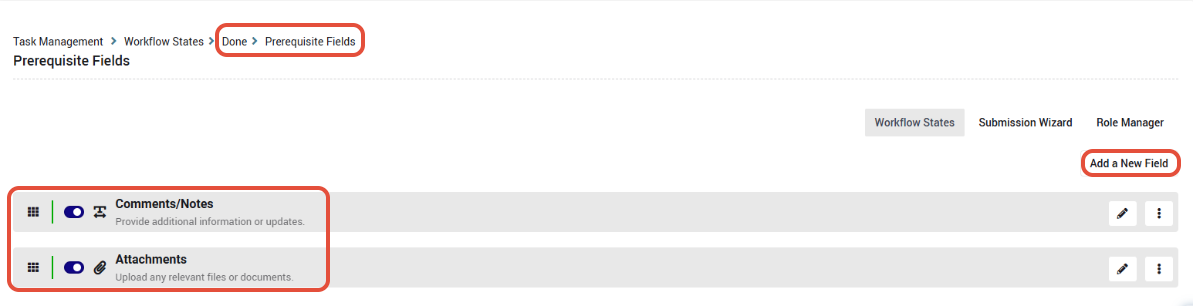
- Go to the Task Management settings page, select Workflow, and navigate to the Done state (or any other relevant state).
- If you would like the fields to be filled when the idea moves to this state, click the Prerequisite Fields icon.
- If you would like the fields to be filled when the idea is in the state (regardless of which state it will move to), click the Workflow Fields icon.
In both cases, the fields can be defined as required or optional.
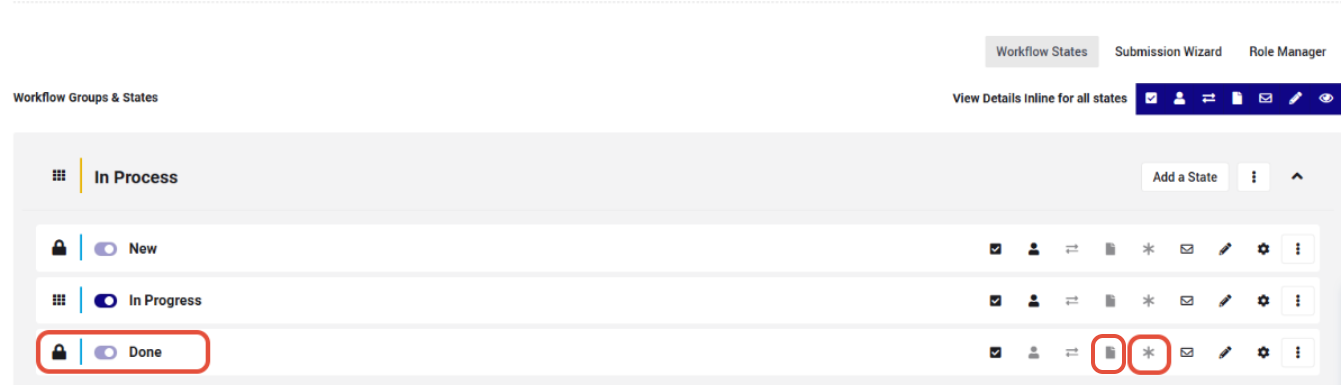
From there, you can add new fields as needed.
3. Adding More States to the Workflow
You can easily add more states to the workflow as needed, enabling you to capture additional steps, such as supervisor approval of the task before it is marked as completed.
Go to the Task Management settings page, select Workflow, and click Add a State.
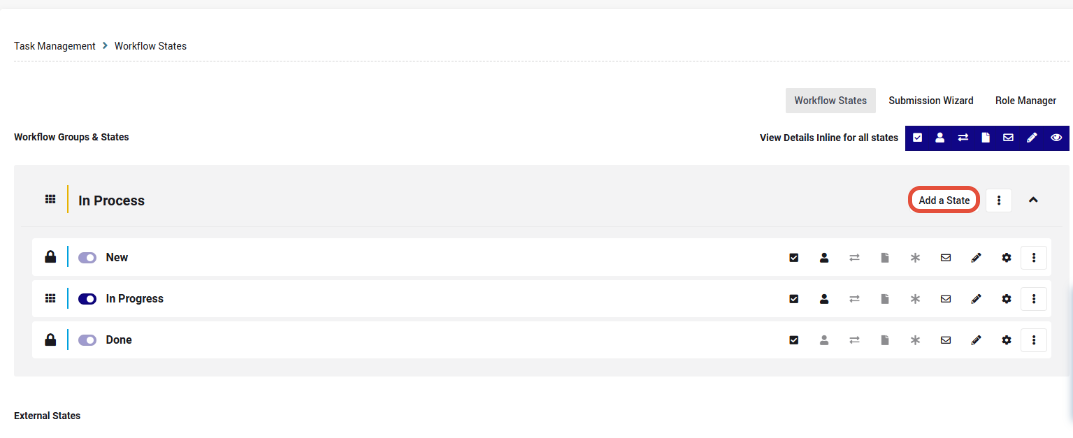
Locate the state in the relevant place in the workflow, and complete the relevant settings, including who is the state owner and what transitions are allowed.
To learn more about the setting options of each state, please visit this article.
4. Defining Notifications and Reminders
In processes involving multiple stakeholders, it's essential to ensure tasks are progressing as expected and that the workflow remains efficient. Notifications alert task owners to act promptly, keep relevant stakeholders informed when tasks are completed, and notify others if there are delays or issues in task execution.
Please note you can also send notifications/reminders to any role or stakeholder involved in the process of the idea itself, in the campaign, or to the moderators.
Notifications can be triggered for every state change or whenever the task owner changes (e.g., when a new task owner is assigned to replace the existing one).
Reminders to the task owner can be triggered:
- After X days without a response; or
- Before/after X days from the due date.
Consider creating a series of reminders and, if needed, adding other stakeholders on cc/bcc for escalation.
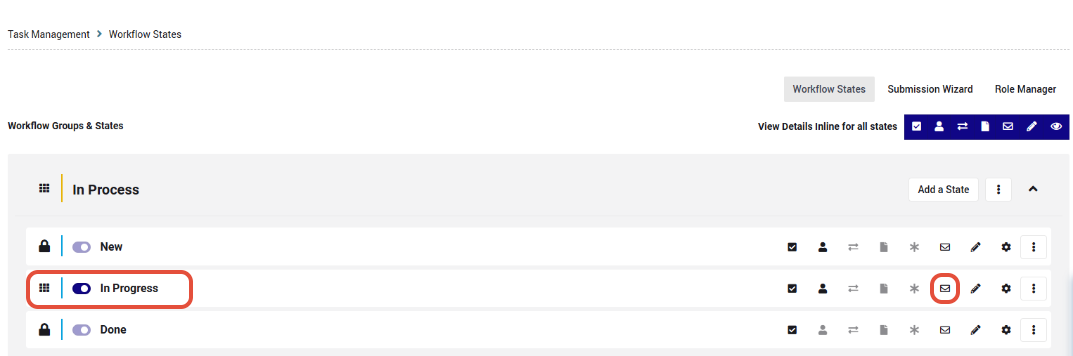
To do this, go to the feature's Workflow and click the mail icon in the relevant state, for example, In Progress:
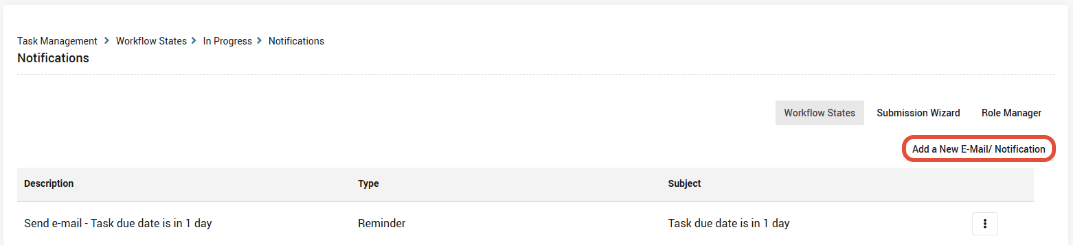
Next, click Add a new E-mail/Notification and customize your email. First select the email type, then fill in the other parameters.
To learn more about how to configure workflow email notifications/reminders, watch this tutorial.
5. Allowing State Owners to Clone Existing Tasks
This capability is not enabled by default but can be easily enabled by the sysadmin. It can be beneficial and increase efficiency when tasks repeat within the same idea/company.
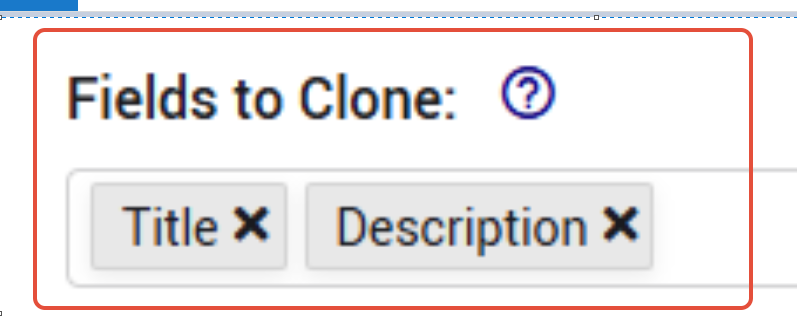
To enable it, the sysadmin needs to go to Self Admin > Features > Task Management > General and define which fields should be cloned.
For example, here we want to clone only the Title and Description fields.
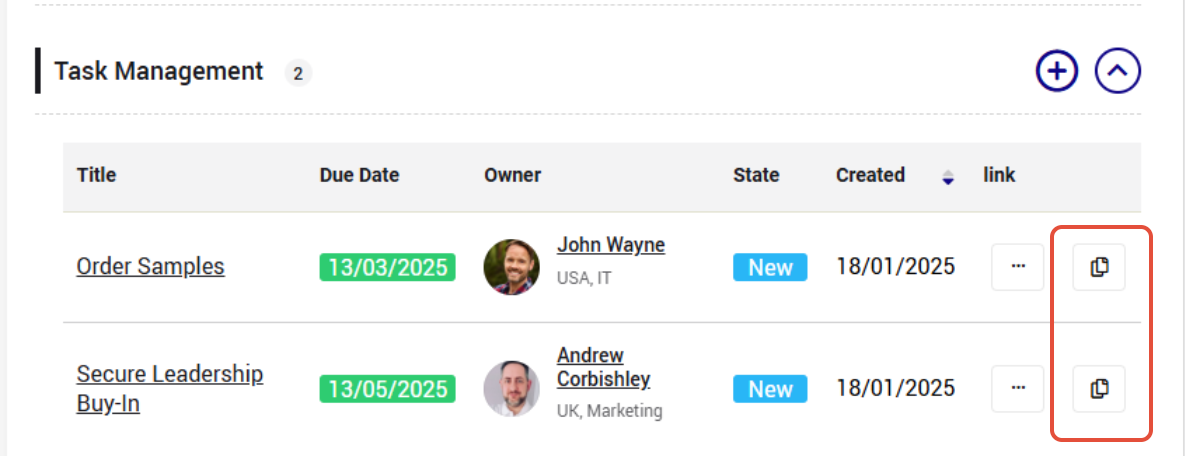
Once at least one field is selected, authorized users will be able to clone an existing task by clicking the new icon:
Configuration on the Subsystem Level
6. How to Change the Default Due Date
The feature settings include a default due date, automatically set to one week from the current date. If needed, you can modify it from Subsystem Settings > Workflow > Features > Task Management.
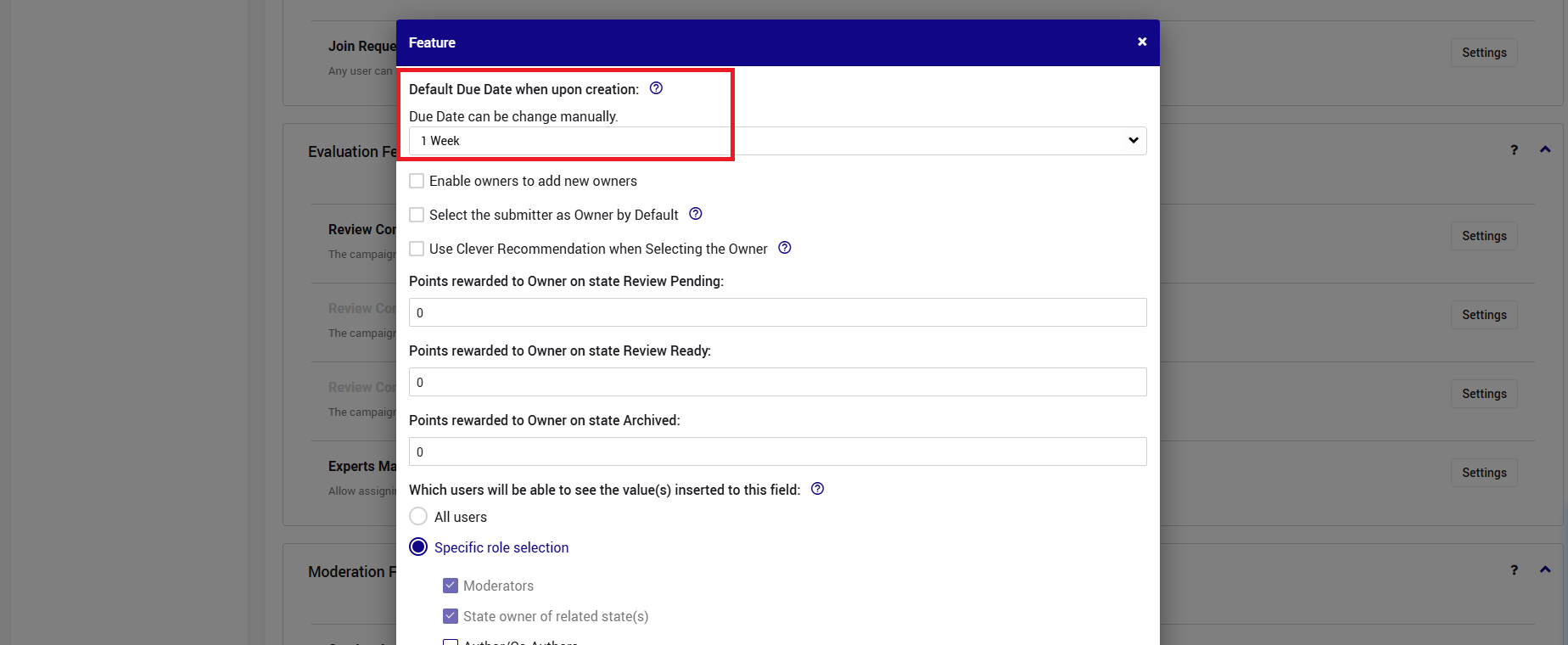
This setting is located at the subsystem level, since different subsystems/use cases may require different default settings based on the content and complexity of the tasks.
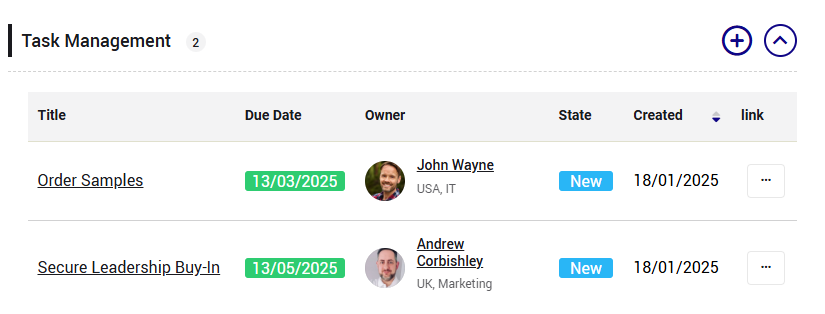
7. Customizing the Task View
If you'd like to modify the display within the idea, by adding more columns or making other adjustments, please contact your CSM.
8. Assigning Points to Task Owners Upon Task Completion
This capability is not enabled by default but can be configured by the subsystem sysadmin to encourage task owners to complete their tasks.
If needed, go to Subsystem Settings > Workflow > Features > Task Management and define the number of points the task owner will receive when the task reaches each state.
Additional Feature Capabilities
9. Smart Recommendations When Selecting a Task Owner
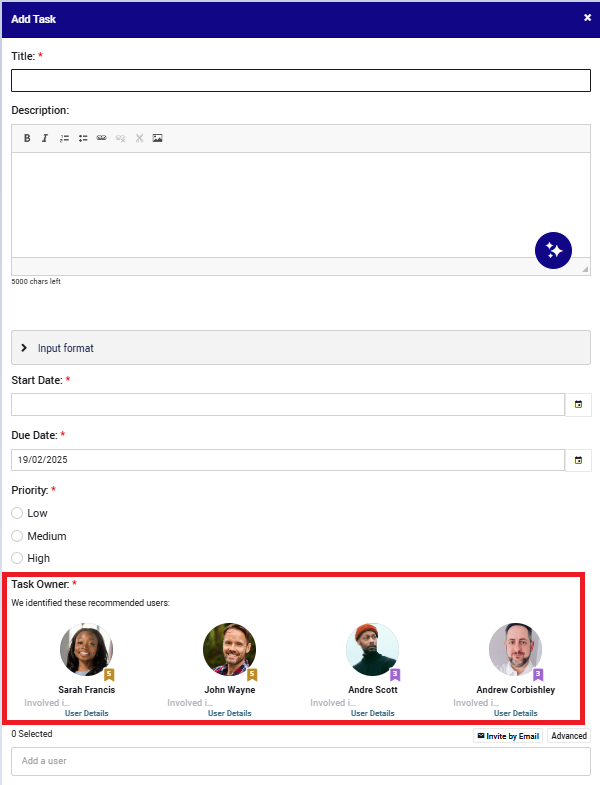
Instead of selecting a task owner based only on knowing them or their profile information, you can use system recommendations for task owners who have been involved in ideas similar to the one you are dealing with.
You can always choose not to follow a recommendation and select a task owner manually.
This is how it will look:
Feature KPIs & Reports
10. Feature KPIs & Reports
Like any other activity in the system, it is crucial to create reports that measure feature usage, stakeholder performance, value, ROI, and more. Refer to this link to understand how.