The role of Category Manager can be used when there is a need to specific users based on the idea's selected category per campaign.
This is done in 2 steps:
- Define role in the subsystem level - by the sysadmin OR subsystem admin
- Assign users per campaign category -this is done per campaign, and can be done also by the campaign managers
Once users are assigned to a role, they can have permissions as explained in this article
To learn about other roles assignments on the subsystem level OR tenant level, click here
To learn more about the differences between assigning users in the campaign level, by Campaign Category Vs by a Subsystem Category Selection, please refer to this article
Before assigning user, you need to make sure the role already exists and with the correct assignment method.
If you already have this role assignment, skip to step 2.
Step 1. Creating the Role
In the workflow, select "Role Manager", then "Add a New Role".

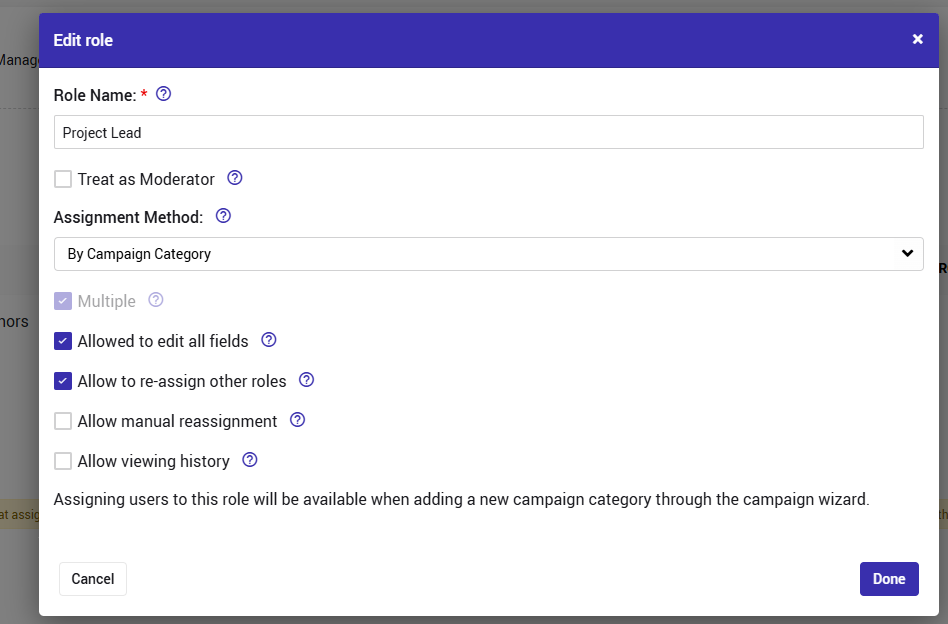
Name the role and set the Assignment Method to "By Campaign Category". If "Treat as Moderator" is selected, the assigned user will become moderator for the entire campaign.
Step 2. Assign users per category
There are 2 methods to do it.
Method 1: via the campaign wizard
Just select the relevant users for each category you add/edit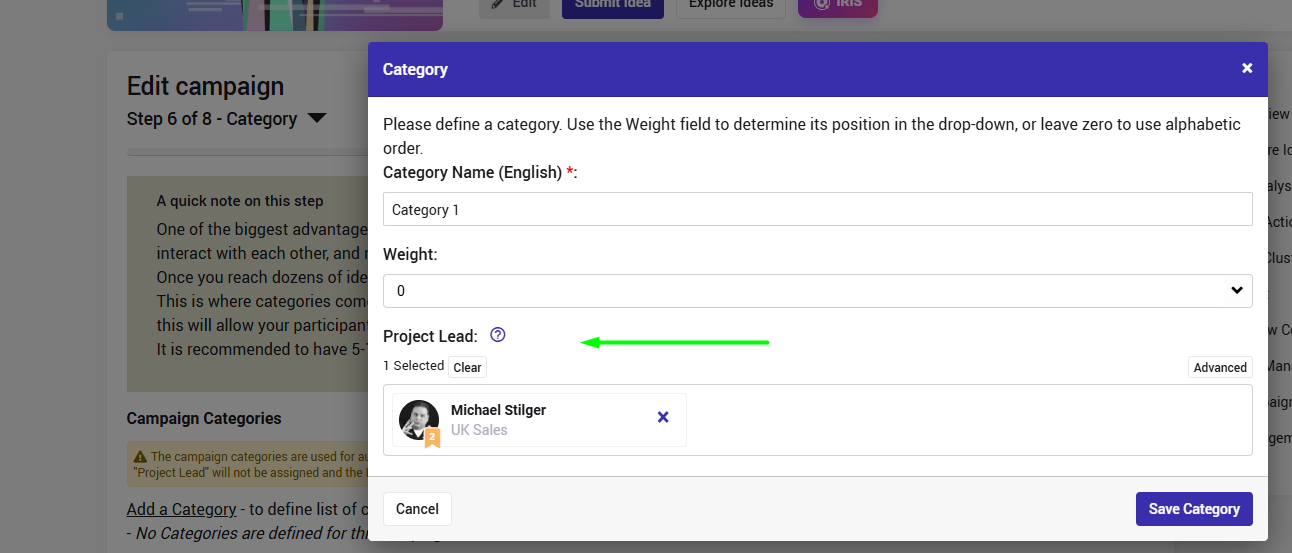
Method 2: via the campaign management menu
Navigate to the campaign you want to assign the users to.
From the campaign menu, under "Campaign Management", select "Auto Assignment"
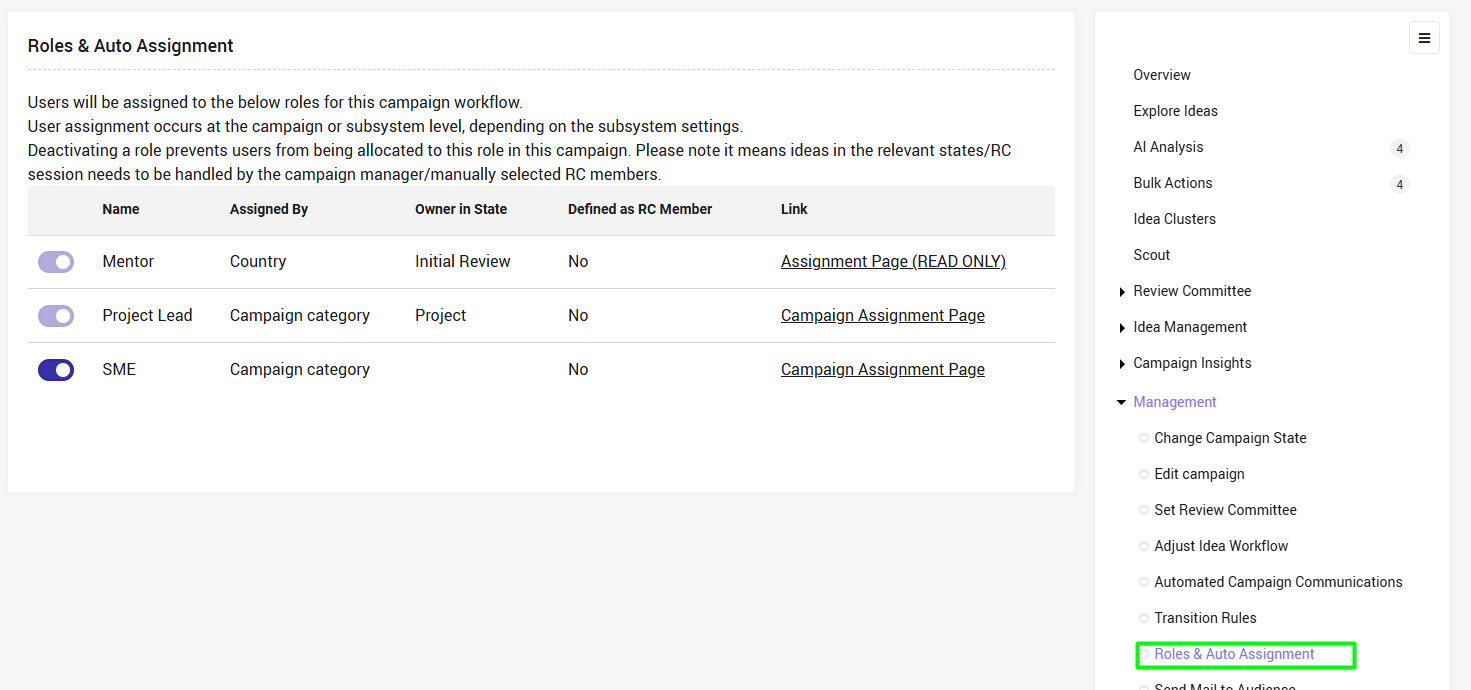
Select "Campaign Assignment Page" of the relevant role.
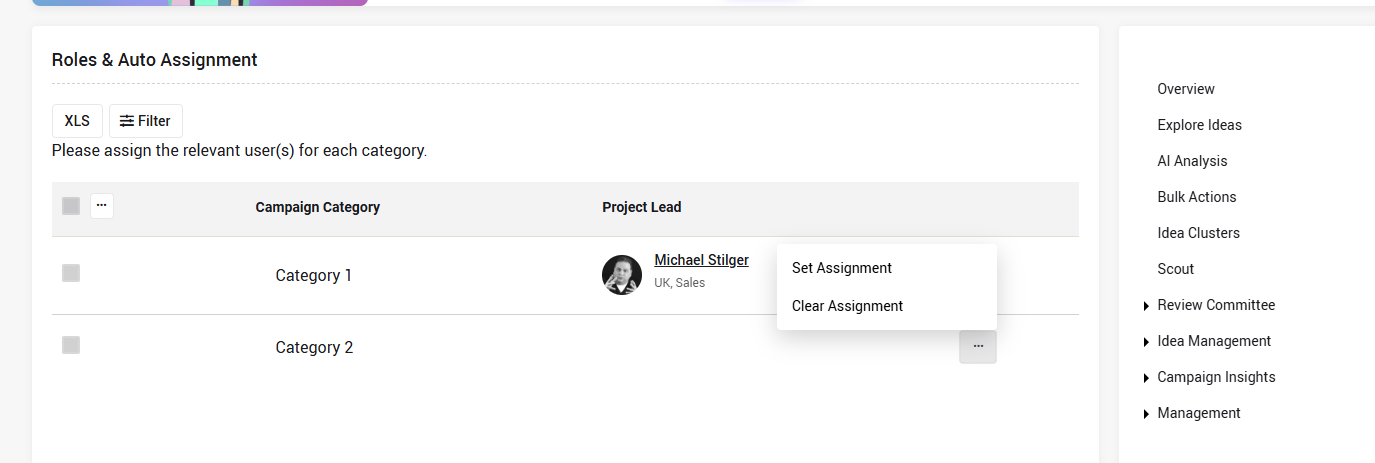
There will be one line per campaign category.
From the 3 dots menu, click "Set Assignment" and select the relevant users
Once users are assigned to a role, they can have permissions as explained in this article
Note:
If no campaign categories have been configured for a specific campaign no users will be assigned to the role and the following message will be displayed under Roles & Auto Assignment next to the relevant role assignment page.
It will look like this: