
If an idea or another entity was moved to the wrong state by mistake, it can be moved back to the required state.
There are two ways to do this, depending on whether you want the configured notifications to be triggered.
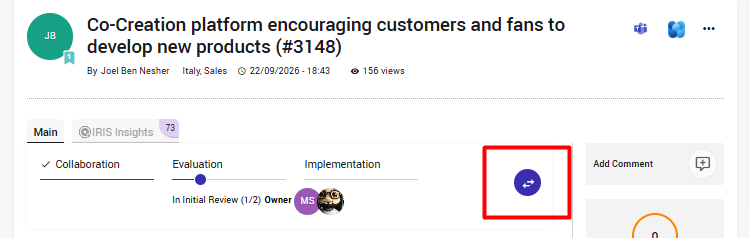
Option 1: Change the State Using the Process Icon
The simplest way is to change the state directly from the entity page.
An authorized user, such as a SysAdmin, Campaign Manager, or State Owner, can:
- Open the relevant entity.
- Click the Process icon.
- Select the required state and perform the transition.
Please note: If email notifications are configured for the selected state, they may be triggered again when the entity is moved back to that state.
Option 2: Change the State Without Sending Notifications
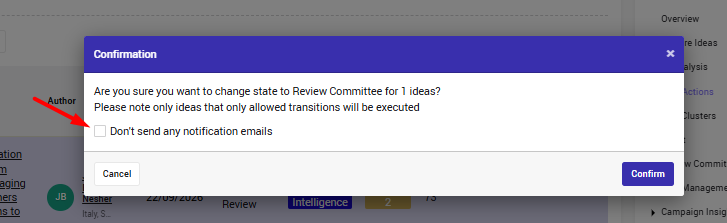
If you do not want the notifications to be sent again, perform the state change from the Bulk Operations page instead.
From the Bulk Operations page:
- Find and select the relevant entity.
- Choose the required state transition.
- Disable the notifications using the relevant checkbox.
- Apply the change.
This allows you to move the entity to the required state without triggering the configured notifications again.
Note: We recommend informing the author(s) and any relevant stakeholders that the entity was moved to the wrong state by mistake.
If the entity was deleted by mistake, please contact the Qmarkets Support Team for assistance.