
Horizon is our research product that provides an interactive, dynamic landscape that allows you to explore and navigate the full picture of Trend & Foresight Intelligence . From there, you can easily access and evaluate every piece of data that can influence your future, including trends, technologies, startups, patents, signals, trajectories, and more.
It is opened inside the Qmarkets system within an iFrame. Enabling it is a behind-the-scenes setup performed by Qmarkets, and is completed in three stages: activating the feature at system level, configuring the connection, and activating Horizon on each relevant subsystem.
Create a step-by-step guide
Step 1: Activating Horizon
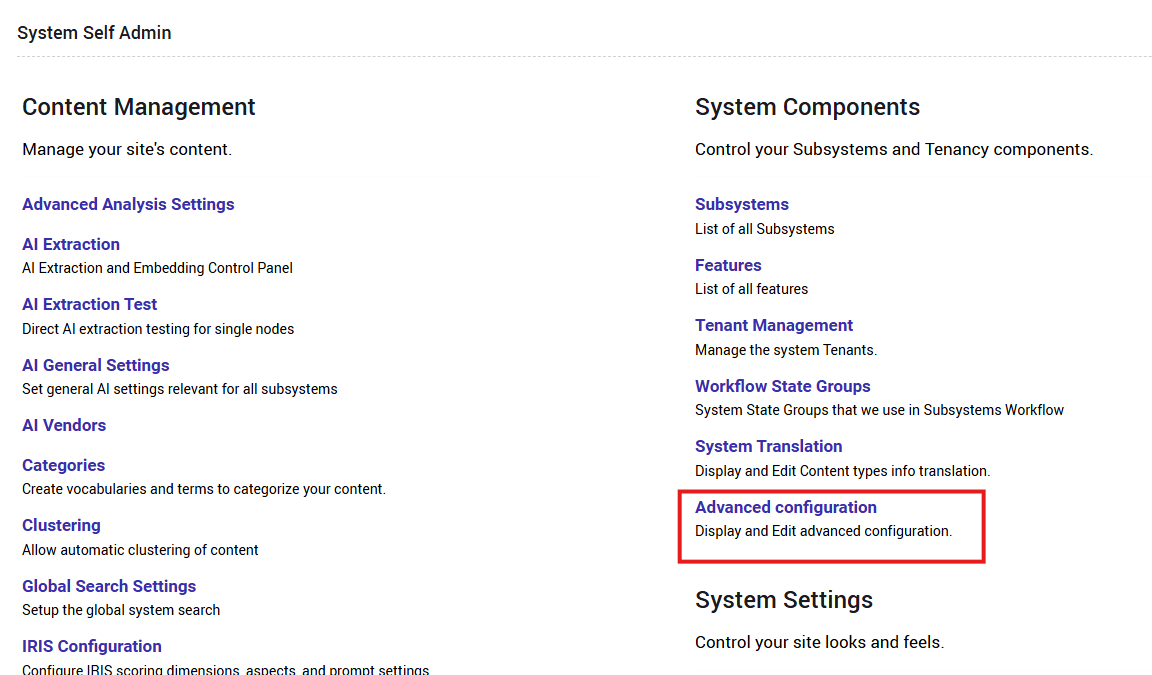
- Navigate to Self Admin > System Components > Advanced Configuration.
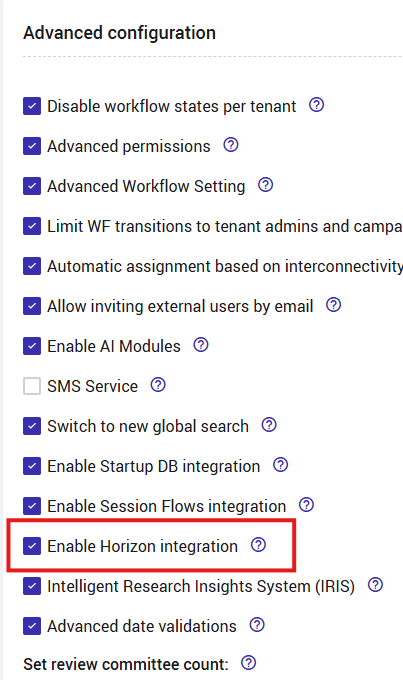
- Verify the "Enable Horizon Integration" checkbox is selected and click Save.
Step 2: Configuring the Connection
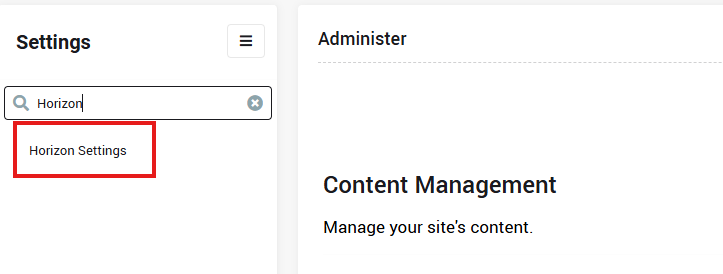
- Open the Full Admin settings and search for Horizon Settings (under Site Configuration)
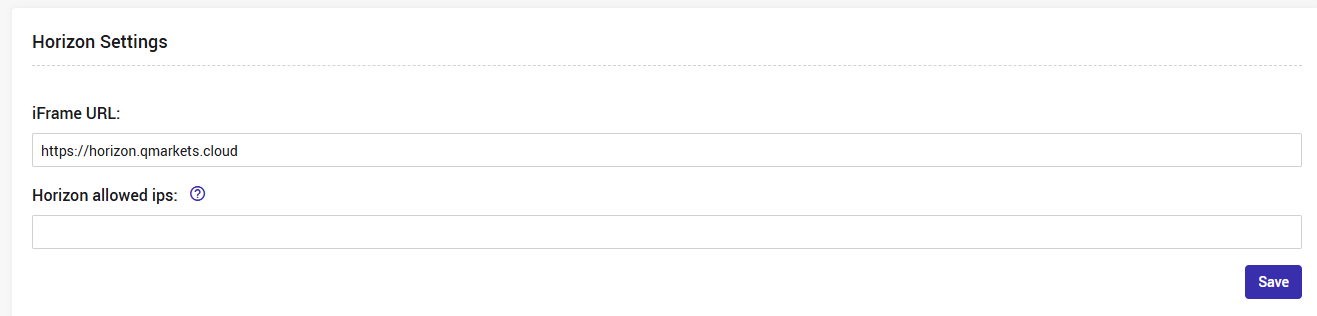
- In the URL field, enter the production Horizon address: https://horizon.qmarkets.cloud
- Horizon allowed ips – this field is intended to restrict access by IP address. It is not currently functional, so leave it empty.
- Click Save
Step 3: Activating Horizon on a Subsystem
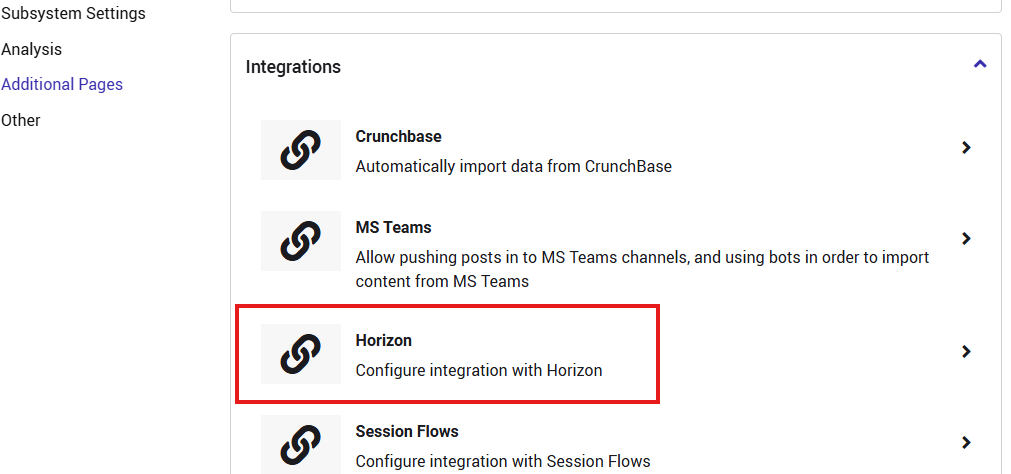
- Navigate to the subsystem settings. Horizon now appears in the list of integrations – select it.
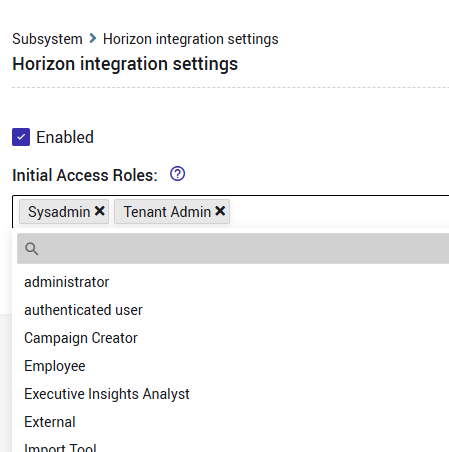
- Select the Enabled checkbox, then select the relevant roles under Initial Access Roles and click Save.
- Note:
Initial Access Roles – determines which user roles will see the Horizon icon in the top bar, alongside the IRIS and Session Flows icons.
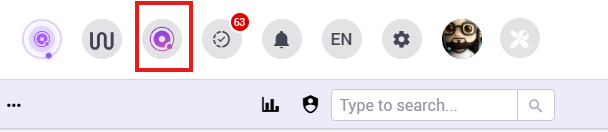
Important: This setting controls the visibility of the icon only – it does not restrict access to Horizon itself. Any user who has the direct link can reach Horizon regardless of their role.
Step 4: Setup Verification
- Click the Horizon icon at the top and see that Horizon loads correctly.
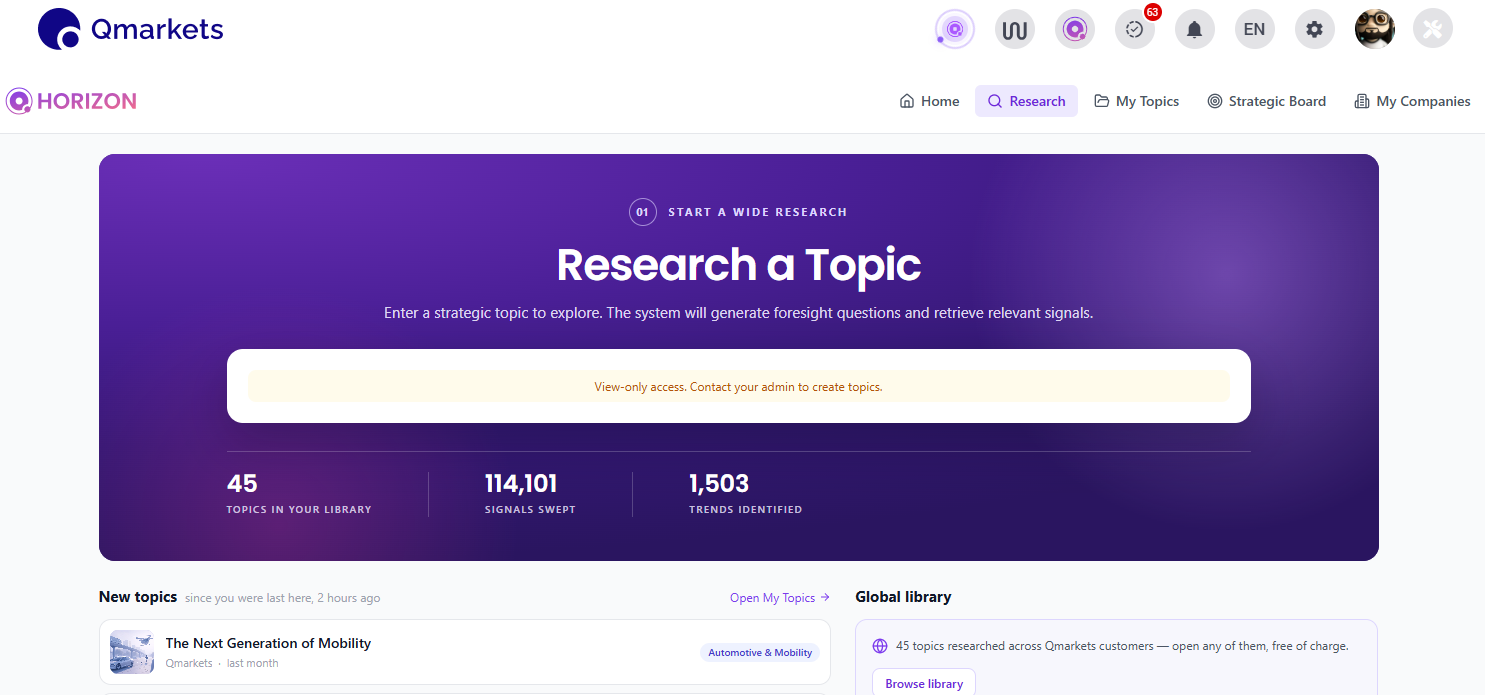
- Note: If the Horizon page does not load or appears blank, verify that the Horizon URL has been added to the list of URLs permitted to open within an iFrame in Full Admin (Search and go to for Site Information and scroll down to Allowed Java script domains).
