Building clear and user-friendly forms in the system (both submission forms for the end users, and form that are filled in by the stakeholders along the process), is crucial for increasing engagement, efficiency and higher quality content.
One of the ways to achieve that is building dynamic forms - i.e not exposing all fields from the beginning, but exposing additional fields based on previous selection.
For example: selecting a sub process, only after first selecting the main process, or inserting what will be the monetary award only after selecting that the award type is money (and not recognition or a hotel voucher).
Two field types are supporting this - defining a select field with a hierarchical list of options OR configuring a dependent field.
Using bot field type helps keep forms clean and uncluttered, as fields appear only when relevant, but there are differences between them
This article explains how to configure each option and highlights the differences between them. The configuration is also explained in this tutorial.
| Hierarch Fields | Dependent Fields | |
|---|---|---|
| Field Type | Select | Checkbox, Radio and Select |
| When to use | When you need to organize related values in a structured parent-child hierarchy within a single field. Best suited for categorization scenarios such as continent → country or category → subcategory, especially when the hierarchy is fixed and predictable. | When you need conditional logic between two fields. Best suited when additional information is required only in specific selected options of the parent field, or when workflow logic determines whether the dependent field should appear. |
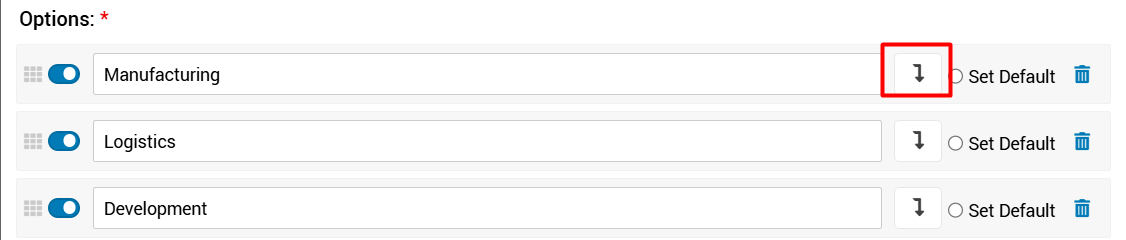
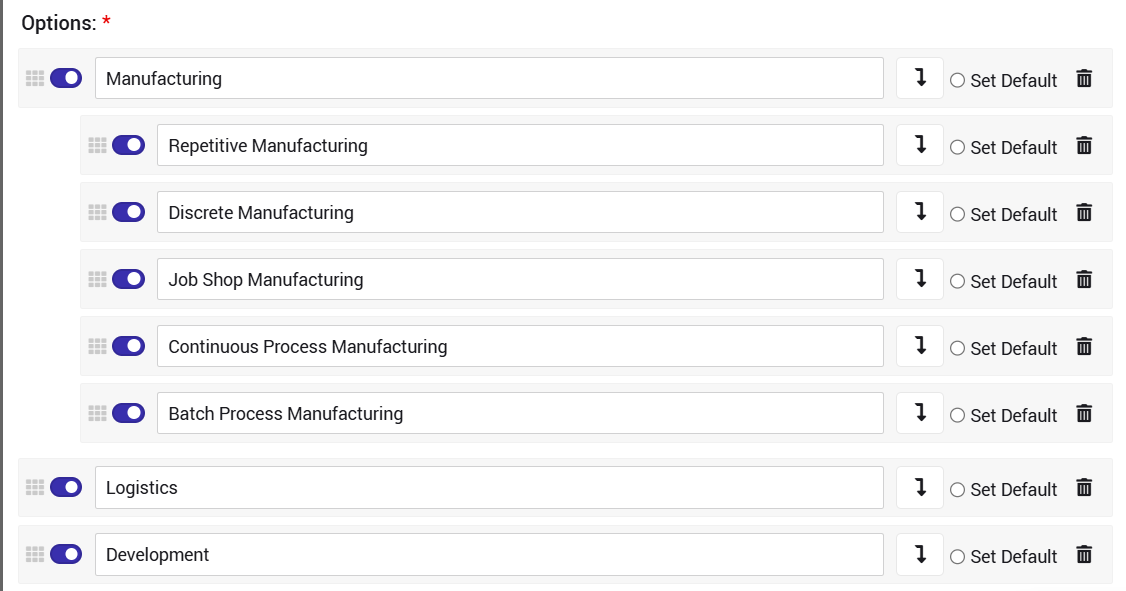
| How to configure | On the selection field setting page, click the arrow highlighted in the image next to the parent option, to add sub options.
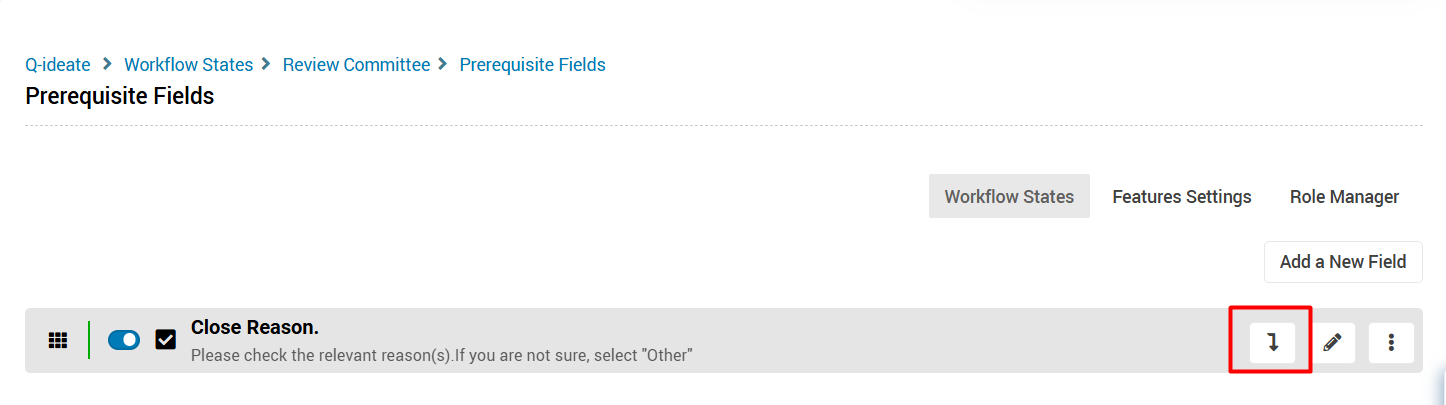
 | On the workflow fields /submission form settings page, click the arrow highlighted in the image, next to the parent field You will be able then to add a child field from any type.
|
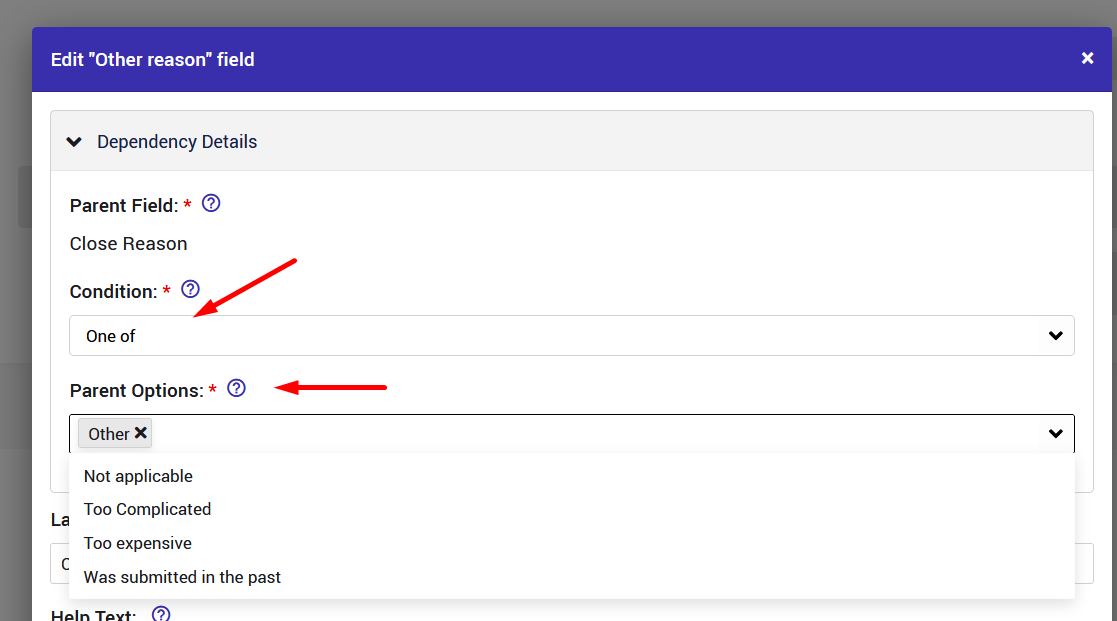
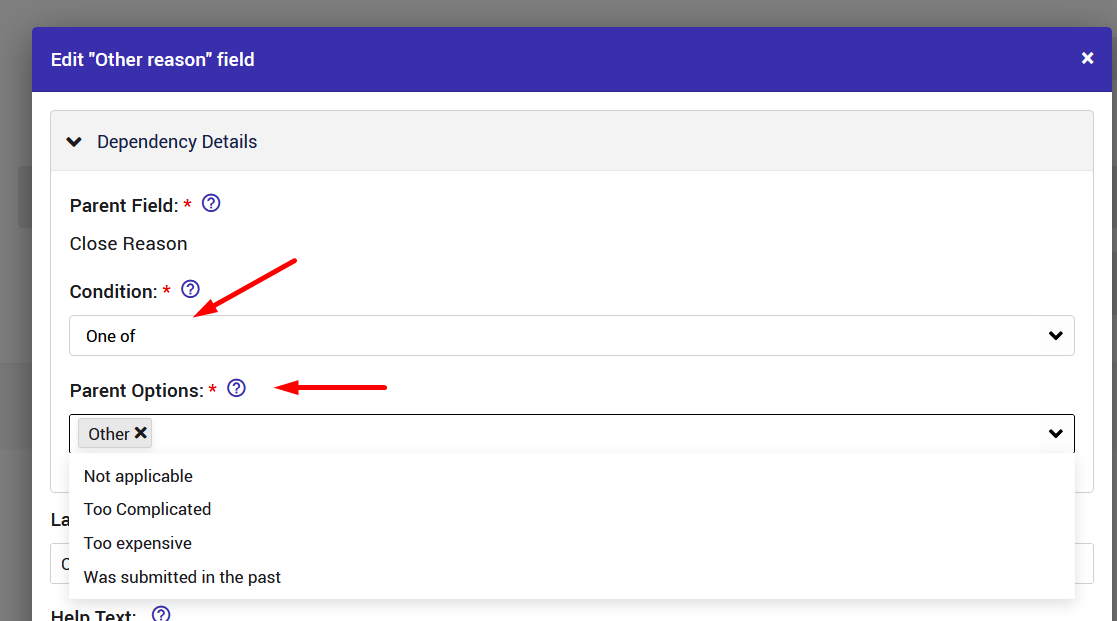
| Example | The hierarchical field will appear in the form only after selecting its parent field. 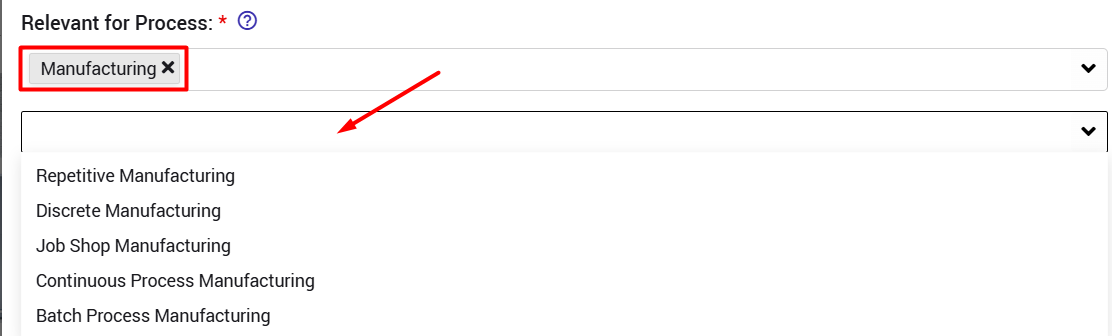 on the idea page it will be displayed in one line. 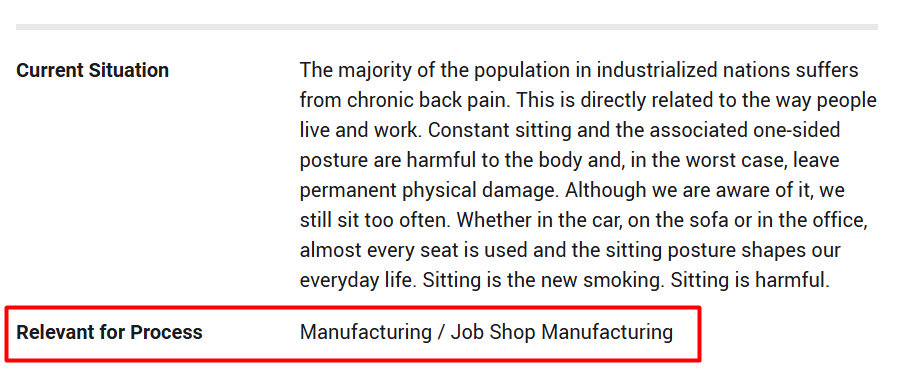 | The dependent field will be displayed or not, based on the selection made in the parent field: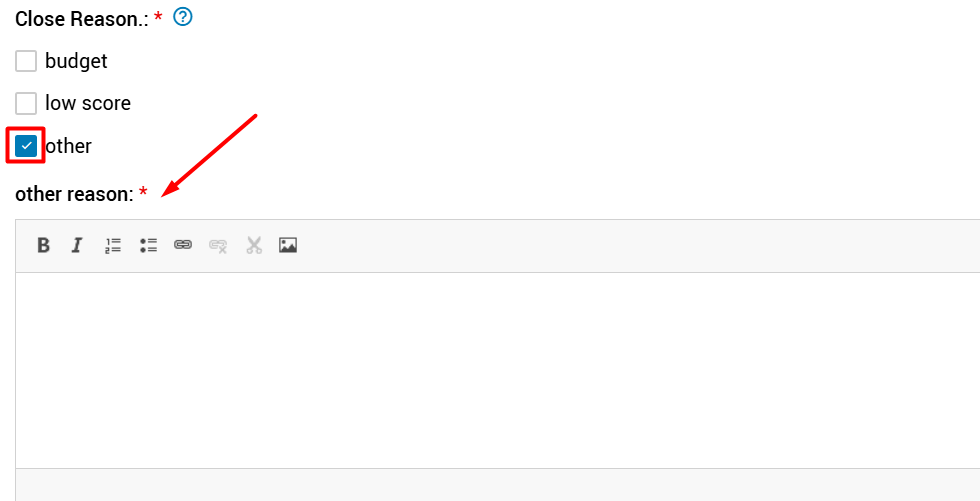 on the idea page, it will be displayed as 2 separate fields:  |
| Advantages | Either configuration that keeps related values grouped in one place, with no need to create/maintain additional fields. | Highly flexible. Supports different field types. Enables dynamic and conditional workflows. |
| Limitations | Hierarchical selections do not support selecting multiple parent options and their children simultaneously.
| No technical limitations |