
Self-Service Data Management for Ideas, Improvements, Projects & More
Overview
The new Import/Update/Delete Tool empowers authorised users to manage large volumes of data directly. Without relying on professional services. For the first time, clients can independently export, modify, and re-import structured records (ideas, improvements, projects, trends, companies, etc.) using a clean Excel workflow.
This brings true self-service data migration, reduces operational friction, and dramatically accelerates innovation program setup and ongoing maintenance.
Please let your CSM know which roles should be use the import tool. There is an option to enable each one of the actions (import, update, delete) to different roles.
✨ Key Benefits
1. Complete Self-Service Data Control
Admins can now perform bulk creation, updates, and deletions of records at any time—no CS involvement required.
2. Simple Excel Workflow
Export your data, update it in Excel, and re-upload using the matching template. The system handles validation, error reporting, and line-by-line processing.
3. Ideal for Initial Migration & Ongoing Maintenance
Perfect for onboarding legacy ideas, cleaning up existing catalogs, performing mass edits, or adjusting campaign assignments.
4. Safe, Traceable & Audited
Every import action is logged with:
performing user
action type (Import / Update / Delete)
template used
timestamp
number of processed lines
full raw data and failure logs
5. Supports All Key Q-ideate Entities
Available for:
Ideas
Improvements
Projects
Trends
Companies
Tasks
Milestones
And any other content type or feature.
✨ How It Works (High-Level Workflow)
0. Make Sure to have the relevant import template(s)
Once you decided your are interested in using the import tool, consult with your CSM what template you need, There should be at list one template per content type.
1. Prepare the excel file you would like to import
The excel must be according to an agreed template between you and your CSM.
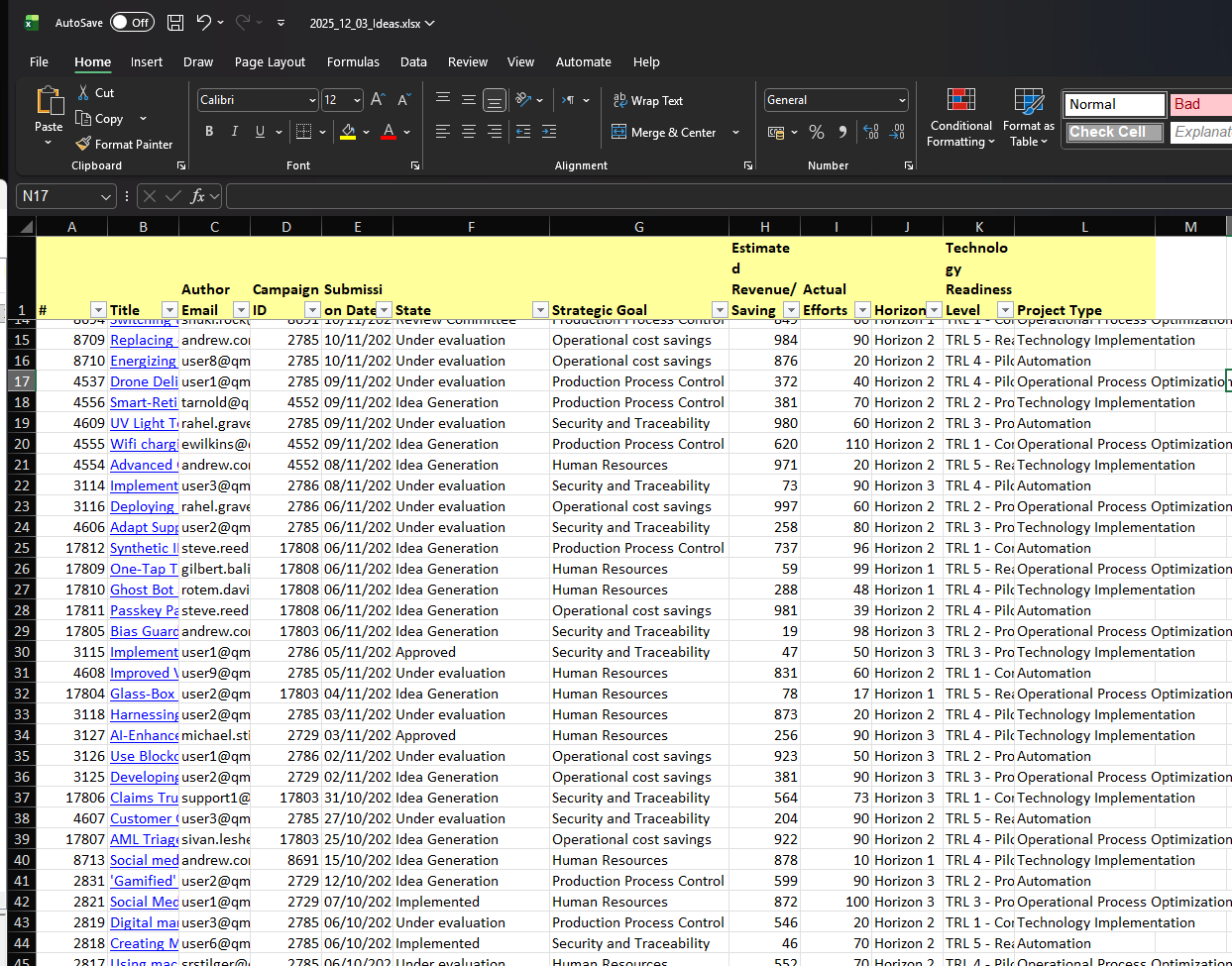
You can start from exporting an exiting page (that is built according to the template) and modify it - **preferred**
OR start from a new excel and insert the relevant rows.
In case you follow the preferred method:
1.1 Export Your Data
Select the relevant template from the Exports menu, and then download it as excel.
1.2 Modify the Excel
Add new rows (for new ideas, improvements, etc.)
Modify existing rows (match by internal ID)
2. Use the tool:
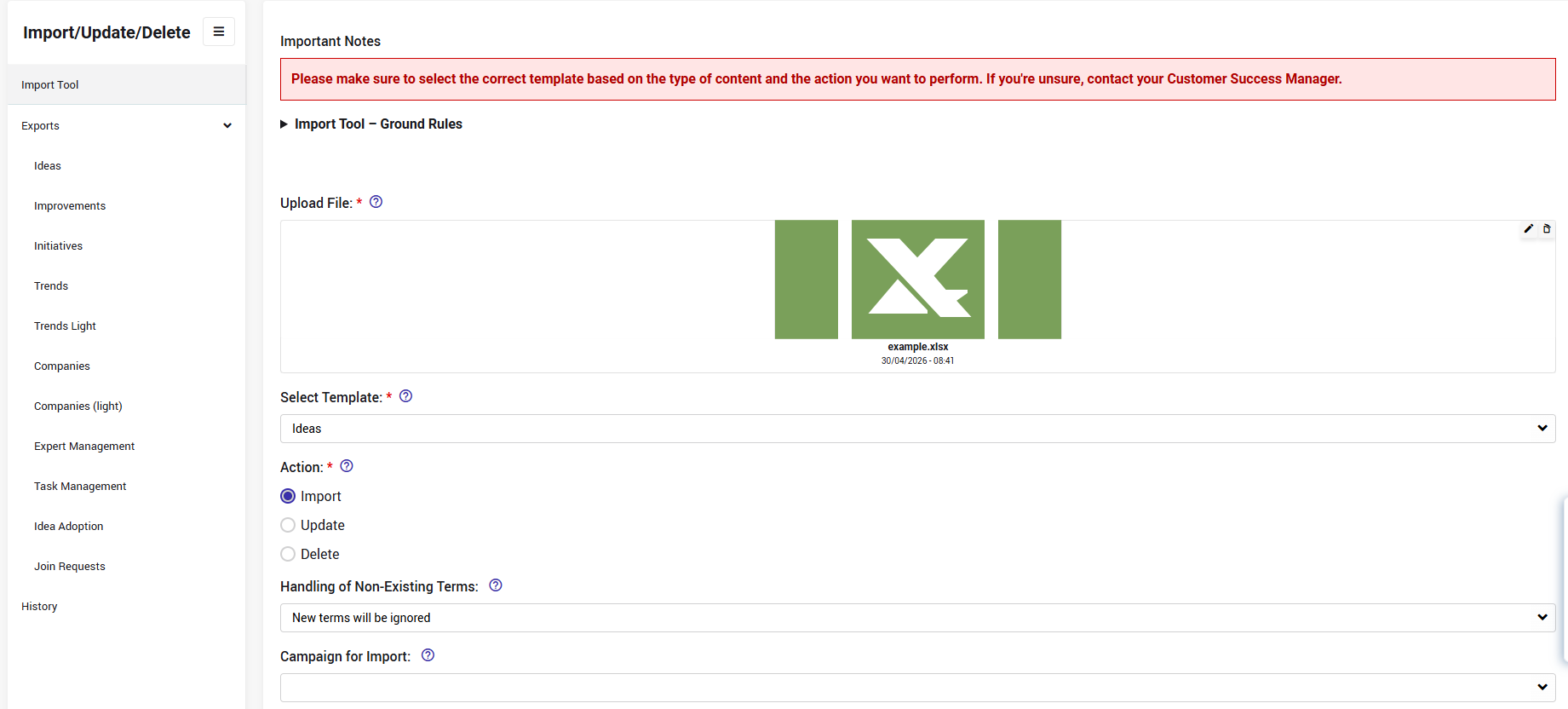
2.1. Upload the relevant file
Upload the Excel file.
2.2. Choose Your Import Action
Select one of the three supported modes:
Import → Add new records
Update → Modify existing records using IDs
Delete → Remove specific records in bulk
*Note: deleted records can be restored by the Qmarkets team
2.3. Decide how to Handle Missing Terms
Define whether new categories/tags should be:
Ignored
Automatically added as valid options to the relevant fields.
2.4. Select the Relevant Campaign
In case you are importing new idea (or SS entities) select the campaign or folder the records will be added to.
If the campaign ID is outlined in the import file, this selection can be left empty.
2.5. Execute the Import/Update/Delete action
3. Review Logs in History
The Self Admin Actions History page provides transparency and troubleshooting through downloadable raw-data logs.
✨ General Guidelines
- The structure (number of columns and order) of the import file must be exactly as the exports of the views
- File upload is limited to 8K rows
- If a field is left empty in update, it will consider it as an empty value
- Node ID
- should be left empty for import action (don't delete the column)
- for update and delete you must have it
- Campaign for imports:
- Can be set as part of the import action to a single campaign
- Can be set per node (using a column in the file) with the campaign ID.
- Users:
- User fields need to have the user’s email
- If Author field is empty or user wasn’t found in the system, the acting user will be assigned as the author of the imported node
- Author can’t be changed after import by the tool
- Dates:
- Dates should be in the system format when adding to the file
- If a date is not valid – it will remain empty
- If the submission date is empty or not valid it will take the current time of the action
- States:
- States need to be added in the file in the exact way they appear in the system.
- If a state is not valid or empty, the first state in the workflow will be taken.
- Selection Fields:
- Delimiters for selection fields will be exported in the excel and should be in the same format in the uploaded file
- Delimiters for multiple are ||
- Delimiters for hierarchy are ~~
- Terms/options that are already disabled in the subsystem configuration will not be imported by default.
In case you do want them to be imported, please contact Qmarkets support.
- Delimiters for selection fields will be exported in the excel and should be in the same format in the uploaded file
✨ Limitations
The following are not supported from the tool:
- Files
- interconnectivity
- computed fields
- parent ideas (duplicated)
✨ Ideal Use Cases
Migrating historic ideas from legacy platforms
Preparing initial datasets during implementation
Regular data cleanup
Reassigning ideas to new campaigns
Updating statuses or metadata in bulk
Managing taxonomy adjustments at scale
✨ Business Impact
This feature significantly improves the agility of innovation teams by enabling faster setup, rapid data maintenance, and reduced dependency on external support. Ultimately accelerating time-to-value across enterprise-scale idea ecosystems.