
Overview
This guide explains how to connect Power Automate to the Qmarkets REST API in order to:
Authenticate securely
Upload a file to an idea
Attach the uploaded file to the idea
Make general API calls such as GET, POST, and PATCH
You do not need to write code.
A complete, ready-to-use template is available at the end of this article. It contains all the technical configuration, expressions, and JSON needed.
This guide focuses on the concepts so you understand what the template is doing and how to adapt it.
1. How the Process Works (High Level)
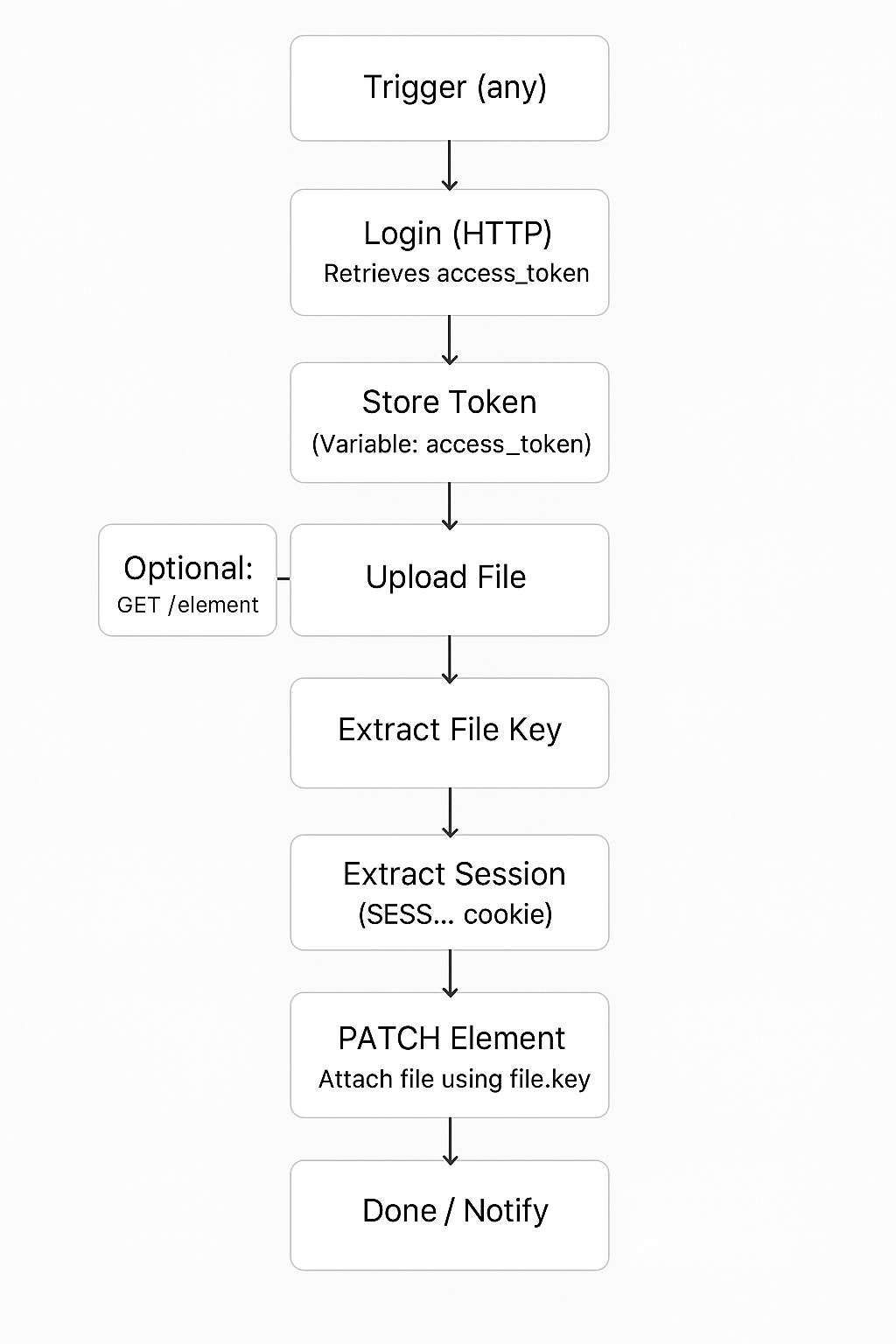
Below is the flow your automation will follow:
Get an access token
This is your “key” for calling the Qmarkets API. It’s generated using OAuth2 with your client ID and client secret.Receive a file from Power Automate
For example: a user uploads a document or image into the flow.Upload the file to Qmarkets
Qmarkets receives the file and returns a special file key that represents it.Attach the file to an idea
The file key is sent in an update request, which attaches the file to the correct field on the idea.
Everything above is already built into the provided template.
You only need to plug in your client ID, client secret, and idea/element ID.
High-Level Diagram
2. What You Need Before You Start
You will receive the following from Qmarkets:
Your OAuth2 client ID
Your OAuth2 client secret
The portal API URL
The ID of the idea/element you want to update
The email of the user on whose behalf you perform the API action (for audit and permissions)
You will also need:
Access to Power Automate Premium (required to use HTTP actions)
Permission to create a new cloud flow
3. What the Template Does for You
The template already includes:
✔ Secure authentication
It automatically requests an OAuth2 access token and stores it for reuse.
✔ File upload
The flow receives a file from Power Automate and uploads it to Qmarkets.
✔ File key extraction
Qmarkets returns a “file key” that identifies the uploaded file. The template extracts it automatically.
✔ Session handling
The Qmarkets API requires file upload and idea update to happen within the same session.
The template automatically captures the session cookie and reuses it for the update.
✔ Update request to attach the file
The template sends the file key to Qmarkets, attaching the uploaded file to the idea’s field.
✔ Error handling
If anything goes wrong (invalid token, wrong idea ID, incorrect file field), the flow returns clear error information.
4. What You Need to Customize
Once you import the template, ask for the following parameters from Qmarkets representative and adjust accordingly:
| Placeholder | Description | Where to update |
|---|---|---|
| client_id | Your API credentials | Access Token > Body |
| client_secret | Your API credentials | Access Token > Body |
| yourdomain.com | Your actual domain | File Upload / Update Element > URI |
| 1000 | Element ID your are updating (idea, campaign) | File Upload / Update Element > URI |
| field_auto_attachments | Machine name of the field your are updating | File Upload / Update Element > Body |
| api_user@org | Optional, real system user with access to API | File Upload / Update Element > Queries |
5. Using The Template
Once the template is customized:
Trigger the flow
(for example via a Power Automate button, form, or another system)Select or upload a file
The flow:
Authenticates automatically
Uploads the file
Attaches it to the idea
Returns a success message
The file will appear inside Qmarkets under the configured field.
No additional configuration needed.
6. Example Use Cases
1. Automatically create ideas from external forms
Example:
A customer has a Microsoft Forms / Google Forms / SurveyMonkey form.
Every time someone submits an idea, a new Qmarkets idea is automatically created.
2. Create ideas from SharePoint or Teams channels
Customers often track innovation suggestions in SharePoint lists or Teams messages.
Power Automate can detect new content and instantly create matching ideas in Qmarkets.
3. Convert tickets or cases into ideas
Useful for departments that use:
ServiceNow
Zendesk
Freshdesk
Jira
When an employee logs a “suggestion” ticket, it becomes a new idea in Qmarkets.
4. Create scouting records from external databases
When analysts discover new startups or partners in:
Crunchbase
PitchBook
Internal CRM
They create new scouting items in Qmarkets automatically with metadata pre-filled.
5. Create improvement projects from existing systems
If an organization uses:
SAP QM
Workday
Jira
They can trigger automatic creation of Qmarkets improvement tasks or project items when a process deviation or audit finding is logged.
6. Launch ideas from IoT or production alerts
In Industry 4.0 environments, alerts from an IoT sensor or BI dashboard can generate improvement opportunities in Qmarkets.
7. Bulk import new ideas from scheduled tasks
Nightly/weekly batch jobs can create dozens or hundreds of ideas automatically from CSV, Excel, or databases.
8. Create an idea, then attach files
For example:
A SharePoint form uploads a document
Flow creates the idea
Flow uploads the file
Flow attaches it to the idea
9. Create an idea, then enrich it with AI
Customers often:
Create the idea
Run external AI analysis
Update SWOT, risks, pros/cons, summaries
10. Create a scouting record, then fill in company information
For example:
Create a startup record
Enrich with API data (Crunchbase, LinkedIn, Google Places)
Update fields like team size, funding stage, categories
11. Update statuses automatically
A very common use case.
For example:
Move ideas from “Submitted” to “Under Review” when a workflow triggers
Mark an idea as “Implemented” after another system confirms completion
12. Sync idea fields with data from external systems
Examples:
Cost savings entered in SAP automatically update a field in Qmarkets
Market size data pulled from an API fills analysis fields
AI evaluation scores from another tool are written back into the idea
13. Auto-fill additional details after creation
Customers often create an idea first, but then update it with more information:
Attachments
Category
Department
Initial evaluation score
Tags / labels
This is especially common for integrations.
14. Add evaluation results or scoring
When external evaluators or ML models score ideas, Power Automate can PATCH the score fields.
15. Append or replace attachments
Now that file upload works, customers can:
Add project charters
Add technical drawings
Upload images
Add pitch decks
Overwrite old attachments
16. Update decision fields
Decision-making systems (workflow tools, committees, approvals) can update:
Decision status
Assigned manager
Approved budget
Time estimates
Feasibility rating
Example:
“When a committee decision is logged in SharePoint, update the idea in Qmarkets automatically.”
17. Sync with HR or employee data
When employee information changes:
Department changes
Manager updates
Role changes
Power Automate can PATCH existing ideas so the data stays consistent.
18. Add comments or additional context
If your integration collects commentary or extra notes, these can be added to a Qmarkets long-text field automatically.
19. Update project progress
For improvement and implementation modules:
Jira or Azure DevOps updates project progress
Qmarkets fields are updated with percentage completion, dates, blockers, etc.
7. Troubleshooting (Simple Quick Guide)
| Issue | What it means | How to fix |
|---|---|---|
| File doesn’t appear in Qmarkets | Usually the update did not use the same session as the upload | Make sure the provided template is used. It handles this automatically. |
| “Unauthorized” or “Invalid token” | Wrong client ID / secret | Re-enter the credentials in the Access Token step. |
| Flow runs but nothing updates | Wrong idea ID or wrong field machine name | Verify the ID and the field machine name with your Qmarkets contact. |
| Upload step returns an error | File body was not consumed correctly | Use the template’s existing Compose step (it already handles this). |
8. Download the Ready-Made Template
Download and import it directly into Power Automate, plug in their credentials, and start using it immediately.
We strongly recommend using the template rather than recreating the flow manually.
It ensures that all technical requirements (token handling, session cookie extraction, multipart file upload) are configured correctly.