
This article of for Challenge Creators and Managers.
System and Subsystem Administrators - Refer to this article to learn how to specify which fields are flexible)
As Challenge creators you can find yourselves in situations where they need to modify or refine text labels and help texts in the submission form of your challenge/campaign in order to improve guidance for submitters, leading to more precise and relevant submissions.
The most common flexible fields will be from type Text or Static Text, but it can also be applied to numeric, date and user fields.
How to adjust flexible field in your challenge submission from
- Go to the "Submission Form" step in the challenge creation wizard
- Look for the flexible fields.
Usually, these fields will have specific labels like "Flexible Text Field" or "Adjustable Numeric Field". - The flexible fields cab be displayed in 2 ways:
- Fields that are not selected yet and available to be added to the submission form.
In this case, you will select what type of field you would like to add.
When you will click the + icon, you will be required to fill the label and help text you would like yo have for this field in your challenge.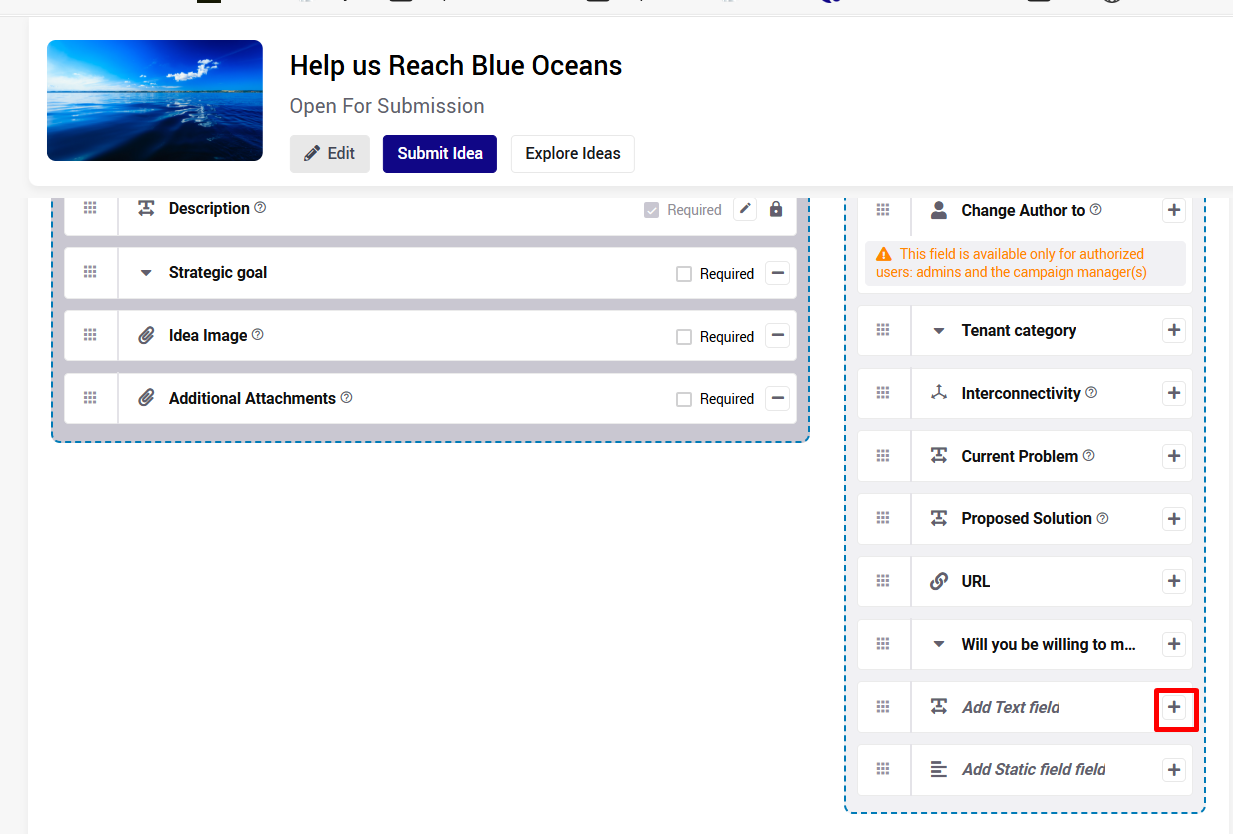
- Fields that are already selected and have a "edit" icon next to them
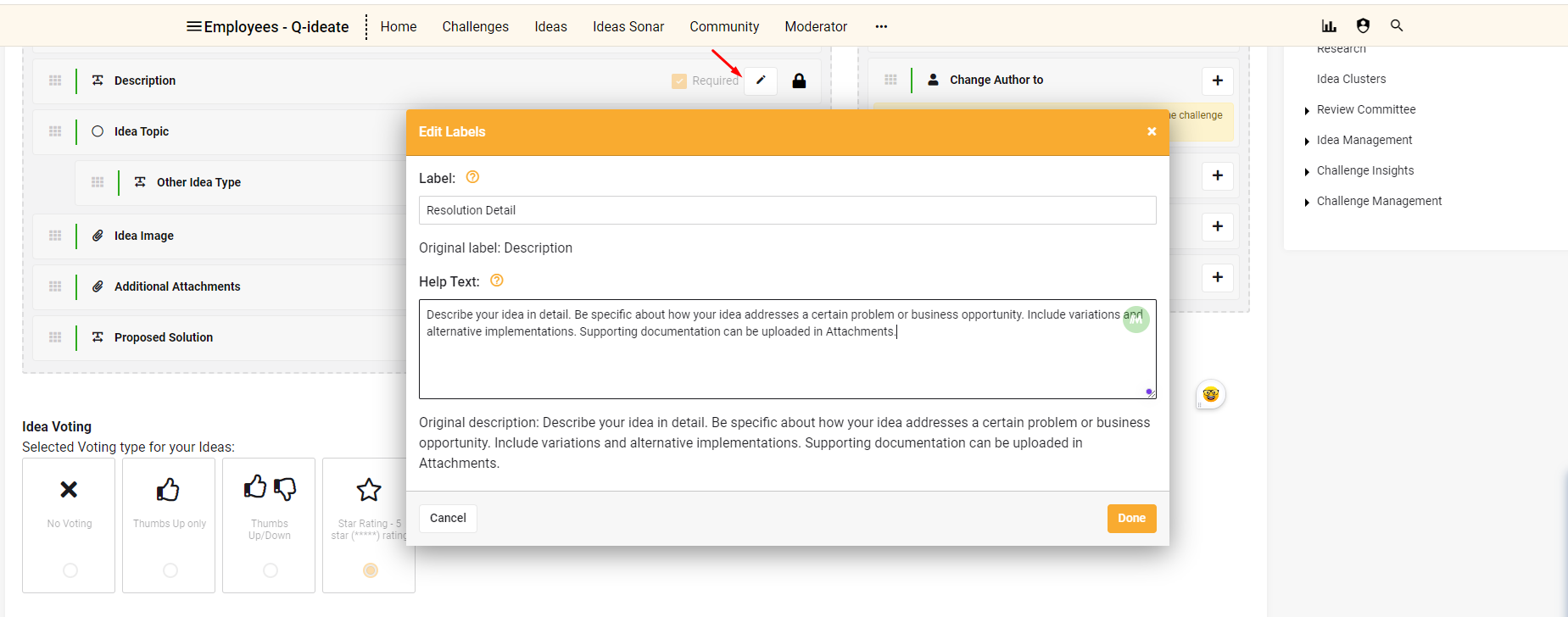 In this case, just click the icon and modify the label and help text as necessary.
Note that usually the main description field which is displayed next to the title in many places, also has a flexible label: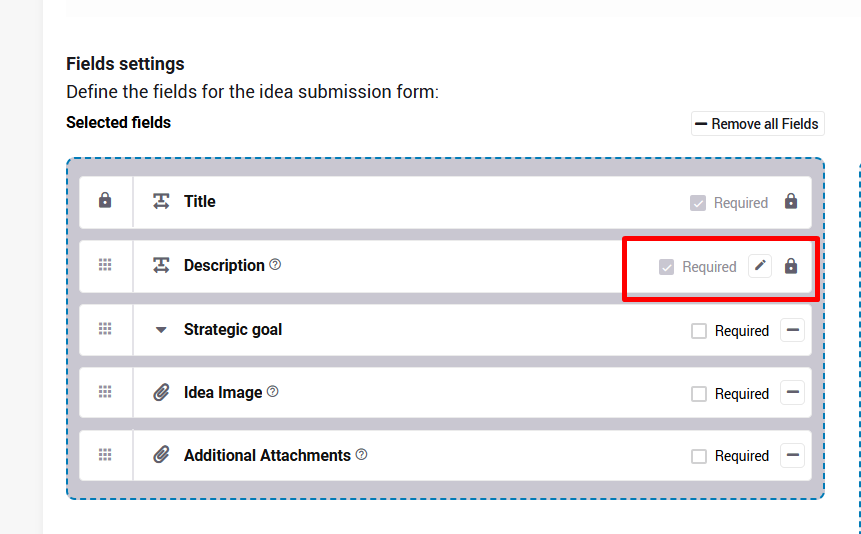
- Fields that are not selected yet and available to be added to the submission form.
- Click "Done" and finalize your changes in the Challenge Wizard
Verifying the Impact of Your Changes
- Select "Submit Idea" within the relevant challenge
- Ensure that both the label and help texts have been updated as anticipated

The challenge-specific labels are being used within the challenge and its reports.
For all system-wide reports and tracking pages, the default field label is being used.