
This guide will show sysadmins how they can manually add users to their system. In environments where there is automated user update processes established, manually added users MUST be part of next user provisioning or risk being blocked automatically.
1. From Main Menu, click on "Settings".
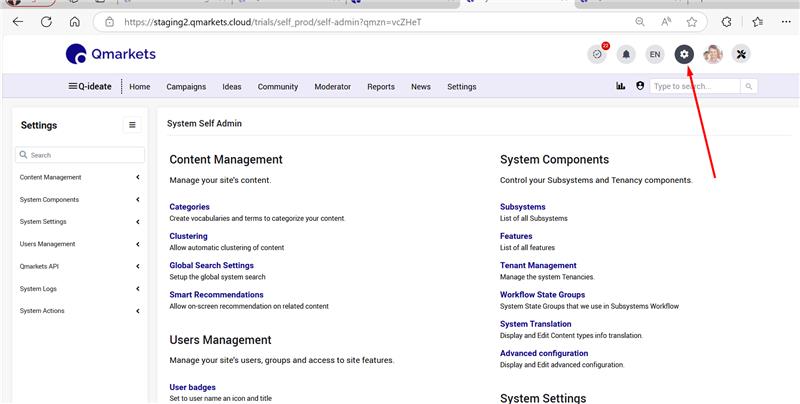
Then, click on "Users".
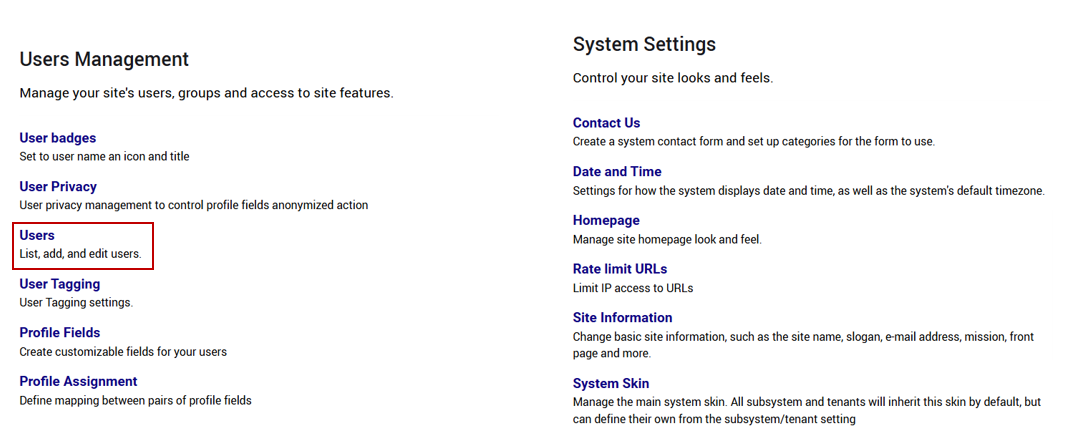
2. On the upper right side, click on "Add user"

3. Fill in the Account information. User must be unique and username must follow established convention used with other users (email, network ID, employee ID, etc...).
Note: The password input is required, but it's not needed for user types that use SSO, so in case the user will login via SSO, just insert any password you want. There is no need to share it with anyone.

Depending on configuration, you may have other fields in "Personal Information" associated to profile. All fields with a red asterisk must be filled in.
